JSONL Formatter — Free Online JSON Lines Validator & Viewer
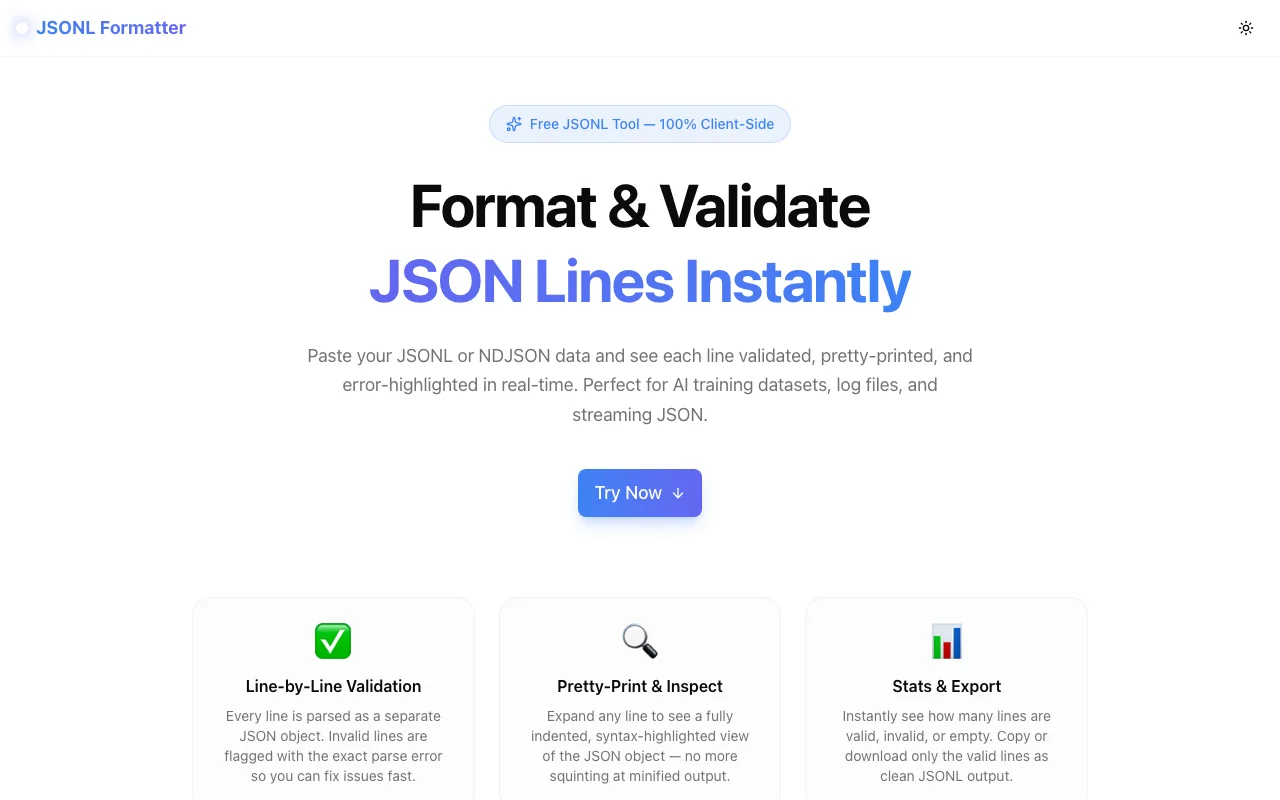
Validate, format, and inspect JSONL / NDJSON files line-by-line in your browser. No upload, no server, no login — see exactly which lines are broken and why.
JSONL Formatter — Free Online JSON Lines Validator & Viewer
JSON Lines (JSONL) is one of those formats that looks trivially simple — one JSON object per line — until you need to debug it. This free browser-based tool validates each line independently, highlights errors with exact parse messages, and lets you inspect every record with a click.
What is JSONL (JSON Lines)?
JSONL, also called NDJSON (Newline-Delimited JSON), is a text format where each line is a complete, self-contained JSON object:
{"id":1,"name":"Alice","role":"engineer","active":true}
{"id":2,"name":"Bob","role":"designer","active":false}
{"id":3,"name":"Carol","role":"product","active":true,"tags":["growth","b2b"]}
Unlike regular JSON — which wraps everything in a single [...] array — JSONL lets you process records independently. You don't need to load the entire file into memory; you can stream it line by line.
That's why JSONL is the format of choice for:
- AI/ML training datasets (OpenAI fine-tuning, Llama instruction tuning)
- Structured log files (pino, winston, structlog)
- Streaming API responses (Elasticsearch scroll, ClickHouse HTTP)
- Big data exports (Snowflake, BigQuery, dbt seeds)
What does a JSONL validator do?
A JSONL validator parses each line as an independent JSON object and reports whether it is valid or invalid. This is different from a JSON validator, which treats the entire input as a single document.
Because standard JSON.parse in JavaScript (and its equivalents in Python, Go, etc.) processes one value at a time, JSONL validation is naturally line-by-line. The challenge is surfacing results clearly: which lines passed, which failed, and exactly what the error is.
How to validate JSONL online — step by step
Step 1: Paste your JSONL data
Open JSONL Formatter and paste your JSON Lines content into the input area. You can paste anything from a single line to thousands of records.
Step 2: Click "Validate & Format"
The tool parses every line simultaneously. Results appear instantly — no server round-trip, no waiting.
Step 3: Review the stats and line list
A stats bar shows:
- Total lines in the input
- Valid lines (green)
- Invalid lines (red)
- Empty lines (grey, ignored)
Below the stats, every line is listed with its status icon.
Step 4: Expand invalid lines to see the error
Click any invalid line to see the exact parse error: Unexpected token 'n' at position 12 or Expected ',' or ']' after array element. No guessing where the problem is.
Step 5: Export clean output
Click Copy valid to copy only the valid lines to clipboard, or Download .jsonl to save a valid-lines.jsonl file. You get a clean file you can upload or process without the broken lines.
Why does JSONL validation fail silently?
The silent failure problem
Most tools that consume JSONL — model fine-tuning APIs, log aggregators, data loaders — don't tell you which line failed. They report something like:
Error: invalid JSONL on line 847
But they don't show you what line 847 looks like, what the parse error was, or how many other lines might also be broken.
Common JSONL errors
Trailing comma:
{"name": "Alice", "score": 98,}Standard JSON doesn't allow trailing commas. Many code generators add them by mistake.
Single quotes instead of double quotes:
{'name': 'Alice', 'score': 98}Python dictionary repr() output uses single quotes. JSON requires double quotes.
Unescaped control characters:
{"message": "Error: line
break in value"}
A literal newline inside a JSON string breaks the line boundary. It must be \n.
Truncated line:
{"id": 1, "data": {"nested": trueA file write interrupted mid-line leaves a dangling open brace. The parser has no way to recover.
BOM character:
Some Windows tools prepend a UTF-8 BOM () to the first line, which breaks JSON parsing before the first {.
How is JSONL different from JSON?
| Feature | JSON | JSONL |
|---|---|---|
| Structure | Single document ({} or []) | One object per line |
| Streaming | Requires full document | Line-by-line |
| Invalid line | Entire document fails | Only that line fails |
| Memory | Full file in memory | Can process line-by-line |
| Tooling | Universal | Specialist |
For large datasets, JSONL is almost always the right choice. For API responses that return a single object, JSON is fine. The problem comes when JSON tools are applied to JSONL data — they fail because the multi-line JSONL content isn't valid as a single JSON document.
Can I use this to validate OpenAI fine-tuning data?
Yes. OpenAI's fine-tuning API expects JSONL where each line contains a messages array:
{"messages": [{"role": "system", "content": "You are a helpful assistant."}, {"role": "user", "content": "What is JSONL?"}, {"role": "assistant", "content": "JSONL is a format where each line is a valid JSON object."}]}Before uploading to OpenAI, paste your fine-tuning file into JSONL Formatter. You'll immediately see:
- How many lines are valid
- Which lines are malformed and why
- A clean download of only the valid lines
This is faster and more informative than waiting for the OpenAI API to reject your file after a slow upload.
Is my data private?
Yes, completely. JSONL Formatter runs entirely in your browser using JavaScript. Your data:
- Is never uploaded to any server
- Is never logged or stored
- Is never sent to a third party
You can safely paste fine-tuning datasets containing personal data, proprietary text, or API responses with credentials. The data stays in your browser tab and is gone when you close it.
JSONL vs NDJSON — what's the difference?
Nothing. NDJSON (Newline-Delimited JSON) and JSONL are the same format — one JSON value per line, separated by \n. The names are used interchangeably. Some communities prefer NDJSON (common in geospatial tools and ClickHouse), others prefer JSONL (common in AI/ML). This tool handles both.
What file size can the tool handle?
Since processing is client-side, performance depends on your device's browser and available RAM. In practice:
- Up to ~5,000 lines: instant results
- 5,000–50,000 lines: a second or two
- 100,000+ lines: consider splitting the file first with
split -l 50000 file.jsonl
For very large files, the line-by-line approach means even partial validation is useful — you can process chunks and fix errors incrementally.
Try it now
Paste your JSONL data and see exactly what's valid, what's broken, and why.
Free. No login. No upload. Works in your browser.
Related tools
- JSON Formatter — format and validate standard JSON
- JSON Diff Viewer — compare two JSON documents
- JSON Path Finder — query JSON with JSONPath expressions
- YAML ↔ JSON Converter — convert between YAML and JSON