ANSI Color Code Generator: Stop Memorizing Escape Codes and Start Picking Colors
Learn what ANSI escape codes are, how 8-color, 256-color, and true-color (RGB) modes differ, and how to generate terminal styling codes instantly for bash, Python, and Node.js — no memorization required.
ANSI Color Code Generator: Stop Memorizing Escape Codes and Start Picking Colors
Every developer who has written a shell script or CLI tool has Googled "ANSI color codes" at least once. Probably more. Because the syntax is not intuitive, the three different modes use completely different formats, and forgetting a reset code turns your entire terminal magenta.
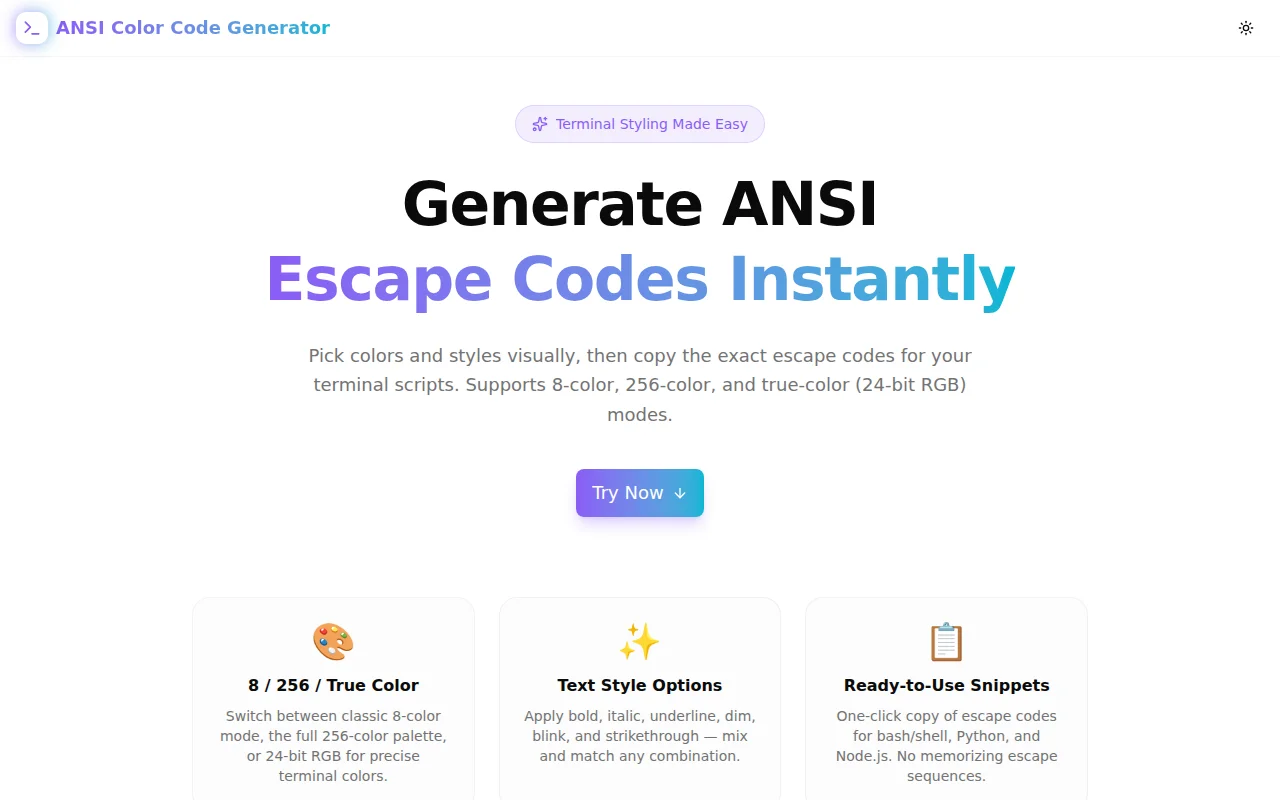
We built ANSI Color Code Generator to fix that. Pick colors visually, toggle styles, and copy the exact escape sequences for bash, Python, or Node.js — in under 10 seconds.
What Are ANSI Escape Codes?
ANSI escape codes are byte sequences that terminal emulators interpret as formatting instructions rather than printable characters. They were standardized by the American National Standards Institute (ANSI) in the 1970s and have been part of terminal emulation ever since.
The basic format is:
ESC [ <parameters> m
Where ESC is the escape character (byte 0x1B, written as \033 in octal or \e in some shells), [ introduces the CSI (Control Sequence Introducer), parameters are semicolon-delimited numeric codes, and m terminates the SGR (Select Graphic Rendition) sequence.
A reset looks like \033[0m. Bold red text is \033[1;31m. The reset at the end is critical — without it, every character printed after your styled output inherits the last style applied.
What Is the Difference Between 8-Color, 256-Color, and True-Color Modes?
This is where most developers get confused, because the three modes use completely different syntax.
8-Color Mode: The Universal Baseline
The original ANSI palette has 8 colors plus 8 bright variants — 16 total. The codes are:
- Foreground:
\033[30m(black) through\033[37m(white) - Bright foreground:
\033[90mthrough\033[97m - Background:
\033[40mthrough\033[47m - Bright background:
\033[100mthrough\033[107m
8-color mode has maximum terminal compatibility. It works on ancient systems, embedded consoles, serial terminals, and environments where you cannot assume modern terminal support. If you're writing a script that might run anywhere, start here.
256-Color Mode: The Extended Palette
The 256-color extension adds a structured palette of 256 colors addressable by index:
- Colors 0–15: the standard 16 ANSI colors (identical to 8-color mode)
- Colors 16–231: a 6×6×6 RGB color cube (216 colors)
- Colors 232–255: a 24-step grayscale ramp
The syntax uses a three-part prefix:
# Foreground color 196 (red in the cube)
echo -e "\033[38;5;196m Red text \033[0m"

# Background color 22 (dark green)
echo -e "\033[48;5;22m Green background \033[0m"
The 38;5;N pattern means "set foreground color, mode 5, index N." The 48;5;N pattern is the background equivalent. This is supported by virtually every terminal emulator released in the last two decades, including the default terminals on macOS, Ubuntu, and Windows 10+.
True Color (24-Bit RGB): Full Color Spectrum
True-color support uses direct RGB values:
# Bright orange foreground
echo -e "\033[38;2;255;140;0m Orange text \033[0m"

# Dark navy background
echo -e "\033[48;2;15;20;40m Navy background \033[0m"
The 38;2;R;G;B pattern accepts any RGB value from 0–255. This gives you over 16 million colors — the full sRGB gamut.
Modern terminals that support true-color include iTerm2, Alacritty, Kitty, Windows Terminal, GNOME Terminal 3.x+, Konsole, and recent tmux versions. You can detect support by checking if $COLORTERM is set to truecolor or 24bit.
How Do I Apply Multiple Styles at Once?
Styles and colors combine by separating their codes with semicolons in a single escape sequence. The order within the sequence does not matter — all codes take effect simultaneously.
# Bold + italic + foreground color 196
echo -e "\033[1;3;38;5;196m Styled text \033[0m"
The standard SGR style codes are:
| Code | Effect | |------|--------| | 0 | Reset all | | 1 | Bold | | 2 | Dim | | 3 | Italic | | 4 | Underline | | 5 | Blink (slow) | | 9 | Strikethrough |
How Do I Use ANSI Codes in Python?
Python's print() function interprets \033 escape sequences inside regular strings — no imports required:
print(f"\033[1;32m Success: task completed \033[0m")
print(f"\033[91m Error: connection refused \033[0m")
print(f"\033[38;2;255;165;0m Warning: disk at 85% \033[0m")
For Windows compatibility (Python 3 on cmd.exe and older PowerShell), use colorama:
import colorama
colorama.init()  # enables ANSI support on Windows
print(f"\033[92m Done! \033[0m")
colorama is a drop-in compatibility layer — it intercepts ANSI codes on Windows and calls the Win32 console API. On Unix systems it passes strings through unchanged.
How Do I Use ANSI Codes in Node.js?
Node.js uses \x1b (hex) rather than \033 (octal) in template literals:
console.log(`\x1b[1;34m Bold blue text \x1b[0m`);
console.log(`\x1b[38;2;255;80;80m Salmon text \x1b[0m`);
Both \033 and \x1b represent the same escape character (byte 0x1B). The difference is notation style — \x1b is conventional in JavaScript, \033 in bash and Python.
In CI environments or when piping output to files, color is often stripped. Force colors with FORCE_COLOR=1 node your-script.js or check process.env.FORCE_COLOR.
Do ANSI Codes Work on Windows?
Yes — with some nuance.
Windows Terminal (the modern default on Windows 11 and installable on Windows 10) has full ANSI support, including 256-color and true-color.
Windows Console (conhost.exe) added ANSI support in Windows 10 version 1511 (November 2015). However, it must be enabled via ENABLE_VIRTUAL_TERMINAL_PROCESSING in the Win32 console API. Most modern frameworks handle this automatically.
cmd.exe is the weakest link — it does not enable ANSI processing by default. colorama.init() in Python or a library like chalk in Node.js handles this for you.
What Is the Reset Code and Why Does It Matter?
\033[0m resets all text attributes — foreground color, background color, bold, italic, underline, everything — back to the terminal's default.
Always end styled text with a reset. Without it, every subsequent character inherits the last applied style:
# Wrong — the terminal will stay red after this line
echo -e "\033[31m Error: something went wrong"
echo "This line is also red (unintended)"

# Right — styles are contained to this line
echo -e "\033[31m Error: something went wrong \033[0m"
echo "This line is normal"
ANSI Color Code Generator always appends \033[0m to generated snippets so you never forget the reset.
How Can I Check Whether My Terminal Supports True Color?
Check the COLORTERM environment variable:
echo $COLORTERM
# Outputs: truecolor  (or '24bit' on some terminals)
If it is truecolor or 24bit, true-color support is confirmed. If it is empty or 256color, fall back to 256-color mode.
Some terminals also set TERM to xterm-256color or screen-256color for 256-color support, and TERM=xterm-direct for true-color.
Building CLI Tools That Look Professional
Terminal output with thoughtful color use is more readable, faster to scan, and feels more polished. A few patterns that work well:
Status levels: Use a consistent color mapping — green for success, yellow for warnings, red for errors. Keep it to 8-color mode for maximum compatibility, or 256-color for richer UI.
Structured output: Use bold for labels, normal weight for values. Dim for secondary information. This creates a visual hierarchy without resorting to tables.
Progress indicators: A colored progress bar using block characters and ANSI colors is more informative than a spinner alone.
Contextual highlighting: When displaying file paths, highlight the filename differently from the directory. When showing diffs, red for removals and green for additions (with a non-color differentiator for accessibility).
Try ANSI Color Code Generator
ansi-color-code-generator.tools.jagodana.com — free, instant, no account required.
Pick a color mode (8-color, 256-color, or true-color RGB), select foreground and background colors, toggle styles, and copy the escape codes in the language you're working in. The live terminal preview shows exactly what your styled text will look like before you paste it anywhere.
The built-in quick reference panel keeps the most common codes at hand so you never have to leave the tool to check a format.
Built for the 365 Tools Challenge — one free developer tool every day.