Chrome Extension Manifest V3 Generator — Build Your manifest.json in Seconds
Generate a valid Chrome Extension Manifest V3 JSON file instantly. Learn how to use the free Chrome Extension Manifest Generator to pick permissions, configure content scripts, and set up a service worker — no signup needed.
Chrome Extension Manifest V3 Generator — Build Your manifest.json in Seconds
Every Chrome browser extension starts with a single file: manifest.json. This file tells Chrome everything about your extension — its name, version, the permissions it needs, whether it injects scripts into pages, and what runs in the background.
In 2023, Google made Manifest V3 the only accepted version for new Chrome Web Store submissions. V3 introduced meaningful structural changes from V2: background pages became service workers, permissions were split into permissions and host_permissions, and browser_action / page_action merged into a single action key.
Most developers building their first Chrome extension spend more time getting the manifest right than writing the actual extension logic. We built Chrome Extension Manifest Generator to eliminate that friction.
What Is the Chrome Extension Manifest Generator?
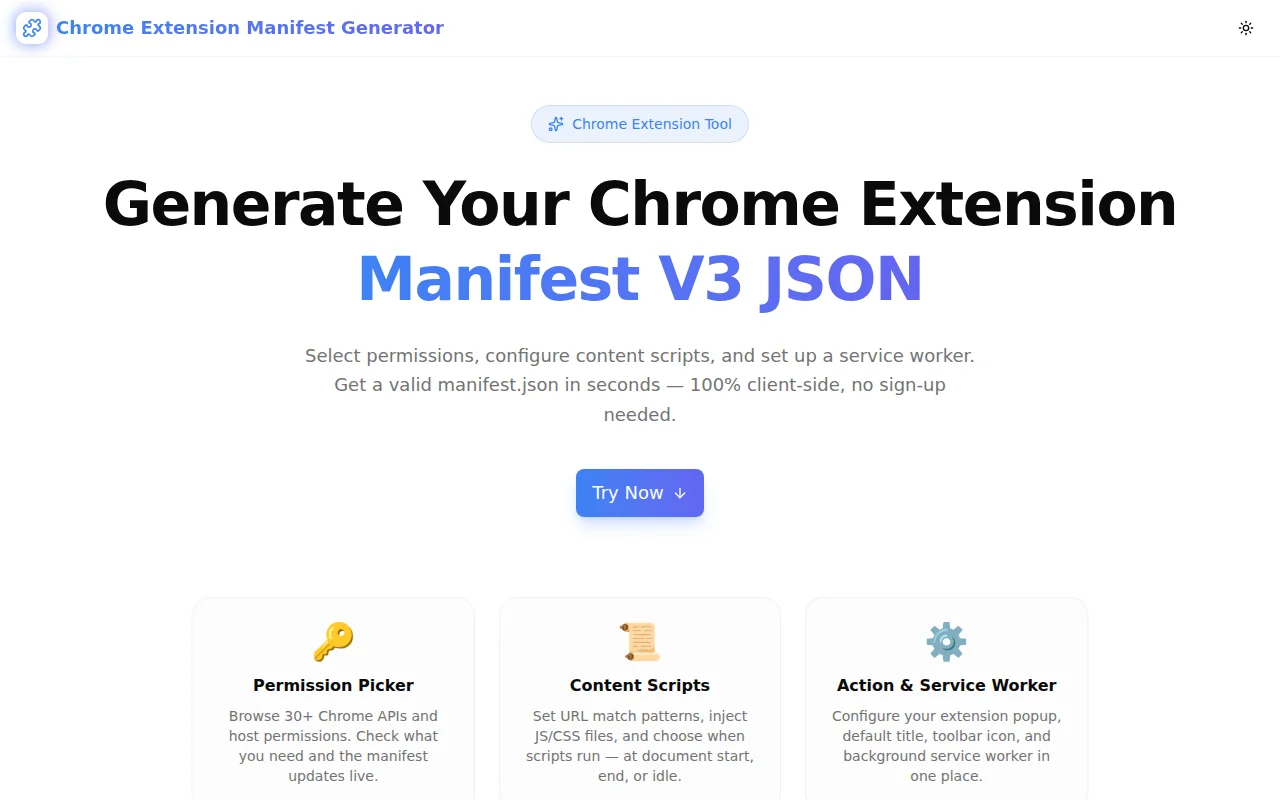
Chrome Extension Manifest Generator is a free, browser-side tool that produces a valid manifest.json for Chrome extensions. You fill in a form — extension name, permissions, content script config, service worker path — and a live JSON panel shows the complete manifest as you type.
No signup. No server calls. Copy and paste the output into your project.
How Do You Generate a Chrome Extension Manifest V3?
Step 1: Fill in Basic Extension Info
Enter your extension name, version (e.g., 1.0.0), and a short description. The manifest_version field is always set to 3 — you cannot submit a Manifest V2 extension to the Chrome Web Store anymore.
Step 2: Select the Permissions Your Extension Needs
The permission picker shows 40+ Chrome API permissions as clickable tags. Active permissions turn blue and appear in the JSON output immediately.
Which Chrome extension permissions should you request?
Only request what your extension actually uses. Chrome may show a warning to users during installation if your extension requests sensitive permissions. Some common safe permissions:
activeTab— access to the currently active tab without broad host permissionsstorage— read and write data to Chrome storagescripting— programmatically inject scripts into pages (V3 replacement forexecuteScript)contextMenus— add items to the right-click context menunotifications— show desktop notifications
More powerful permissions — tabs, history, cookies, webRequest — require justification during Web Store review.
Step 3: Add Host Permissions If You Need Page Access
Host permissions are URL patterns that let your extension access specific websites. They are separate from API permissions in Manifest V3.
Common patterns:
https://*.example.com/*— all pages on example.comhttps://*/*— all HTTPS pages (broad — use sparingly)<all_urls>— all URLs including HTTP and HTTPS (triggers a warning)
Step 4: Configure Your Action (Toolbar Button)
If your extension has a popup, set the popup HTML path (e.g., popup.html) and a default tooltip title. Leave the popup path blank for extensions that only run in the background or inject content scripts.
Step 5: Set Up the Background Service Worker
In Manifest V3, background logic runs in a service worker rather than a persistent background page. Set the filename (e.g., background.js) and choose between module type (enables ES module imports) or classic type.
What is the difference between module and classic service workers?
A module type service worker lets you use import and export statements natively. A classic type runs as a standard script — you need to bundle or concatenate your dependencies manually. Most modern extensions prefer module type.
Step 6: Add Content Scripts (Optional)
Content scripts are JavaScript or CSS files injected into web pages matching your URL patterns. For each content script, specify:
- Match patterns — which pages to inject into (e.g.,
https://*/*) - JS files — comma-separated list (e.g.,
content.js) - CSS files — comma-separated list (e.g.,
styles.css) - Run at —
document_start(before DOM),document_end(after DOM), ordocument_idle(after load)
Step 7: Copy and Use the Manifest
Click "Copy JSON" to copy the complete manifest.json to your clipboard. Save it at the root of your extension folder, then load it in Chrome via chrome://extensions → Developer mode → Load unpacked.
What Is Manifest V3 and Why Does It Matter?
Manifest V3 is the current Chrome extension platform specification. Google introduced it to improve security, privacy, and performance:
- Service workers instead of background pages — service workers are terminated when idle, reducing memory and CPU usage. Background pages in V2 ran continuously.
- Declarative Net Request instead of webRequest — content blocking extensions must use the
declarativeNetRequestAPI in V3 instead of the more powerful but less auditablewebRequestAPI. - Split permissions model —
permissionsfor API access,host_permissionsfor URL access. This makes it clearer what an extension can do vs. what pages it can access. - Stricter CSP — remotely hosted code is no longer allowed. All code must be bundled in the extension package.
Does Manifest V2 still work?
Manifest V2 extensions still run in Chrome for now, but Google has announced a deprecation timeline. New Web Store submissions require Manifest V3, and existing V2 extensions are expected to migrate.
What Are the Most Common Chrome Extension Manifest V3 Mistakes?
Using V2 Keys in a V3 Manifest
The most common mistake when migrating from V2 is using old key names. In V3, background.scripts (array) becomes background.service_worker (single filename). The browser_action key is replaced by action. The generator uses only V3-correct keys.
Broad Host Permissions Without Justification
Requesting <all_urls> or https://*/* as a host permission triggers warnings during Chrome Web Store review. Use the minimum URL scope your extension actually needs.
Requesting Permissions You Do Not Use
Each permission you declare must be justified in your Web Store listing description. Unused permissions may cause rejection. Only include permissions your extension's code actually calls.
Wrong Service Worker Type
If your background script uses import statements, you need "type": "module" in the background field. Without it, Chrome will fail to load the service worker with a syntax error.
Missing Permissions for Scripting API
In Manifest V3, programmatic script injection requires the scripting permission (plus activeTab or host permissions for the target pages). This is a common trip-up for developers migrating chrome.tabs.executeScript calls to chrome.scripting.executeScript.
Can You Use a Chrome Extension Manifest with Firefox or Edge?
Firefox: Firefox supports WebExtensions, which overlap significantly with Chrome's manifest format. Firefox has partial Manifest V3 support — the action key and service workers work, but some APIs differ. You may need a Firefox-specific browser_namespace override and minor adjustments to permission names.
Edge: Microsoft Edge uses Chromium under the hood and has near-complete compatibility with Chrome's Manifest V3. Extensions built for Chrome generally work in Edge with minimal or no changes.
Safari: Safari uses a different extension format (Safari App Extensions) and requires Xcode and an Apple Developer account. It is not compatible with Chrome's manifest format, though Apple provides a conversion tool for porting.
How Do You Test a Chrome Extension Locally?
- Open Chrome and navigate to
chrome://extensions - Enable Developer mode (toggle in the top-right corner)
- Click Load unpacked and select your extension folder (the one containing
manifest.json) - The extension appears in the list and the toolbar icon (if configured) appears in the browser bar
- Changes to content scripts take effect on page reload; changes to the service worker or manifest require clicking the refresh icon on the extension card
What File Structure Does a Chrome Extension Need?
A minimal Chrome extension with a popup and content script needs:
my-extension/
├── manifest.json
├── popup.html
├── popup.js
├── content.js
├── background.js
└── icons/
    ├── icon16.png
    ├── icon48.png
    └── icon128.png
The manifest.json at the root is the only required file. Everything else depends on what your extension does.
Try It Now
Chrome Extension Manifest Generator produces a valid Manifest V3 JSON file in under a minute. Select your permissions, configure your content scripts, and copy the output — free, no signup required.