Typing Speed Test: Measure Your WPM and Accuracy Across Code, Quotes, and Words
A free, instant typing speed test built for developers. Measure your WPM and accuracy across code snippets, famous quotes, and common words — no signup, no ads, all in your browser.
Typing Speed Test: Measure Your WPM and Accuracy Across Code, Quotes, and Words
How fast do you actually type? Not in theory — not what you'd guess if someone asked at a party. How fast do you type when you're writing real code, with curly braces and arrow functions and triple equals signs?
Most developers have no idea. They know they're "pretty fast" or "not that slow". But the difference between 40 WPM and 80 WPM is the difference between your fingers keeping up with your thoughts and a constant low-grade bottleneck you've stopped noticing.
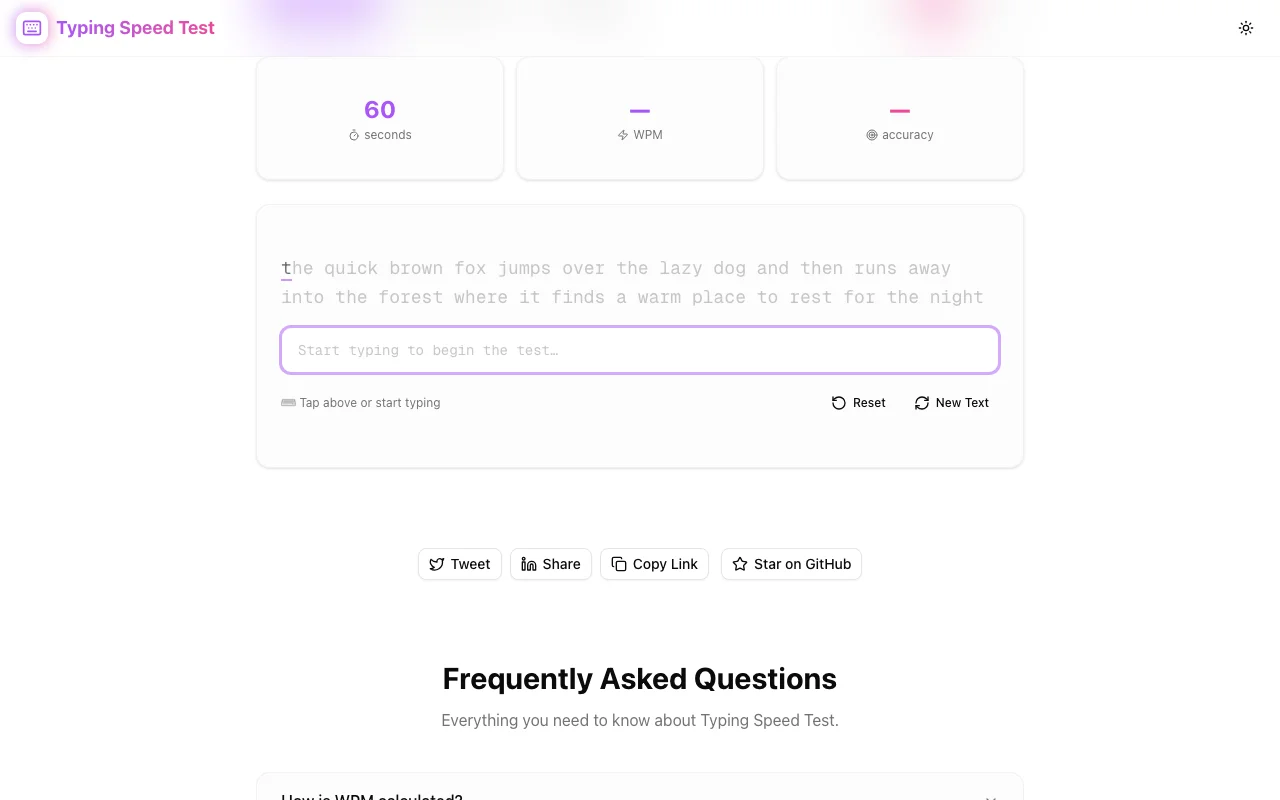
Typing Speed Test is a free, browser-based tool that measures your words per minute and accuracy in real time. Pick a mode — code snippets, famous quotes, or common words — type through the passage, and get instant, honest results. No signup. No ads. No leaderboards. Just your speed and your accuracy.
Why Typing Speed Matters More Than You Think
There's a school of thought that says typing speed doesn't matter for developers — that thinking is the bottleneck, not typing. This is half true. On a hard algorithmic problem, yes, you're spending most of your time thinking. But most development isn't hard algorithmic problems.
Most development is:
- Writing boilerplate — imports, type definitions, test scaffolding, config files
- Editing existing code — renaming variables, restructuring functions, moving blocks around
- Writing prose — commit messages, PR descriptions, code reviews, Slack messages, documentation
- Live interactions — pair programming, technical interviews, mob programming sessions
In all of these, typing speed creates (or removes) friction. A developer who types 80 WPM in code mode can externalise thoughts faster, iterate quicker, and spend less cognitive energy on the mechanical act of typing.
You don't need to be a 150 WPM speed demon. But knowing your baseline — and improving it if it's low — is one of the highest-leverage productivity investments you can make.
What Makes This Typing Test Different
Code Mode
This is the feature that matters most for developers. Standard typing tests use prose: sentences, paragraphs, fiction excerpts. Your prose WPM doesn't reflect your coding speed because code includes characters that are disproportionately slow to type:
- Brackets and braces —
{},[],()— require Shift or awkward finger stretches - Operators —
===,!==,=>,&&,||— multi-character sequences - CamelCase and snake_case —
getUserById,max_retry_count— mixed case and underscores - Semicolons and colons — line endings in many languages
- Indentation — tabs or spaces at the start of every line
Code mode uses real, readable code snippets — the kind of code you'd actually write. Functions, conditionals, loops, variable declarations. Your score reflects how fast you actually produce code, not how fast you can transcribe a Jane Austen paragraph.
Real-Time Visual Feedback
As you type each character, the interface tells you instantly whether you got it right:
- Green — correct character, keep going
- Red — error, you mistyped this character
- Cursor position — always clear where you are in the passage
This isn't just aesthetic. Real-time feedback means you can identify your weak spots as you type. Maybe you notice that every time you hit { you accidentally type [ first. Or that => trips you up because your right pinky is reaching for two keys in quick succession. These micro-observations are the raw material for improvement.
Three Modes for Different Purposes
Code — your practical coding speed. The number that matters for day-to-day development work. Use this to benchmark and improve your real productivity.
Quotes — famous quotes and literary passages. Good for measuring natural language typing speed. If you write a lot of prose (documentation, blog posts, emails), this is the relevant number.
Words — random common words in sequence. The traditional typing test format. No context to help you predict the next word, so it isolates pure motor speed from language processing.
Each mode serves a different purpose. Most developers should test themselves in code mode first, then use quotes or words for comparison.
Honest, Standard Measurement
WPM is calculated using the standard convention: total characters typed divided by 5 (the average word length), divided by elapsed minutes. This is the same method used by professional typing certification tests.
Accuracy is calculated as the percentage of characters you typed correctly on the first attempt. No partial credit. No "close enough" for adjacent keys.
The timer starts when you type the first character — no countdown clock adding pressure before you've even begun. And results appear the instant you finish — no loading screen, no "processing your results" animation.
How to Use Typing Speed Test
Step 1: Choose Your Mode
Open typing-speed-test.tools.jagodana.com and pick your mode: Code, Quotes, or Words. Start with Code if you're a developer — that's the number you want to know.
Step 2: Read the Passage
A text passage appears. Don't rush to start typing. Read through it once, especially in code mode. Knowing what's coming — the structure, the special characters, the variable names — will help you type smoothly instead of stopping at each unfamiliar symbol.
Step 3: Type
Start typing and the timer begins automatically. Focus on accuracy over speed at first. Errors cost more time than slightly slower but correct typing.
Watch the visual feedback as you go. Green characters are confirmed correct. Red characters mean you mistyped — you'll see exactly where.
Step 4: Review Your Results
When you finish, your WPM, accuracy, and elapsed time appear instantly. Here's how to interpret them:
| WPM Range | Assessment | |-----------|------------| | < 30 | Below average — typing practice would significantly help | | 30–50 | Average — functional but room for improvement | | 50–70 | Above average — solid speed for most work | | 70–90 | Fast — your fingers rarely bottleneck your thinking | | 90+ | Very fast — typing is not a limiting factor |
For code mode, subtract 10–20 WPM from these ranges. Code is inherently slower to type than prose because of special characters. A 50 WPM code speed is genuinely fast.
Accuracy below 95% suggests you're typing too fast for your current skill level. Slow down slightly and you'll often find your effective WPM actually increases because you spend less time correcting errors.
Step 5: Practice and Retest
Reset and try again. The passages change each time, so you won't gain false speed from memorisation. Test yourself across all three modes to get a complete picture.
For structured improvement:
- Test daily for a week to establish a reliable baseline (single tests have variance)
- Identify your weak characters — note which keys trigger errors consistently
- Practice those specific keys — even 10 minutes a day on weak spots produces noticeable gains within a week
- Retest weekly — track WPM and accuracy over time to see your progress
Who This Is For
Software Developers
Code mode is built specifically for you. The special characters, the syntax patterns, the case conventions — it all reflects real coding. If you've never measured your code-typing speed, you're missing a data point that directly impacts your daily output.
Technical Writers and Documentarians
You write prose about code — documentation, tutorials, API guides, README files. Your typing speed directly affects how quickly you can produce drafts. Quotes mode measures your prose speed; code mode tests your ability to include code examples without slowing to a crawl.
Students Learning to Code
If you're new to programming, code mode serves double duty: it measures your typing speed and gets you comfortable with the special characters you'll be using constantly. The visual feedback turns it into a practice tool, not just a test.
Remote Workers
If your job involves Slack, email, and written communication all day, your typing speed is your communication bandwidth. Faster typing means faster responses, more thorough messages, and less time spent on the mechanical act of writing.
Anyone Curious About Their Speed
You don't need a reason. It takes 60 seconds, it's free, and knowing your baseline is interesting even if you don't plan to optimise it.
The Science of Typing Speed
Why Special Characters Are Slow
Most typing instruction focuses on the home row and common letter keys. But developers spend a disproportionate amount of time on keys that typing courses barely cover:
- Shift combinations — capital letters,
{},(),<>,!,@,# - Pinky stretches —
=,-,_,+,[,],\,| - Number row —
1–0and their Shift variants
These keys are slower because they're farther from home row, require modifier keys, and are practiced less. Code mode specifically measures your speed on these characters — the ones that actually bottleneck your coding.
Accuracy vs. Speed
Research consistently shows that focusing on accuracy first and speed second produces faster long-term improvement. When you type accurately, you build correct muscle memory. When you type fast but inaccurately, you build incorrect muscle memory that's harder to fix later.
If your accuracy is below 95%, slow down until you're hitting 97%+. Your WPM will initially drop, but within a week or two it will surpass your previous (inaccurate) speed — and the improvement will be sustainable.
The 80 WPM Threshold
Studies of professional typists suggest that around 80 WPM (in prose), typing stops being a meaningful bottleneck for most knowledge work. Below this threshold, improving your speed has a direct impact on productivity. Above it, the returns diminish rapidly.
For code, the equivalent threshold is roughly 50–60 WPM — code's special characters make the absolute numbers lower, but the principle is the same.
Typing Speed Test vs. The Alternatives
vs. Monkeytype
Monkeytype is a beautifully designed typing test with deep customisation — themes, test lengths, language options, and competitive features. It's excellent. But it doesn't have a code mode with real code snippets, and its configurability can be overwhelming when you just want a quick measurement.
vs. TypeRacer
TypeRacer turns typing into a competitive racing game. Fun for some, stressful for others. Not ideal when you want an honest, private measurement of your speed without performance anxiety from watching cartoon cars.
vs. 10FastFingers
10FastFingers focuses on the "most common words" format. Good for raw speed measurement, but no code mode and the interface feels dated.
vs. keybr.com
keybr is a teaching tool — it algorithmically generates lessons based on your weaknesses. Complementary to a typing test (use keybr to practice, use Typing Speed Test to measure), but different in purpose.
Why Typing Speed Test
- Code mode — the killer feature for developers
- Three distinct modes — code, quotes, words
- Real-time character feedback — see errors as they happen
- No signup, no ads — just the test
- Instant results — WPM, accuracy, time, immediately
Try It Now
Open the tool. Pick a mode. Type. Know your speed.
👉 typing-speed-test.tools.jagodana.com
Free. Private. No signup. Works in any browser.
Built by Jagodana Studio — we make developer tools that remove friction from everyday workflows. See all our tools at tools.jagodana.com.