YAML to JSON Converter — Free Online Tool for DevOps Engineers & Developers
Convert YAML to JSON and JSON to YAML instantly in your browser. No signup, no server uploads. Handles Kubernetes manifests, Docker Compose, CI/CD configs, and API payloads.
YAML to JSON Converter — Free Online Tool for Developers & DevOps Engineers
If you work with config files, APIs, or infrastructure-as-code, you've hit this wall before: your tool expects JSON, your file is YAML—or the other way around. Manually rewriting nested structures is error-prone. Running a Python one-liner works but requires a terminal. Pasting into a random online converter raises privacy concerns.
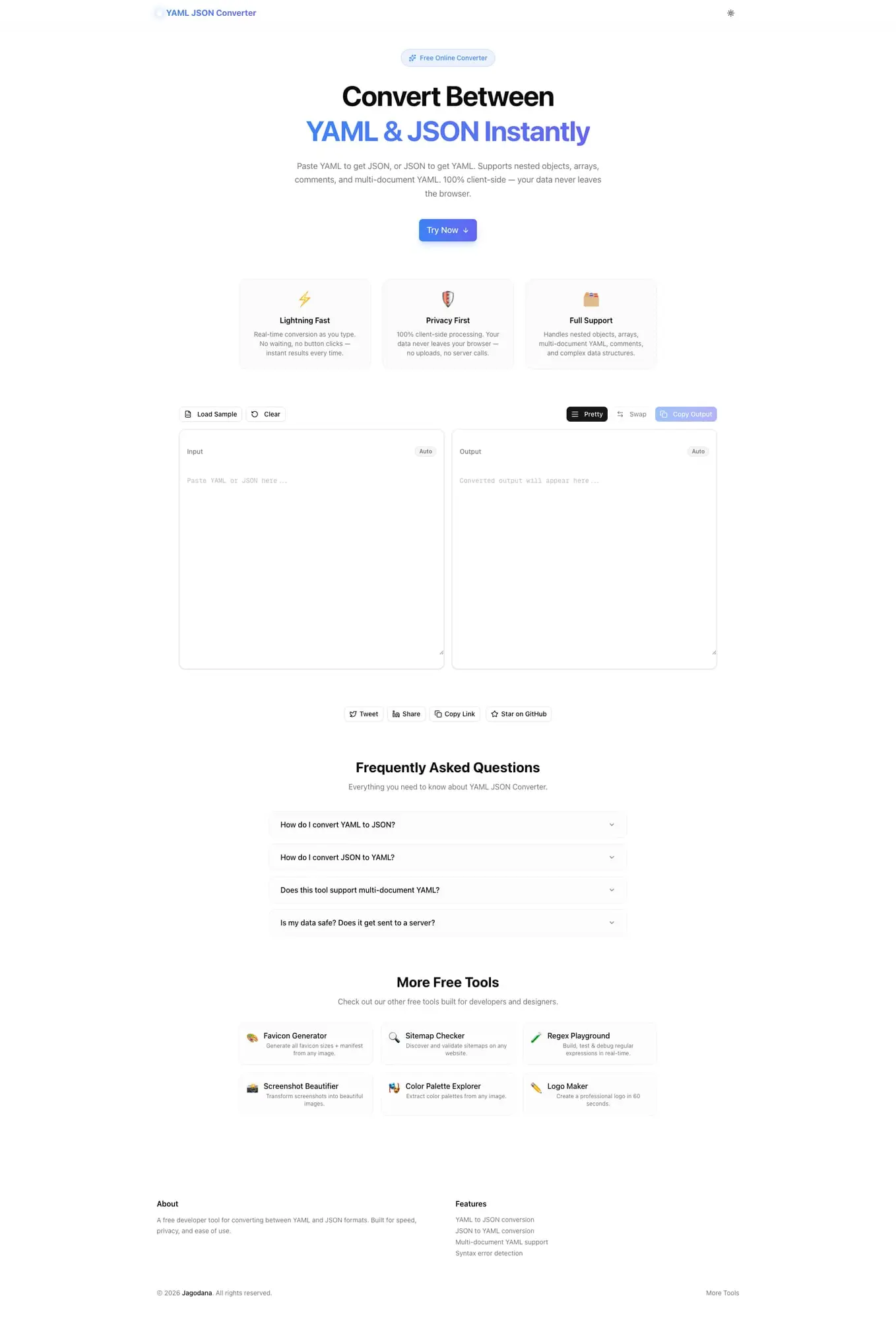
YAML JSON Converter solves this cleanly: paste YAML or JSON, get the converted output instantly, copy it, and move on. 100% client-side—your data never leaves your browser.
What Is YAML and Why Do Developers Need to Convert It?
YAML (YAML Ain't Markup Language) is a human-readable data serialization format widely used for configuration files. JSON (JavaScript Object Notation) is a lightweight data interchange format favored by APIs, databases, and web applications.
They're semantically equivalent for most use cases—both represent key-value structures, arrays, and nested objects. But they're not interchangeable in practice:
- Kubernetes uses YAML for manifests, but its API accepts and returns JSON
- REST APIs predominantly use JSON; config files for those services are often in YAML
- CI/CD pipelines (GitHub Actions, GitLab CI, CircleCI) use YAML; parsing outputs programmatically usually means JSON
- Docker Compose is YAML; many tooling integrations expect JSON configs
Every DevOps engineer and backend developer converts between these formats regularly. The question is how.
The Fastest Way to Convert YAML to JSON Online
Step 1: Open yaml-json-converter.tools.jagodana.com
Step 2: Paste your YAML into the input panel
Step 3: The JSON output appears instantly—no button to click
Step 4: Click Copy Output and paste wherever you need it
The tool auto-detects whether your input is YAML or JSON, so converting in either direction is the same workflow. Paste JSON to get YAML. Paste YAML to get JSON.
YAML to JSON Conversion — Key Use Cases
Kubernetes Manifests
Kubernetes accepts kubectl apply with YAML manifests, but the Kubernetes API itself speaks JSON. When you're writing operators, admission webhooks, or custom controllers in Go or Python, you're dealing with JSON. When you're editing deployments or helm values, you're in YAML.
Pasting a Kubernetes manifest into YAML JSON Converter gives you the JSON equivalent instantly—ready for programmatic processing, testing, or API calls.
Example — YAML manifest:
apiVersion: apps/v1
kind: Deployment
metadata:
  name: my-app
  namespace: production
spec:
  replicas: 3
  selector:
    matchLabels:
      app: my-app
Converted JSON:
{
  "apiVersion": "apps/v1",
  "kind": "Deployment",
  "metadata": {
    "name": "my-app",
    "namespace": "production"
  },
  "spec": {
    "replicas": 3,
    "selector": {
      "matchLabels": {
        "app": "my-app"
      }
    }
  }
}
Docker Compose Files
Docker Compose uses YAML for service definitions. If you're building tooling that reads or generates Compose files, or if you're migrating from Compose to Kubernetes manifests, converting between formats is a constant need.
YAML JSON Converter handles nested Compose structures—services, volumes, networks, environment variables, and port mappings—without losing data or mangling the structure.
API Testing with Postman or Insomnia
Your environment config or test fixtures are in YAML. Your API client needs JSON request bodies. Instead of maintaining two versions of the same data structure, keep one canonical YAML file and convert on demand when you need JSON for manual testing.
CI/CD Pipeline Configuration
GitHub Actions, GitLab CI, CircleCI, and most modern CI/CD platforms use YAML for pipeline definitions. When you're building pipeline generators, linters, or validators in code, you work with JSON representations of those pipelines.
YAML JSON Converter handles multi-document YAML files (multiple --- delimited documents in one file), which is common in Kubernetes and some CI configurations.
Ansible Playbooks and Variables
Ansible uses YAML extensively—playbooks, inventory files, variable files, role defaults. When those variables need to be consumed by a JSON-only API, a database, or a downstream system, you need clean JSON output. The converter strips YAML comments cleanly and produces valid JSON.
Infrastructure as Code
Terraform variables can be specified in both HCL and JSON. Pulumi supports YAML and JSON config files. Moving between formats during refactoring or when integrating with tooling that only reads one format is straightforward with a browser-based converter.
Why Use a Browser-Based Converter Instead of Code?
Privacy
When you're converting a Kubernetes manifest, a database config, or a CI/CD file, that data often includes internal hostnames, service names, environment variable names, and infrastructure topology. Pasting it into an unknown website risks that information being logged or retained.
YAML JSON Converter runs entirely in your browser. Zero data is transmitted to any server. There's no backend—the conversion logic is pure JavaScript running locally.
Speed
Writing a Python one-liner works:
python3 -c "import sys, yaml, json; print(json.dumps(yaml.safe_load(sys.stdin), indent=2))" < config.yamlBut it requires a terminal, the right packages installed, and context-switching from whatever you were doing. For a one-off conversion, opening a browser tab is faster.
Portability
Browser tools work anywhere—your laptop, a remote server with a web UI, a shared workstation, a locked-down corporate machine. No dependencies to install, no environment to configure.
Features That Handle Real-World YAML
Not all YAML converters handle the full spec. Here is what YAML JSON Converter supports:
Multi-Document YAML
YAML allows multiple documents in a single file, separated by ---. This is used in Kubernetes (multiple manifests in one file), some CI configs, and fixture files. The tool processes each document and outputs an array of JSON objects.
YAML Comments
YAML supports # comments; JSON does not. The converter strips comments cleanly and produces valid JSON output.
# Database configuration
database:
  host: localhost # Change this in production
  port: 5432
  name: myapp
Converts to:
{
  "database": {
    "host": "localhost",
    "port": 5432,
    "name": "myapp"
  }
}
Anchors and Aliases
YAML anchors (&) and aliases (*) allow reusing content within a document. The converter resolves these references and produces fully expanded JSON output.
defaults: &defaults
  timeout: 30
  retries: 3

production:
  <<: *defaults
  host: prod.example.com
Nested Objects and Arrays
Arbitrarily deep nesting is handled correctly. Complex Kubernetes CRDs, multi-service Docker Compose files, or deeply nested Terraform variable structures all convert cleanly.
Pretty-Print and Compact Output
Toggle between indented JSON (for readability) and compact JSON (for programmatic use or minimal payload size). Both represent the same data—choose based on your downstream use.
YAML vs JSON — A Quick Comparison
| Feature | YAML | JSON |
|---|---|---|
| Human readability | High — minimal punctuation | Moderate — requires brackets and quotes |
| Comments | Supported (#) | Not supported |
| Data types | Rich (timestamps, null, booleans) | Basic (string, number, boolean, null, object, array) |
| Multi-document | Supported (---) | Not supported natively |
| API compatibility | Low — most APIs expect JSON | High — universal API format |
| Config files | Very common | Less common |
| Programmatic parsing | Library required | Native in JavaScript; libraries in other languages |
For human-written config files, YAML wins on readability. For machine-to-machine data exchange, JSON wins on universality. That's why both exist, and that's why conversion is a daily task for working engineers.
Try It Now
YAML JSON Converter is free, requires no signup, and runs entirely in your browser. Paste your YAML or JSON and get the converted output in real time.
Also useful:
- JSON Path Finder — click any key in nested JSON to get its path
- JSON Formatter — format and validate JSON with syntax highlighting
- HTTP Status Debugger — decode HTTP errors and get fix checklists