Back to Projects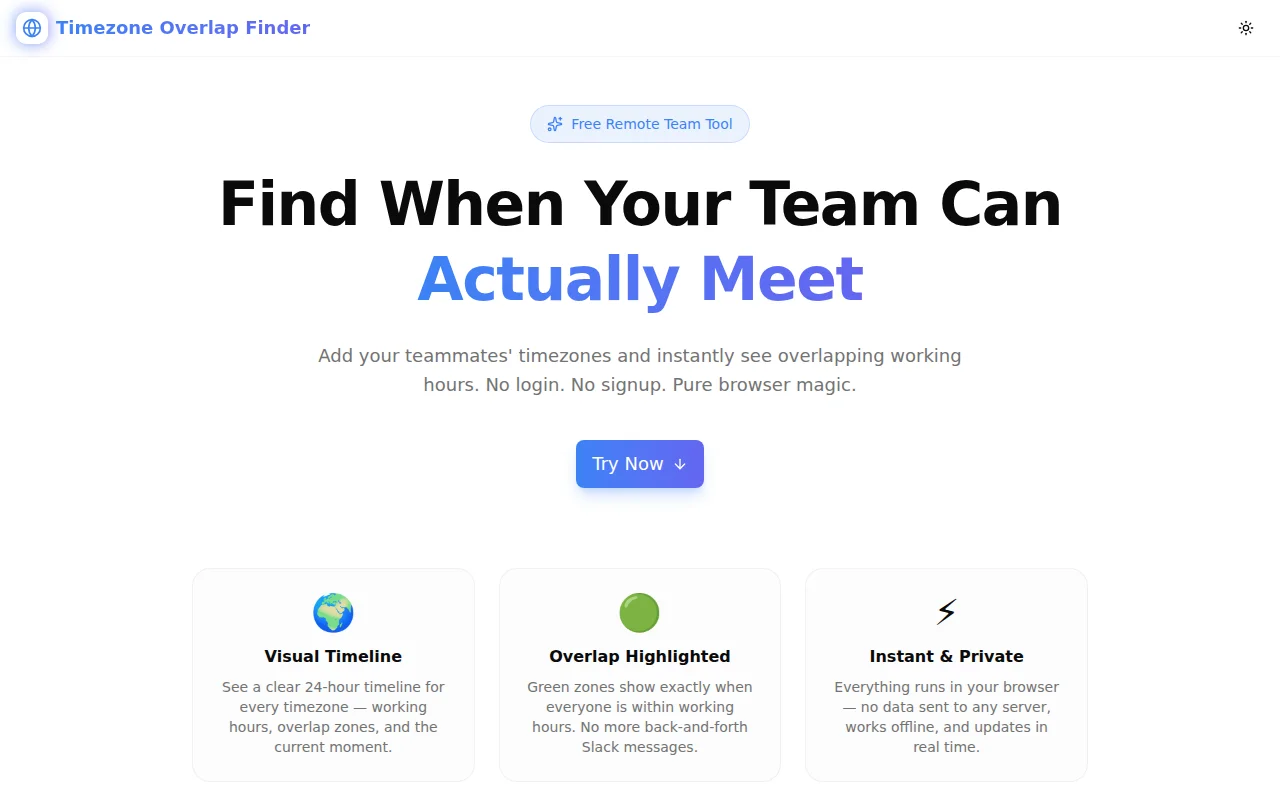
Developer ToolsFeatured
Timezone Overlap Finder
A free browser tool that visualises working-hour overlaps across multiple timezones so remote teams can find the best meeting window instantly — no login, no signup.
TimezoneRemote WorkProductivityDeveloper ToolsNext.jsTypeScript
Start Similar ProjectAbout the Project
Timezone Overlap Finder — Find Meeting Times for Remote Teams
Timezone Overlap Finder is a free, browser-based tool that lets distributed teams instantly see which hours overlap across multiple timezones. Add your teammates' locations, set each person's working hours, and the tool draws a visual 24-hour timeline that highlights the green zone — the window when everyone is actually available.
No login. No signup. No server. Pure browser logic.
The Problem
Remote teams waste a surprising amount of time on timezone arithmetic. "What time is 3 PM New York in Kolkata?" is a one-step lookup — but "when can our New York, London, and Singapore teammates all meet?" requires at least three conversions, a mental intersection calculation, and a sanity check. Multiply that by every meeting invite and the friction adds up.
The alternative — sharing a world clock screenshot or pasting a timezone converter link in Slack — puts the calculation burden back on every team member. The group still has to reason about overlap manually.
How It Works
1. Add Timezones
Click Add Timezone, search for a city or IANA timezone name, and select it. Repeat for each team member. Up to 10 timezones are supported; most teams need 3–5 for readable results.
2. Set Working Hours
Each timezone row defaults to 9 AM – 5 PM local time. Use the dropdowns to adjust start and end times to match each person's actual working hours — early risers, flexible contractors, and night owls all supported.
3. Read the Visual Timeline
A 24-hour timeline bar renders for each timezone:
- Blue band — that person's working hours
- Green band — the hours that overlap with everyone else's working hours
- Blue needle — the current local time in that timezone, updating every 30 seconds
The overlap summary banner at the top shows the best meeting window expressed in every team member's local time. If there is no overlap, a clear "No overlap found" message prompts you to adjust hours or accept an early/late call.
4. Copy the Best Window
The Copy button writes a plain-text summary to the clipboard:
Best Meeting Window:
New York: 9 AM – 10 AM
London: 2 PM – 3 PM
Kolkata: 7:30 PM – 8:30 PM
Paste it directly into a Slack message, email, or calendar invite description.
Key Features
- Visual 24-hour timeline — one bar per timezone, colour-coded working hours and overlap
- Overlap highlighted in green — no manual calculation required
- Live current-time needle — see where "now" falls in each timezone
- Copy best window — one-click plain-text summary to clipboard
- DST-aware — uses native
Intl.DateTimeFormatwith full IANA timezone support - Up to 10 timezones — handles large distributed teams
- 100% client-side — no data sent to any server
- No login required — open and use immediately
Technical Implementation
Core Technologies
- Next.js with App Router (server components for metadata, client components for interactivity)
- TypeScript in strict mode
- TailwindCSS v4 with OKLCH colour tokens and
@theme inlineregistration - Framer Motion for staggered animations and
AnimatePresencetransitions - shadcn/ui (new-york style) for
Buttonand related primitives - Lucide React for iconography
Timezone Logic
Timezone arithmetic uses the browser's native Intl.DateTimeFormat API. To find the UTC offset for any IANA timezone:
function getTzOffset(tz: string, date: Date): number {
  const utc = date.getTime();
  const local = new Date(date.toLocaleString("en-US", { timeZone: tz }));
  return (local.getTime() - utc) / 3600000;
}
Each working-hours range is converted to UTC, then the intersection is computed as Math.max(allStarts) – Math.min(allEnds). The result is projected back into each local timezone for display. The entire calculation runs in microseconds on the main thread.
DST Handling
Because Intl.DateTimeFormat reads the IANA timezone database embedded in the browser, DST transitions are handled automatically. A meeting scheduled today for "9 AM London" will correctly reflect whether the UK is on GMT or BST based on the current date.
Architecture
timezone-overlap-finder-tool.tsx— single client component containing all UI and logichome-page.tsx— imports and renders the tool component inside the motion-wrapped sectionsite.ts— all SEO, FAQ, HowTo steps, and feature card copy in one file- No external API calls, no
useEffectdata fetching, no environment variables
Use Cases
Engineering Teams Across Continents
A startup with engineers in New York, Berlin, and Bangalore needs to schedule a daily standup. The tool immediately shows that 9 AM Berlin / 3 PM Bangalore / 3 AM New York produces no overlap within normal hours — nudging the team toward an 8 AM New York / 2 PM Berlin / 5:30 PM Bangalore slot that works for everyone.
Agency Client Calls
A digital agency in London serves clients in São Paulo and Sydney. Rather than converting times for each call separately, the account manager opens the tool, sets the three locations, and books the one 30-minute green-zone window per week.
Open-Source Maintainers
A maintainer in Tokyo runs an open-source project with contributors in San Francisco and Amsterdam. The tool helps schedule quarterly video calls without accidentally blocking anyone's sleeping hours.
Freelancers and Contractors
A freelancer across multiple client timezones uses the tool to decide which contract work to schedule during which hours — ensuring each client's preferred sync time lands in the freelancer's working day.
Conference and Event Planning
Event organisers picking a live-stream time for a global audience use the overlap finder to identify the window with the least pain — even when the overlap is imperfect.
Why Timezone Overlap Finder?
vs. Manual Conversion
- No arithmetic — paste in the cities, read the green zone
- All local times simultaneously — not just one conversion at a time
- Visual layout — spatial reasoning is faster than mental arithmetic
vs. World Clock Apps
- Overlap calculation included — world clocks show times but not intersections
- Working-hours context — 6 AM overlap is flagged, not silently recommended
- Copy-ready output — share the result, not a screenshot
vs. Scheduling Links (Calendly, etc.)
- No account, no install — open a URL, get an answer in seconds
- Privacy — no calendar access, no data collection
- Instant — results appear as you type, no form submission
Results
Timezone Overlap Finder removes the friction from distributed-team scheduling:
- Instant visual answer — working-hour intersection visible in under 5 seconds
- No cognitive load — colour-coded timeline reads faster than any table
- Shareable in one click — clipboard copy for Slack or email
- DST-correct — no manual offset adjustments needed
Try it now: timezone-overlap-finder.tools.jagodana.com
The Challenge
The client needed a robust developer tools solution that could scale with their growing user base while maintaining a seamless user experience across all devices.
The Solution
We built a modern application using Timezone and Remote Work, focusing on performance, accessibility, and a delightful user experience.
Project Details
Category
Developer Tools
Technologies
Timezone,Remote Work,Productivity,Developer Tools,Next.js,TypeScript
Date
May 2026
Related Projects
More work in Developer Tools