ASCII Art Generator — Free Online Text to ASCII Art Converter
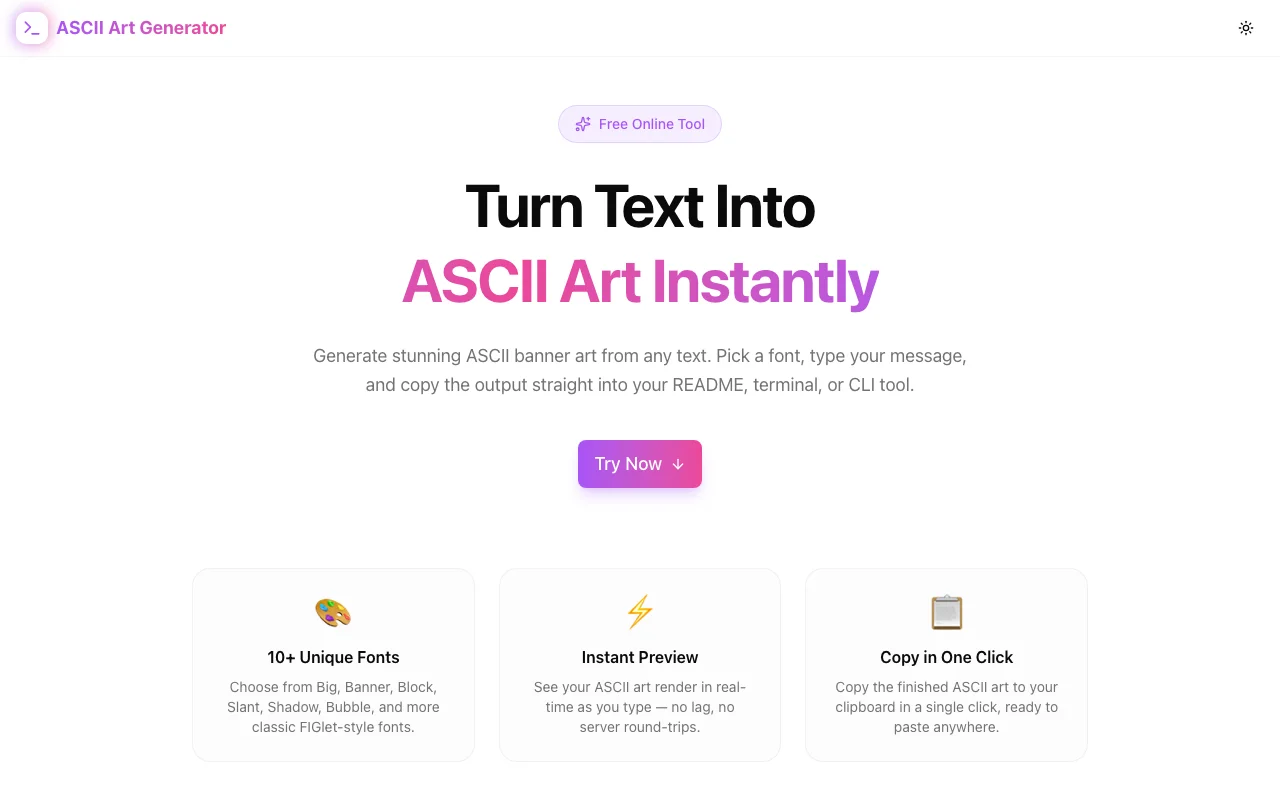
Convert any text to ASCII art instantly in your browser. 10+ fonts including Big, Block, Shadow, Double, and Bubble. Copy to clipboard in one click. No install, no login, 100% free.
ASCII Art Generator — Free Online Text to ASCII Art Converter
If you have ever needed a banner for a CLI tool, a stylised header for a README, or an ASCII art message in your server logs, you know the options are either "install figlet" or "hunt through ad-riddled websites from 2008."
ASCII Art Generator fixes this: type your text, pick a font, and copy the output in one click. 100% browser-side — your text never leaves your device.
What Is ASCII Art?
ASCII art is a form of visual art that uses printable characters from the ASCII character set to create images and text effects. It predates graphical interfaces and has been used since the early days of computing — in bulletin board systems (BBS), terminal interfaces, IRC channels, and classic text-based games.
Today, developers use ASCII art in practical, non-nostalgic ways:
- README headers — a distinctive project name rendered in ASCII art makes a repository memorable
- CLI tool banners — the startup screen of a command-line tool
- Terminal personalisation —
.zshrcor.bashrcwelcome messages - Code section dividers — large codebases use ASCII art headers to separate logical sections
- Server startup messages — Express, Fastify, and Nest.js apps often print a banner on boot
The art has never gone out of style for developers — it's functional, zero-dependency decoration.
How to Convert Text to ASCII Art (Step by Step)
Step 1: Open ascii-art-generator.tools.jagodana.com
Step 2: Type your text in the input field — up to 50 characters
Step 3: Choose a font from the selector below the input
Step 4: See the ASCII art render in real time as you type
Step 5: Click Copy to send it to your clipboard
Step 6: Paste into your README, code file, or terminal
The whole process takes under 10 seconds.
Which ASCII Art Font Should You Use?
The generator includes 10 fonts. Here is when to use each:
Big
The classic FIGlet Big font — wide letters with diagonal strokes. Good for project names in READMEs. Use it when you want something recognisable and tested by decades of CLIs.
Block
Solid, filled-in block characters. Looks great at small sizes and remains readable when copied into plain-text emails or Slack messages.
Banner
Tall asterisk-based letters — high visual impact but requires more vertical space. Best for README headers where you want maximum presence.
Shadow
Slanted characters that suggest depth. A good middle ground between Big and Lean — more personality than Block, more readable than Banner.
Lean
Compact, angular letters. Ideal when you need ASCII art that fits on one screen without horizontal scrolling in a terminal.
Mini
Two-row miniature characters. Perfect for comments in source code where you want decoration without consuming too much vertical space.
Digital
LCD-display style — simulates seven-segment display characters. Good for tool names that sound technical or futuristic.
Double
Uses Unicode box-drawing characters (╔═╗, ║, ╚═╝). Creates clean, frame-like letterforms. Use this when your environment supports Unicode (most modern terminals and web contexts do).
Bubble
Rounded bubble letters — the most informal style. Works well for personal projects, side tools, and games.
Straight
Clean uppercase monospace pass-through. Not really "art" — more of a utility option when you want styled-looking all-caps output without ASCII character patterns.
How to Use ASCII Art in a README
Paste your ASCII art inside a fenced code block in Markdown to preserve whitespace:
```
 ___  ___ ___
/ _ \/ __|_ _|
\___/\___  |_|
```
Without the code block, Markdown renderers collapse consecutive spaces, and the art loses its shape. Always wrap ASCII art in ``` on GitHub and other Markdown renderers.
How to Add ASCII Art to a Node.js CLI Tool
If you are building a CLI with Node.js, print the banner when the command runs:
const banner = `
 ___  ___ ___
/ _ \\/ __|_ _|
\\___/\\___  |_|
`;

console.log(banner);
For TypeScript CLIs using tools like commander or yargs, place this at the top of your main file or in a dedicated banner.ts module.
How to Add ASCII Art to a Shell Session
Add ASCII art to your terminal startup by editing .bashrc or .zshrc:
# ~/.zshrc
echo "
 ___  ___ ___
/ _ \\/ __|_ _|
\\___/\\___  |_|
"
This prints the art every time a new terminal session opens.
What Is FIGlet?
FIGlet (Frank, Ian & Glenn's Letters) is a program that generates text banners in various typefaces composed of letters made up from conglomerations of smaller ASCII characters. It was originally released in 1991 and became one of the most widely used text-banner generators in Unix environments.
The ASCII Art Generator's fonts are inspired by classic FIGlet font styles but implemented as pure JavaScript character maps — no binary, no server, no network call. The tool works fully offline once the page is loaded.
Can I Use ASCII Art in Python Scripts?
Yes. The pyfiglet library is the Python equivalent of FIGlet. But if you do not want to add a dependency to your script, you can:
- Generate the ASCII art in the browser with this tool
- Copy the output
- Store it as a multi-line string in your Python script
banner = r"""
 _____         _
|_   _|__  ___| |
  | |/ _ \/ _ \ |
  |_|\___/\___/_|
"""
print(banner)
The raw string prefix r"""...""" prevents issues with backslashes in the ASCII art.
Is ASCII Art Still Relevant?
Absolutely — within the developer ecosystem. The use cases have shifted from decorative to functional:
- Open source projects use ASCII art README headers to signal craft and attention to detail
- CLI tools use banners to make tools memorable and self-identifying
- DevOps teams add ASCII art to deployment scripts so log grep output stands out
- Learning resources (tutorials, documentation) use ASCII art to illustrate diagrams in plain text
The aesthetic is intentionally retro. For a developer audience, that is a feature, not a bug.
Frequently Asked Questions
Does ASCII Art Generator work offline?
Once the page has loaded, yes. All rendering happens in browser JavaScript — no server requests are made. You can use the tool without an internet connection after the initial page load.
What is the character limit?
The tool supports up to 50 characters. For most use cases — project names, single words, short phrases — this is more than enough. Very long text tends to overflow terminal line width regardless of the tool used.
Can I use special characters?
The tool supports A–Z, 0–9, and common punctuation: ! ? . , - _ @ # space. Characters outside this set are rendered as a fallback glyph.
Why does the Double font use special characters?
The Double font uses Unicode box-drawing characters, which are part of the Unicode standard and supported in virtually all modern terminals, web browsers, and code editors. If you are targeting a legacy terminal that does not support Unicode, choose a different font.
Does pasting into a README require a code block?
Yes — always wrap ASCII art in a fenced code block (three backticks) in Markdown. Without it, Markdown parsers collapse whitespace and the art breaks.
Is this based on FIGlet?
The fonts are inspired by classic FIGlet styles but are implemented as JavaScript character maps rather than parsing FIGlet .flf font files. This keeps the tool dependency-free and fast.
Try it free: ascii-art-generator.tools.jagodana.com