Introducing Markdown to HTML Converter: Instant Live Preview & Clean HTML Output
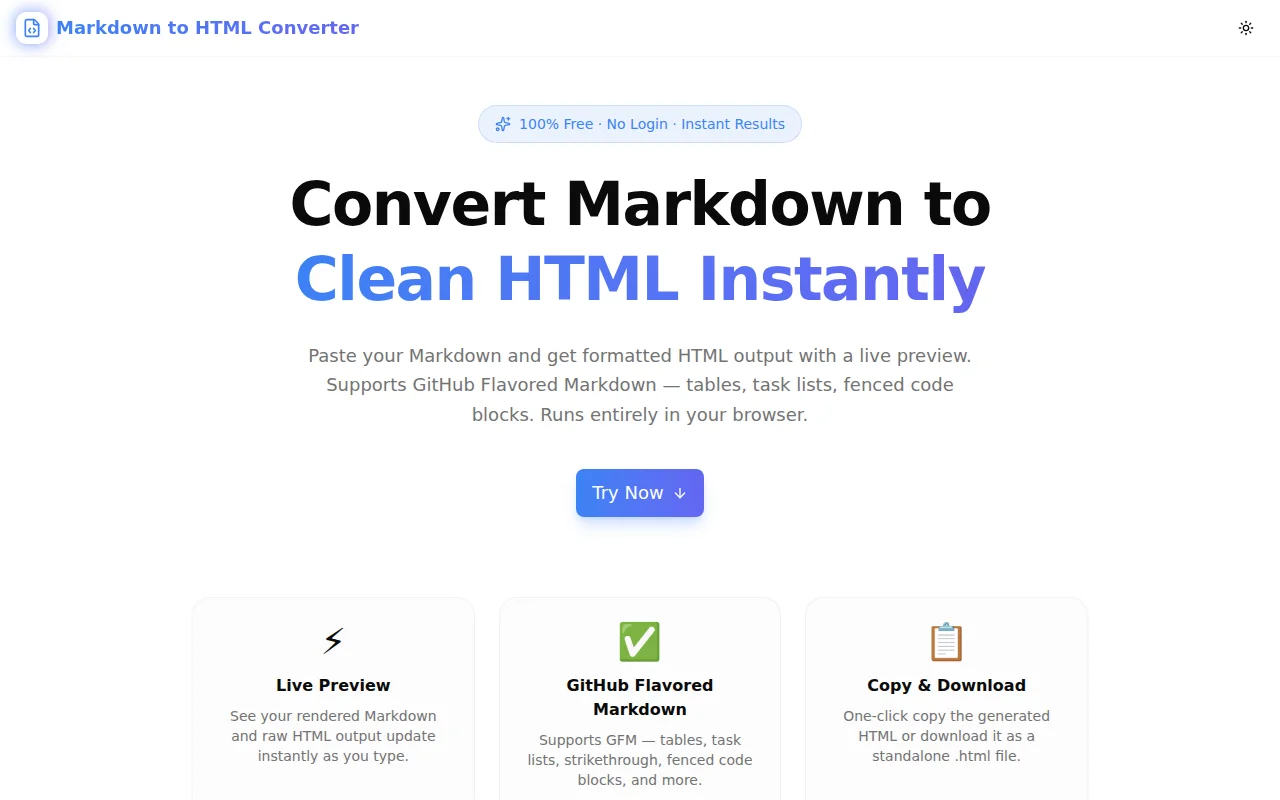
Convert Markdown to clean HTML instantly in your browser. Paste your content, see a live rendered preview, and copy or download the HTML. Supports GitHub Flavored Markdown — free, no login, 100% client-side.
Introducing Markdown to HTML Converter: Every Markdown File, Instantly as HTML
You wrote something in Markdown. Now you need it as HTML.
It could be a README you want to embed on a docs site. A blog post draft that your CMS expects as HTML. A documentation file you're copying into a legacy system. Or you just want to see exactly what HTML your Markdown will produce before pushing it live.
Markdown to HTML Converter is a free, instant browser tool that converts any Markdown input to clean HTML with a live preview — copy to clipboard or download as a complete file. No signup. No install. Nothing leaves your browser.
What Is Markdown to HTML Conversion and Why Do Developers Need It?
Markdown is the dominant format for developer content — README files, wikis, changelogs, API documentation, blog posts, and internal notes. It's readable as plain text and produces consistent formatting across tools.
But the web runs on HTML. When Markdown content crosses a system boundary — into a CMS, an email template, a static site that doesn't process .md files, or a client's legacy platform — someone has to convert it. The question is how quickly and accurately.
The naive options:
- Build a local script —
npm install marked, write 10 lines of Node.js, run it. Works once, breaks when you need a styled preview or a downloadable file. - Spin up a Markdown editor — Dillinger, StackEdit, Typora. These are writing environments. They inject app metadata, require accounts, or lock the output in their own format.
- Use
pandoc— powerful but requires installation and a command-line invocation for each file.
For a one-time or occasional conversion, all of these have too much friction. A browser tool is the right tool.
What Does GitHub Flavored Markdown Actually Support?
GitHub Flavored Markdown (GFM) is an extended Markdown specification that goes beyond the original CommonMark standard. The Markdown to HTML Converter supports full GFM, which means:
Tables
GFM tables use pipe characters and render as HTML <table> elements:
| Name     | Role       | Active |
|----------|------------|--------|
| Alice    | Engineer   | Yes    |
| Bob      | Designer   | No     |
This produces a properly structured table with <thead> and <tbody> — something that the original Markdown specification didn't support at all.
Task Lists
The checkboxes you see on GitHub issues and PRs:
- [x] Set up project structure
- [x] Implement core logic
- [ ] Write tests
- [ ] Deploy to production
These render as <input type="checkbox" disabled> elements in the HTML output.
Strikethrough
~~deprecated function~~Renders as <del>deprecated function</del>.
Fenced Code Blocks
Triple backtick blocks with optional language hints:
```typescript
function greet(name: string): string {
  return `Hello, ${name}!`;
}
```
The language hint is preserved in the HTML as a class: <code class="language-typescript">.
Autolinks
Bare URLs in GFM automatically become clickable links — useful for changelogs and documentation where URLs are mentioned inline without explicit link syntax.
How Does the Markdown to HTML Converter Work?
The conversion uses the marked JavaScript library, configured with gfm: true and breaks: true. The library is bundled into the page — no external API call is made during conversion.
Input → Output flow:
- Type or paste Markdown into the left input panel
marked.parse()runs on every keystroke via auseMemohook — output is synchronous, so there's no delay- The right panel shows two tabs: Preview (rendered HTML in a scoped container) and HTML Source (raw markup in a monospace code block)
- Word and character counts update in both panels
The Preview tab renders the raw HTML using React's dangerouslySetInnerHTML. The container applies minimal styling so headings, lists, tables, blockquotes, and code blocks look correct without any stylesheet dependency.
How Do I Convert a Markdown File to HTML for a CMS?
The most common use case is Markdown → CMS. Here's the fastest path:
- Open markdown-to-html-converter.tools.jagodana.com
- Open your
.mdfile in a text editor and copy all the contents - Paste into the input panel — the HTML output appears instantly in the right panel
- Click Copy HTML to copy just the converted markup (no
<html>wrapper, ready to paste into a CMS body field)
For CMSs that want a complete HTML file instead of a snippet, use Download HTML to get a self-contained page with a <head> block, viewport meta, and a minimal GitHub-flavored stylesheet.
How Do I Download Markdown as an HTML File?
Click Download HTML and the tool generates a converted.html file using the Blob API:
const fullHtml = `<!DOCTYPE html>
<html lang="en">
<head>
  <meta charset="UTF-8" />
  <title>Converted Document</title>
  ...
</head>
<body>
${html}
</body>
</html>`;

const blob = new Blob([fullHtml], { type: "text/html" });
The download is fully client-side. The file includes a minimal inline stylesheet that matches the GitHub Markdown rendering style — readable headings, styled code blocks, bordered tables.
Can I Convert a README.md File to HTML?
Yes. README files are typically valid GFM — they use exactly the features that this converter supports: headings, lists, code blocks, tables, badges (inline images), and links.
Paste the README content, view the preview to confirm the rendering looks correct, then copy the HTML or download the file. The process takes under 30 seconds.
Does Markdown to HTML Conversion Happen in the Browser?
Yes — entirely. The marked library is bundled with the Next.js build and runs in the browser. No text is transmitted to any server.
This matters for:
- Private documentation — internal wikis, confidential changelogs, unreleased product specs
- Compliance contexts — environments where data sovereignty requirements restrict third-party uploads
- Offline use — once the page is loaded, the tool works without an internet connection
What Is the HTML Output Structure?
When you click Copy HTML, you receive the converted HTML fragment — just the markup from your Markdown content, without any surrounding document structure. Example input and output:
Input:
## Quick Start

Install the package:

```bash
npm install my-package
Then import it:
**Output (Copy HTML):**
```html
<h2>Quick Start</h2>
<p>Install the package:</p>
<pre><code class="language-bash">npm install my-package
</code></pre>
<p>Then import it:</p>
When you use Download HTML, the fragment is wrapped in a complete HTML5 document with <!DOCTYPE html>, <html lang="en">, proper <head> metadata, and a minimal stylesheet.
What Are the Most Common Markdown to HTML Conversion Mistakes?
A few patterns to watch for:
Inconsistent blank lines around block elements Some parsers require blank lines before and after lists, blockquotes, and code blocks to render correctly. GFM is more lenient, but if your output looks unexpected, check for missing blank lines.
Nesting lists with inconsistent indentation Nested lists require consistent indentation (typically 2 or 4 spaces per level). Mixed tabs and spaces can cause the nesting to collapse.
Tables with uneven pipe alignment GFM tables don't require the pipes to be aligned, but extra spaces inside cells can cause rendering issues in some edge-case parsers. The converter handles this correctly.
Smart quotes and special characters
Markdown files from word processors sometimes contain curly quotes (") or em-dashes (—). These pass through correctly as Unicode in HTML — just verify the <meta charset="UTF-8"> is present if you're embedding the HTML in a page.
Try It Now
👉 markdown-to-html-converter.tools.jagodana.com
Free. No account. No uploads. Works in any browser.
More Free Developer Tools from Jagodana
- HTML to Markdown — Convert HTML back to clean Markdown syntax
- JSON Formatter — Format and validate JSON with syntax highlighting
- Text Diff Checker — Compare two texts and highlight every change
- Word Counter — Count words, characters, sentences, and reading time
- README Generator — Generate a polished README.md for any GitHub project
All client-side. All free. No signup.