CSS Keyframe Animation Builder: Create @keyframes Animations Online Free
Free online CSS Keyframe Animation Builder — build @keyframes animations visually with live preview. Set stops, easing, transforms and colors. Copy CSS in one click, no login required.
CSS Keyframe Animation Builder: Create @keyframes Animations Online Free
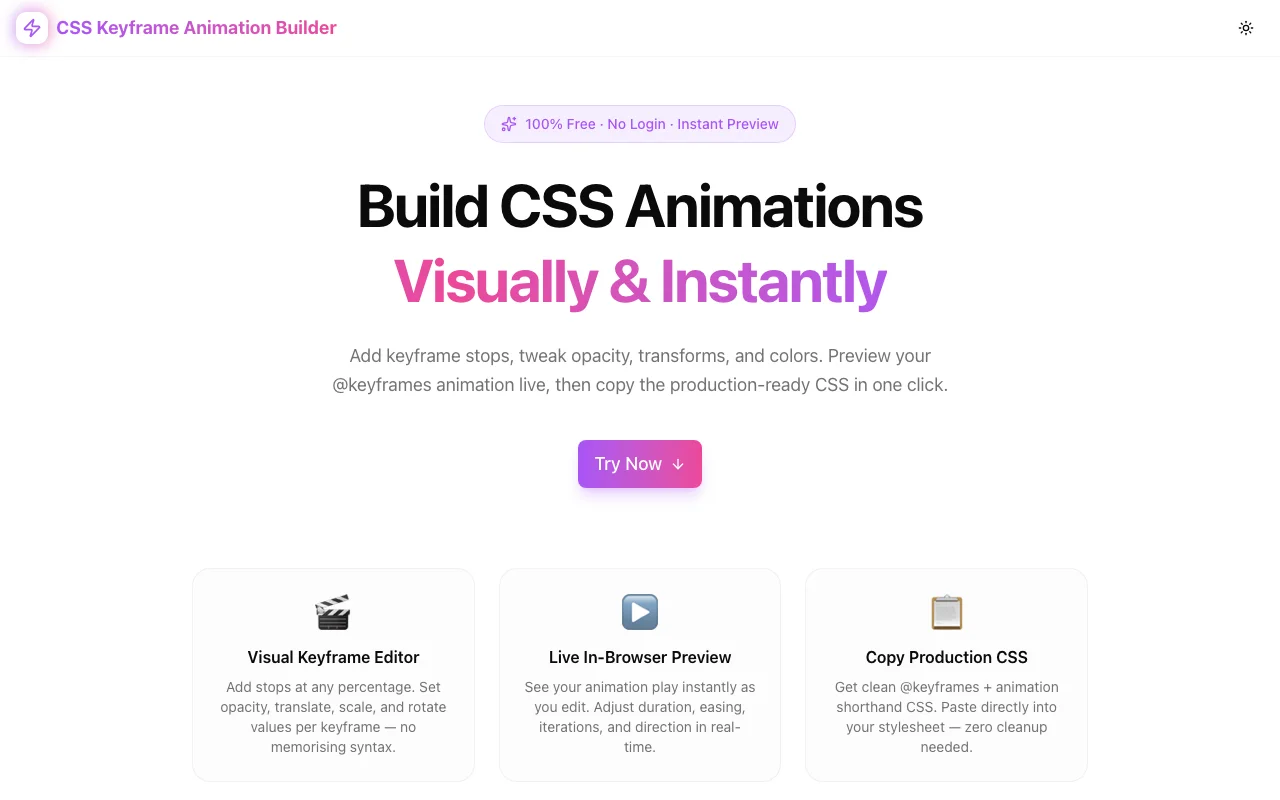
Writing CSS @keyframes animations from scratch is one of those tasks that sounds simple but eats time. You have the idea in your head — a smooth fade, a satisfying bounce, a subtle pulse — but translating it into six parameters across multiple stops, with the right easing, without a live preview, is a grind. The CSS Keyframe Animation Builder at css-keyframe-animation-builder.tools.jagodana.com makes it instant.
Add stops, set properties, see the animation play live, copy the CSS. No login, no install.
What Is a CSS Keyframe Animation?
A CSS @keyframes animation defines how an element changes over time. You specify what the element looks like at different points (keyframes) in the animation timeline, and the browser interpolates between them.
The basic syntax:
@keyframes fadeIn {
  0% {
    opacity: 0;
  }
  100% {
    opacity: 1;
  }
}

.element {
  animation: fadeIn 1s ease forwards;
}
The animation shorthand accepts up to eight values:
| Value | Property |
|---|---|
| fadeIn | animation-name |
| 1s | animation-duration |
| ease | animation-timing-function |
| 0s | animation-delay |
| 1 | animation-iteration-count |
| normal | animation-direction |
| forwards | animation-fill-mode |
| running | animation-play-state |
Simple for a two-stop fade. Complex for a multi-property, multi-stop sequence — and nearly impossible to iterate quickly by hand.
Why Use a CSS Keyframe Animation Builder?
The Manual Workflow Is Painful
Without a visual tool, building a CSS animation typically looks like this:
- Write the
@keyframesrule - Apply the
animationproperty to the element - Save the file
- Wait for hot reload (or manually refresh)
- Inspect the result
- Go back to step 1
For a simple fade that's tolerable. For a bounce that needs a 0%, 40%, 60%, 80%, 100% sequence with different timing curves — you're doing this loop 15+ times before you get it right.
The Visual Builder Collapses That Loop
With the CSS Keyframe Animation Builder:
- Load a preset (or start from scratch)
- Tweak values — see the preview update instantly
- Add stops, adjust easing, change colors
- Copy CSS when it looks right
That's it. The iteration cycle is measured in seconds, not minutes.
How to Use the CSS Keyframe Animation Builder
Step 1: Choose a Preset (Optional)
Six presets ship out of the box — each a common animation pattern you can use as-is or as a starting point:
- ✨ Fade In — opacity 0→1, great for page load reveals
- ⬆️ Slide Up — opacity + translateY, modern card/modal entrance
- 🏀 Bounce — vertical oscillation, playful loading states
- 💓 Pulse — scale + opacity rhythm, attention-drawing alerts
- 🌀 Spin — continuous 360° rotation, loading spinners
- 🔭 Scale Up — scale 0.5→1 + fade, dialog open animation
Click any preset and the editor loads its stops and settings instantly.
Step 2: Configure Animation Settings
The settings row at the top controls the animation's global behaviour:
Name — becomes the @keyframes identifier. Use descriptive names like slideInFromBottom or pulseGlow.
Duration — how long one cycle takes. 0.2s feels snappy; 2s feels deliberate. Interactions (button clicks, hover) typically want 150–300ms. Page transitions: 300–600ms. Decorative loops: 1–3s.
Delay — time before the animation starts. Useful for staggered sequences where multiple elements animate in at slightly different times.
Easing — controls the acceleration curve. Common choices:
| Easing | Best For |
|---|---|
| ease | General purpose — slight slow-in, slow-out |
| ease-out | Entrance animations (feels natural, like gravity decelerating) |
| ease-in | Exit animations (accelerates away) |
| ease-in-out | Looping animations (smooth both ways) |
| linear | Spinning loaders, progress bars |
| cubic-bezier(0.68,-0.55,0.27,1.55) | Springy overshoot effect |
| steps(5, end) | Sprite-sheet style, pixel art |
Iterations — 1 for one-shot (use with fill-mode: forwards to hold the end state). infinite for loops. Any number for a fixed repeat count.
Direction — normal plays forward; reverse plays backward; alternate bounces back and forth (great for loops — looks smoother than infinite + reverse).
Fill Mode — what state the element holds when the animation isn't playing:
none— snaps back to default (before/after animation)forwards— holds the final keyframe statebackwards— applies the first keyframe during the delay periodboth— applies both forwards and backwards rules
Step 3: Add and Edit Keyframe Stops
Each keyframe stop lets you set six properties:
| Property | What It Animates | |---|---| | Stop % | Position in the timeline (0 = start, 100 = end) | | Opacity | 0 (invisible) to 1 (fully visible) | | X | translateX — horizontal shift in px | | Y | translateY — vertical shift in px | | Scale | Size multiplier (1 = normal, 0.5 = half size, 2 = double) | | Rotate | Degrees of rotation (positive = clockwise) | | Color | Background color of the element |
When to add stops: Add intermediate stops when you want a non-linear progression — a bounce needs stops at 0%, 40%, 60%, and 100%. A flash effect might need 0%, 50%, 100%. The builder sorts stops automatically, so you can add them in any order.
Pro tip: For smooth transform animations, only animate transform and opacity. The browser can GPU-accelerate these without triggering layout — other properties (like width, height, top, left) cause repaints that hurt performance.
Step 4: Preview Live
The preview box in the right panel runs your animation using an injected <style> tag. Every change you make updates the preview immediately — no save, no reload.
For one-shot animations (fill-mode: forwards, iteration: 1), click Replay to restart the animation. This is the fastest way to iterate on entrance animations.
Step 5: Copy the CSS
Click Copy CSS to grab the complete, ready-to-paste CSS block:
@keyframes slideUp {
  0% {
    opacity: 0;
    transform: translate(0px, 40px);
    background-color: #a855f7;
  }
  100% {
    opacity: 1;
    background-color: #a855f7;
  }
}

.element {
  animation: slideUp 0.6s ease-out 0s 1 normal both;
}
Paste directly into your stylesheet, CSS Module, Tailwind @layer utilities, styled-components template, or Emotion css block.
Real-World Animation Recipes
Fade In on Page Load
@keyframes fadeIn {
  0% { opacity: 0; }
  100% { opacity: 1; }
}

.hero {
  animation: fadeIn 0.8s ease-out forwards;
}
Settings: duration 0.8s, easing ease-out, iterations 1, fill-mode forwards.
Staggered Card Entrance
@keyframes slideUp {
  0% {
    opacity: 0;
    transform: translate(0px, 20px);
  }
  100% {
    opacity: 1;
  }
}

.card:nth-child(1) { animation: slideUp 0.5s ease-out 0s both; }
.card:nth-child(2) { animation: slideUp 0.5s ease-out 0.1s both; }
.card:nth-child(3) { animation: slideUp 0.5s ease-out 0.2s both; }
Use the builder to create the base animation, then manually add nth-child delays in your stylesheet.
Attention Pulse
@keyframes pulse {
  0% { opacity: 1; transform: scale(1); }
  50% { opacity: 0.6; transform: scale(1.15); }
  100% { opacity: 1; transform: scale(1); }
}

.notification-badge {
  animation: pulse 1.5s ease-in-out infinite;
}
Settings: duration 1.5s, easing ease-in-out, iterations infinite, direction normal.
Loading Spinner
@keyframes spin {
  0% { transform: rotate(0deg); }
  100% { transform: rotate(360deg); }
}

.spinner {
  animation: spin 1s linear infinite;
}
Settings: duration 1s, easing linear, iterations infinite.
CSS Animation Performance Tips
Animate only transform and opacity. These are the only properties the browser can animate on the GPU without triggering layout recalculation. Animating width, height, padding, or top forces a repaint on every frame.
Use will-change: transform on elements you're about to animate. This hints to the browser to promote the element to its own compositor layer before the animation starts. Remove it after the animation completes.
Prefer translate() over top/left. transform: translateY(-20px) is GPU-accelerated; top: -20px is not.
Use animation-fill-mode: both for entrance animations. Without it, the element snaps back to its default state after the animation — jarring for fade-ins.
Reduce motion for accessibility:
@media (prefers-reduced-motion: reduce) {
  .animated-element {
    animation: none;
  }
}
Always respect users who have enabled reduced motion in their OS accessibility settings.
CSS Animation vs. JavaScript Animation
| | CSS Animation | JavaScript (GSAP, Framer Motion) |
|---|---|---|
| Performance | GPU-accelerated for transform/opacity | Same for transform/opacity |
| Complexity | Simple to moderate | Complex sequences |
| Interactivity | Limited (CSS custom properties help) | Full control |
| Browser support | Excellent | Excellent |
| Bundle size | Zero | 30–100KB |
| Control | animation-play-state only | pause, reverse, seek, scrub |
Use CSS animations for: entrance/exit effects, loading states, hover effects, decorative loops, anything that doesn't need JavaScript-driven timing.
Use JavaScript animations for: scroll-driven sequences, physics simulations, complex choreography, drag interactions, anything that responds to dynamic data.
The CSS Keyframe Animation Builder targets the CSS use case — the vast majority of UI animations you'll write in a typical product.
Frequently Asked Questions
Does the builder send my data anywhere?
No. Everything runs in your browser. The @keyframes are injected as a <style> tag in the page — zero network requests, zero server involvement. Your animation configuration stays on your device.
Can I use the generated CSS with Tailwind?
Yes. Paste the @keyframes rule into your globals.css under @layer utilities, or define it in your tailwind.config.js under theme.extend.keyframes. Then reference it with animation-* utilities or custom animation classes.
What about browser support?
CSS @keyframes animations are supported in every modern browser (Chrome, Firefox, Safari, Edge) and have been for years. No vendor prefixes are needed for the properties this tool generates.
Can I animate more than two stops?
Yes. Click Add Stop to add as many intermediate keyframes as you need. Common patterns use 4–5 stops for bounces and 3 stops for pulses.
How do I make the animation play only on hover?
Generate the animation in the builder, then apply it conditionally in CSS:
.button {
  /* no animation by default */
}

.button:hover {
  animation: pulse 0.5s ease-out forwards;
}
Built in Seconds, Usable Forever
CSS Keyframe Animation Builder is part of Jagodana's 365 Tools Challenge — one free developer tool released every day. All tools are:
- Free forever — no trial, no credit card
- 100% in-browser — no server, no account
- Open source — fork and self-host if you want
Try it now: css-keyframe-animation-builder.tools.jagodana.com
Related tools: CSS Transform Playground · CSS Gradient Generator · CSS Box Shadow Generator · CSS Flexbox Playground