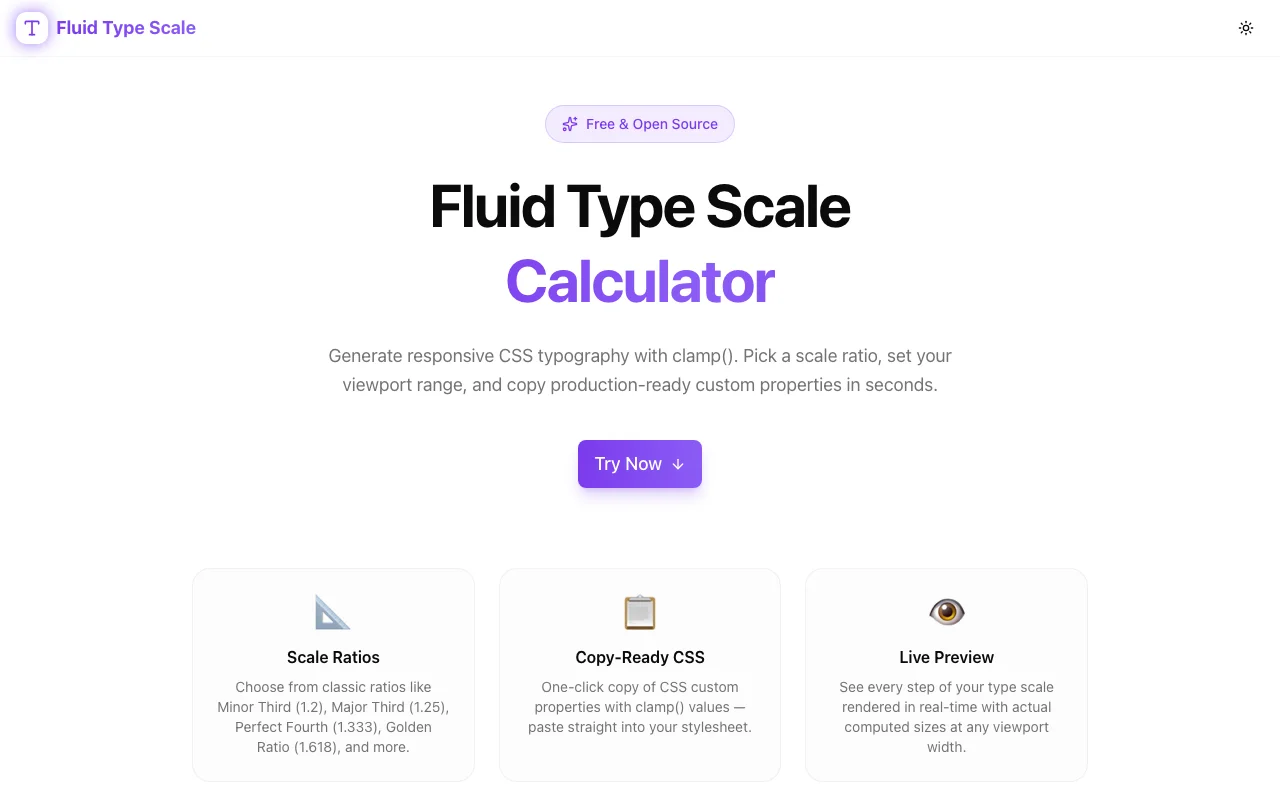
Fluid Type Scale: Responsive CSS Typography with clamp() — No Media Queries
Generate a complete responsive typography scale using CSS clamp(). Learn how fluid type scales work, why they beat media query overrides, and how to build one in seconds with a free online calculator.
Fluid Type Scale: Responsive CSS Typography with clamp() — No Media Queries
Typography is the backbone of readable UI. But getting font sizes right across the full range of viewport widths—from a 375px phone to a 1440px desktop—has historically required a pile of media query overrides. One set of font sizes for mobile, another for tablet, another for desktop.
CSS clamp() changes this. And the Fluid Type Scale Calculator makes it trivial to generate a complete, harmonious, fluid type scale for any project in under a minute.
What Is a Fluid Type Scale?
A type scale is a set of font sizes that follow a mathematical ratio. Instead of picking sizes arbitrarily (12px, 14px, 16px, 20px, 24px, 32px...), a type scale uses a consistent multiplier—called a scale ratio—between each step:
- Major Second (1.125): 16px → 18px → 20.25px → 22.78px
- Major Third (1.25): 16px → 20px → 25px → 31.25px
- Perfect Fourth (1.333): 16px → 21.33px → 28.43px → 37.90px
The ratio creates visual hierarchy that feels intentional and proportional—headings feel like headings, subheadings feel subordinate, body text feels grounded.
A fluid type scale adds a viewport dimension. Instead of fixed sizes, each step is a clamp() function that smoothly interpolates between a minimum size (at narrow viewports) and a maximum size (at wide viewports). No hard breakpoints. No media queries. Just continuous, smooth scaling.
Why clamp() Is the Right Tool
CSS clamp(min, preferred, max) constrains a value to a minimum and maximum, with a flexible preferred value in between. For typography:
font-size: clamp(1rem, 0.85rem + 0.63vw, 1.25rem);This means:
- Never smaller than
1rem(16px at default browser size) - Never larger than
1.25rem(20px at default browser size) - In between: grows linearly with viewport width
At 375px viewport width, you get ~16px. At 1280px, you get ~20px. Everything in between is smoothly interpolated. The reader always gets a font size that's appropriate for their device—without a single @media rule.
The Problem with Media Query Typography
Before clamp(), the standard approach was to define font sizes at each breakpoint:
/* Mobile */
h1 { font-size: 2rem; }
h2 { font-size: 1.5rem; }

/* Tablet */
@media (min-width: 768px) {
  h1 { font-size: 2.5rem; }
  h2 { font-size: 1.875rem; }
}

/* Desktop */
@media (min-width: 1280px) {
  h1 { font-size: 3rem; }
  h2 { font-size: 2.25rem; }
}
For a 6-step type scale (xs, sm, base, lg, xl, 2xl) at 3 breakpoints, that's 18 font-size declarations. Scale that to a component library with multiple text styles and you're maintaining dozens of values that need to stay in proportion with each other.
The breakpoint approach also creates jarring jumps: at 767px the heading is one size, at 768px it snaps to another. On a viewport right at the boundary, the jump is visible and feels like a bug.
Fluid type with clamp() eliminates both problems:
- One declaration per text style. No breakpoints.
- Continuous scaling. No jumps.
The Math Behind Fluid Type
The preferred value in clamp() is a linear equation connecting the min size (at min viewport) to the max size (at max viewport):
f(v) = slope × v + intercept
Where:
slope = (maxSize - minSize) / (maxViewport - minViewport)intercept = minSize - slope × minViewport
Expressed in CSS units (vw and rem):
- vw coefficient =
slope × 100(because 1vw = 1% of viewport) - rem offset =
intercept / rootFontSize
For a base size growing from 16px (at 375px viewport) to 20px (at 1280px viewport), with a 16px root font size:
slope = (20 - 16) / (1280 - 375) = 4 / 905 ≈ 0.00442
vw coefficient = 0.00442 × 100 = 0.442 → rounded to 0.44vw
rem offset = (16 - 0.00442 × 375) / 16 = (16 - 1.657) / 16 ≈ 0.896rem

font-size: clamp(1rem, 0.896rem + 0.44vw, 1.25rem);
Doing this by hand for every step in a 6-step scale means 6 separate calculations. Get one step slightly wrong and the whole scale is off. The Fluid Type Scale Calculator handles all of this automatically.
How to Use the Fluid Type Scale Calculator
Visit fluid-type-scale.tools.jagodana.com and configure four parameters:
Step 1: Set Your Viewport Range
- Min viewport width: The screen width where your smallest font sizes kick in. Typically
375px(small phones). - Max viewport width: The screen width where your largest font sizes cap out. Typically
1280pxor1440px.
Step 2: Choose a Scale Ratio
Select from common musical interval ratios, or enter a custom value:
| Ratio Name | Value | Feel | |------------|-------|------| | Major Second | 1.125 | Subtle, compact hierarchy | | Minor Third | 1.200 | Gentle, readable | | Major Third | 1.250 | Balanced — good for most projects | | Perfect Fourth | 1.333 | Expressive, editorial | | Augmented Fourth | 1.414 | Dramatic, high-contrast | | Perfect Fifth | 1.500 | Bold, display-heavy |
For most web applications and marketing sites, Major Third (1.25) or Perfect Fourth (1.333) hits the right balance between readable hierarchy and compact layout.
Step 3: Set Base Font Sizes
The base step (step 0) is your body text size. Set the min and max values—typically:
- Min base:
16px(minimum legible size for body text) - Max base:
18px–20px(comfortable reading size on large screens)
The calculator derives all other steps from these values using the scale ratio.
Step 4: Copy the Output
The tool generates CSS custom properties:
:root {
  --font-size-xs:   clamp(0.80rem, 0.78rem + 0.11vw, 0.83rem);
  --font-size-sm:   clamp(0.90rem, 0.85rem + 0.22vw, 1.00rem);
  --font-size-base: clamp(1.00rem, 0.91rem + 0.44vw, 1.25rem);
  --font-size-lg:   clamp(1.25rem, 1.09rem + 0.78vw, 1.56rem);
  --font-size-xl:   clamp(1.56rem, 1.30rem + 1.30vw, 1.95rem);
  --font-size-2xl:  clamp(1.95rem, 1.52rem + 2.17vw, 2.44rem);
  --font-size-3xl:  clamp(2.44rem, 1.74rem + 3.48vw, 3.05rem);
}
Paste into your CSS. Assign to your text elements. Done.
Integrating with Your Stack
Vanilla CSS
Add the custom properties to :root in your globals.css or base stylesheet:
:root {
  --font-size-base: clamp(1rem, 0.91rem + 0.44vw, 1.25rem);
  --font-size-lg: clamp(1.25rem, 1.09rem + 0.78vw, 1.56rem);
  --font-size-xl: clamp(1.56rem, 1.30rem + 1.30vw, 1.95rem);
  --font-size-2xl: clamp(1.95rem, 1.52rem + 2.17vw, 2.44rem);
}

body { font-size: var(--font-size-base); }
h4   { font-size: var(--font-size-lg); }
h3   { font-size: var(--font-size-xl); }
h2   { font-size: var(--font-size-2xl); }
h1   { font-size: var(--font-size-3xl); }
Tailwind CSS
Use the Tailwind-formatted output from the calculator in your tailwind.config.js:
module.exports = {
  theme: {
    extend: {
      fontSize: {
        xs:   ['clamp(0.80rem, 0.78rem + 0.11vw, 0.83rem)', { lineHeight: '1.4' }],
        sm:   ['clamp(0.90rem, 0.85rem + 0.22vw, 1.00rem)', { lineHeight: '1.5' }],
        base: ['clamp(1.00rem, 0.91rem + 0.44vw, 1.25rem)', { lineHeight: '1.6' }],
        lg:   ['clamp(1.25rem, 1.09rem + 0.78vw, 1.56rem)', { lineHeight: '1.4' }],
        xl:   ['clamp(1.56rem, 1.30rem + 1.30vw, 1.95rem)', { lineHeight: '1.3' }],
        '2xl':['clamp(1.95rem, 1.52rem + 2.17vw, 2.44rem)', { lineHeight: '1.2' }],
        '3xl':['clamp(2.44rem, 1.74rem + 3.48vw, 3.05rem)', { lineHeight: '1.1' }],
      },
    },
  },
};
Now Tailwind classes like text-xl and text-2xl produce fluid type automatically.
Next.js (App Router)
In your app/globals.css:
@layer base {
  :root {
    --font-size-base: clamp(1rem, 0.91rem + 0.44vw, 1.25rem);
    /* ... rest of scale */
  }

  body {
    font-size: var(--font-size-base);
  }
}
Or pair with a Tailwind config override as above—both approaches work.
Choosing the Right Scale Ratio for Your Project
The ratio you choose shapes the entire personality of your typography. Here's how to think about it:
For Dense UIs (dashboards, data tables, admin panels)
Use a smaller ratio (1.125–1.2). You need multiple levels of hierarchy but limited vertical space. A Major Second or Minor Third creates distinction without dramatic size jumps.
For Marketing Sites and Landing Pages
Use a medium ratio (1.25–1.333). You want clear heading hierarchy and readable body text. Major Third and Perfect Fourth hit the sweet spot—headings feel bold, body text feels approachable.
For Editorial and Content Sites
Use a larger ratio (1.333–1.5). Articles, magazines, and content-heavy sites benefit from high typographic contrast. A large h1 against modest body text creates visual drama and guides the reader.
For Display and Hero Typography
Use a large ratio (1.414–1.5) with a shorter scale. If you only need 3–4 steps (body, subheading, heading, display), a Perfect Fifth creates striking contrast for hero sections.
Common Mistakes with Fluid Type
Mistake 1: Forgetting to Account for Root Font Size
The clamp() values in rem assume a 16px root font size. If you set a custom font-size on <html>, your clamp values will be off. Always verify with the browser's computed styles.
Mistake 2: Using Too Many Scale Steps
A 7-step or 8-step scale sounds comprehensive but often results in steps that are too similar to distinguish. 5–6 steps (xs through 2xl or 3xl) is usually sufficient. More than that and adjacent steps start to look the same at narrow viewports.
Mistake 3: Wide Min-Max Spread with Small Ratio
If your min viewport is 375px, max is 1440px, and your ratio is only 1.125, the fluid range for most steps will be tiny. The clamp() output will look like a fixed size. Either widen the ratio or narrow the viewport range.
Mistake 4: Not Checking the Live Preview
The math can produce technically correct clamp() values that still feel wrong in practice. Use the calculator's live preview—drag the viewport slider—to confirm the scale looks right at every size, not just at the extremes.
Browser Support
clamp() is supported in all modern browsers:
- Chrome 79+
- Firefox 75+
- Safari 13.1+
- Edge 79+
Global support is above 97% as of 2026. For legacy browser support, the graceful fallback is to set a font-size before the clamp() line:
font-size: 1rem; /* fallback for ancient browsers */
font-size: clamp(1rem, 0.91rem + 0.44vw, 1.25rem);
Old browsers ignore the clamp() line and use the fallback. Modern browsers override it.
Comparing Type Scale Tools
Fluid Type Scale Calculator vs. Writing clamp() by Hand
Writing clamp() manually is fine for one or two values. For a full scale, the calculation per step takes 2–3 minutes and is error-prone. The calculator takes 30 seconds for the entire scale.
Fluid Type Scale Calculator vs. Utopia.fyi
Utopia is the canonical fluid typography tool and is excellent. The Fluid Type Scale Calculator is built specifically for the Jagodana tools ecosystem, generates Tailwind-formatted output, and is open source.
Fluid Type Scale Calculator vs. Tailwind Default Typography
Tailwind's default fontSize scale uses fixed rem values. They don't scale fluidly—you get abrupt size changes if you add responsive modifiers (sm:text-lg, md:text-xl). Replacing the defaults with clamp() values from this calculator gives you genuine fluid behavior.
A Complete Fluid Typography Setup in Under 5 Minutes
- Open fluid-type-scale.tools.jagodana.com
- Set min viewport:
375, max viewport:1280 - Choose ratio: Major Third (1.25)
- Set base min:
16px, base max:20px - Copy the CSS custom properties output
- Paste into your
globals.cssunder:root - Assign variables to your heading and body text elements
That's a complete, mathematically harmonious, viewport-fluid typography system.
Frequently Asked Questions
Does fluid type replace all media queries for typography? For font sizes, yes. You may still want media queries for line height, letter spacing, or text alignment at extreme viewports. But font-size media queries become unnecessary.
What's the difference between fluid type and responsive type? Responsive type uses discrete breakpoints—the size changes at specific viewport widths. Fluid type changes continuously—the size grows linearly across the viewport range. Fluid type has no jumps.
Should I use px or rem for the clamp() values?
The calculator outputs rem values, which is the recommended unit. rem values respect the user's browser font size preferences (accessibility), while px ignores them.
What line heights should I use with fluid type? Line height generally follows an inverse relationship with font size: small text benefits from more leading (1.6–1.7), large display text needs less (1.0–1.2). The calculator focuses on font size; pair with a considered line height scale for best results.
Can I use fluid type for line heights and letter spacing too?
Yes—the same clamp() approach works for any length property. Line height is typically expressed unitless (e.g., 1.5) rather than in rem, but the principle is identical.
Try the Fluid Type Scale Calculator
Stop writing font-size media queries. Stop doing the clamp() math by hand. Whether you're building a component library, a marketing site, a Next.js app, or a WordPress theme—the Fluid Type Scale Calculator generates a complete responsive typography system in seconds.
Open Fluid Type Scale Calculator →
Free, runs in your browser, no account required.
Built by Jagodana Studio — free tools for designers, developers, and content creators.