Introducing Code to Image — Turn Code Snippets into Beautiful Shareable Images
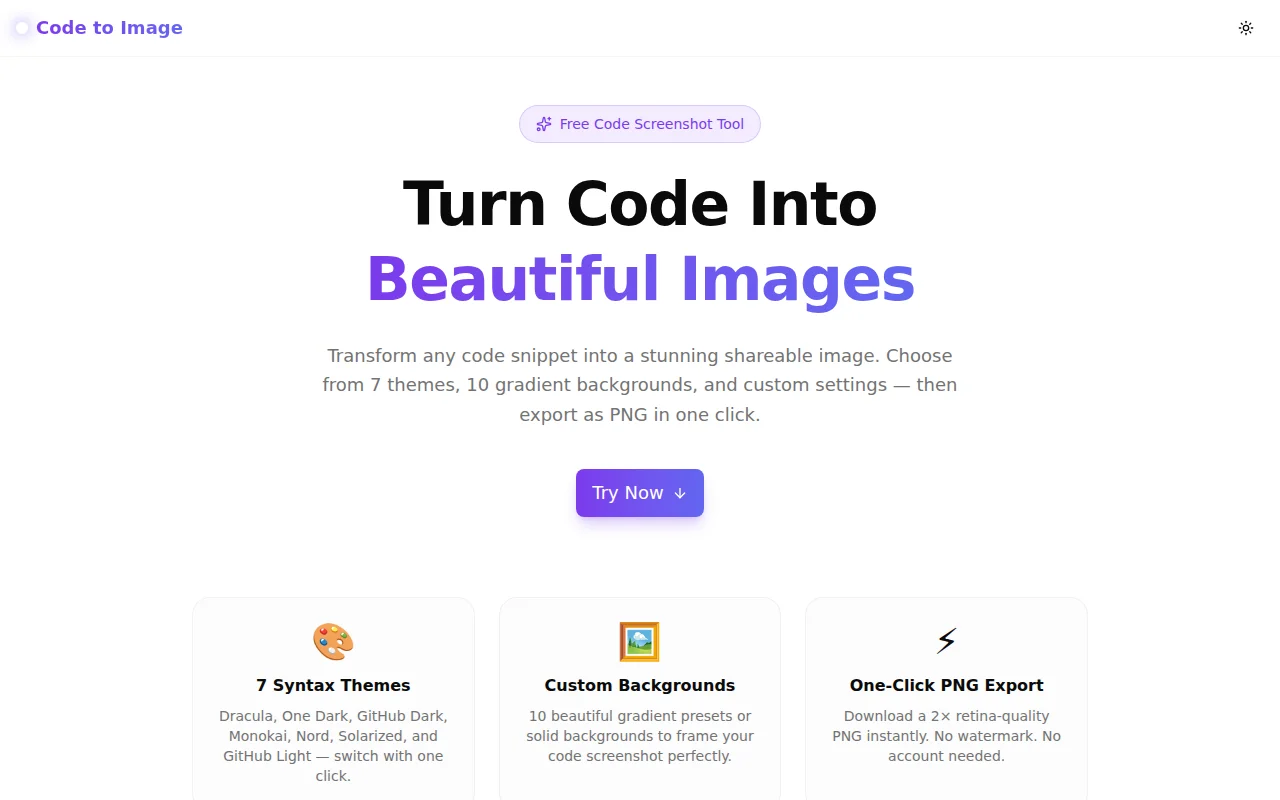
A free browser-based tool to convert any code snippet into a stunning shareable image. Pick a syntax theme, choose a gradient background, and export a 2× retina PNG in under a minute — no signup required.
Introducing Code to Image — Turn Code Snippets into Beautiful Shareable Images
Today we're launching Code to Image — a free browser-based tool that converts any code snippet into a beautiful, shareable PNG image in under a minute.
No signup. No server upload. Your code never leaves your browser.
What Is Code to Image?
Code to Image is a visual code screenshot tool. You paste code, pick a syntax highlighting theme and gradient background, configure some layout options, and download a 2× retina-quality PNG — all in the browser, all client-side.
It's the kind of tool you reach for when you want to share a code snippet on Twitter without the noise of an IDE screenshot, or when you need a clean code block for a blog post header image, a slide deck, or LinkedIn.
Why Do Developers Need a Code Screenshot Tool?
Sharing code visually is one of those recurring problems that should have a quick solution but usually doesn't:
- Raw code in tweets is hard to read and gets no engagement
- IDE screenshots carry clutter — file trees, toolbars, OS window chrome, non-standard fonts
- Copy-pasting into design tools (Figma, Canva) is slow and breaks every time you tweak the snippet
- Server-side tools (like Carbon.sh) require a network round-trip and sometimes lag or break
The ideal workflow is: paste code → tweak settings → download image. Under 60 seconds. No account. No uploads. Code to Image is exactly that.
How Do You Turn Code Into an Image?
Step 1: Paste Your Code
Open code-to-image.tools.jagodana.com and paste your snippet into the left editor panel. The tool uses highlight.js — the same engine powering GitHub and Stack Overflow — to parse and colour your code as you type.
Step 2: Choose Your Settings
A controls bar at the top lets you configure:
- Language — 20+ options: JavaScript, TypeScript, Python, Go, Rust, SQL, Bash, CSS, HTML, JSON, and more
- Theme — 7 syntax themes: Dracula, One Dark, GitHub Dark, Monokai, Nord, Solarized Dark, GitHub Light
- Background — 10 options: 8 gradient presets, a solid dark, and transparent
- Font size — 11px to 20px slider
- Padding — 16px to 80px slider for outer spacing
- Line numbers — toggle on or off
- Window chrome — show or hide macOS traffic light buttons
Step 3: Download PNG
Click Download PNG. A 2× pixel-density PNG exports instantly — no spinner, no server call, no waiting.
What Syntax Themes Are Available?
Code to Image ships with 7 built-in themes that cover the most widely used colour schemes:
Dark themes:
- Dracula — the purple-and-cyan palette used by millions of developers across editors, terminals, and browsers
- One Dark — the grey-toned theme from Atom, still popular in VS Code via the One Dark Pro extension
- GitHub Dark — GitHub's exact dark mode colours, giving screenshots a familiar look for developer audiences
- Monokai — the classic Sublime Text theme; orange, green, and pink on charcoal
- Nord — the Arctic-inspired cool blue and teal palette
- Solarized Dark — Ethan Schoonover's iconic low-contrast scheme
Light themes:
- GitHub Light — GitHub's clean light mode, professional and neutral
Switching themes takes one click and the preview updates immediately.
What Backgrounds Are Available?
Ten backgrounds let you set the tone of your code card:
| Background | Best for | |---|---| | Violet Dream (purple→violet) | Social media posts, developer content | | Ocean (cyan→teal) | Tech blogs, documentation | | Sunset (pink→red) | Product launches, highlights | | Forest (teal→green) | Open source, nature-themed content | | Fire (orange→yellow) | Tutorials, warnings, performance snippets | | Night Sky (deep navy) | Conference talks, dramatic headers | | Cotton Candy (peach→lavender) | Casual developer content | | Aurora (blue→yellow) | Vibrant announcements | | Dark (solid near-black) | Minimal, presentation-ready | | Transparent | Layering over slides in Keynote, PowerPoint, Canva |
Is My Code Sent to Any Server?
No. Code to Image processes everything client-side using browser APIs:
- Syntax highlighting runs with
highlight.js— a JavaScript library that executes locally in your browser tab - Image export uses
html-to-image— a library that captures the rendered DOM element to a canvas and converts it to a PNG data URL, entirely within the browser - No network requests are made during normal use (the initial page load fetches the Next.js app; after that, no external calls happen)
Your code is never transmitted anywhere.
What Format Does Code to Image Export?
Code to Image exports a PNG at 2× pixel density (equivalent to Retina/HiDPI resolution). This means:
- At
fontSize: 14pxandpadding: 40px, the exported image is roughly 1200×800px at 144dpi - Text is crisp and anti-aliased on all screens
- No visible compression artifacts (PNG is lossless)
- Transparent background exports retain true alpha transparency
For social media, the 2× export looks sharp on every platform — Twitter/X, LinkedIn, Instagram, and in Notion or Obsidian embeds.
How Does the PNG Export Work Technically?
The export uses html-to-image's toPng() function, which:
- Walks the DOM subtree of the preview element
- Reads computed styles via
getComputedStyleon each node - Serialises the subtree into an SVG
<foreignObject>containing the HTML - Draws the SVG onto an
OffscreenCanvasusing the browser's native renderer - Exports the canvas as a PNG data URL at
pixelRatio: 2
To ensure the syntax highlighting colours export correctly, Code to Image converts all highlight.js CSS class–based styles (hljs-keyword, hljs-string, etc.) to inline styles at render time. This means the computed styles captured by html-to-image always match the visual preview — regardless of which external CSS is loaded on the page.
Can I Use It for Transparent Background Exports?
Yes. Select Transparent from the Background dropdown. The exported PNG will have a fully transparent outer background, with the code card sitting on its own (the card itself retains its theme background colour and shadow).
Use cases for transparent exports:
- Placing a code snippet on a coloured slide in Keynote or Google Slides
- Layering code over a design in Figma
- Embedding in a website where you control the page background
Which Programming Languages Are Supported?
Code to Image uses highlight.js for language detection and highlighting. The tool exposes 20 languages in its dropdown:
JavaScript, TypeScript, Python, JSX, TSX, CSS, HTML/XML, JSON, Shell/Bash, Rust, Go, Java, C++, SQL, YAML, Markdown, PHP, Swift, Kotlin, Ruby.
If you paste code in a language not in the list, selecting JavaScript or TypeScript often produces reasonable highlighting — most C-family syntax is recognised.
How Long Does It Take to Export an Image?
Under a second on most machines. The entire export runs in the browser using a canvas API — there's no network request, no server queue, and no file upload. You click Download PNG and the file appears in your downloads folder immediately.
What Are Good Use Cases for Code to Image?
Developer social media content — The primary use. Turn a useful function, a clean one-liner, or an API pattern into an image that renders immediately in timelines without requiring a click-through to a Gist or Pastebin.
Technical blog post images — Use a GitHub Light theme over a transparent or solid background to generate code images for blog post headers, inline examples, or article thumbnails.
Presentation slides — Use the Transparent background and download the PNG. Import it into your slide and resize to fit. Much faster than a code block plugin.
Course and tutorial content — Educators and content creators building courses or YouTube thumbnails use styled code images to illustrate concepts without requiring students to have a specific editor.
Developer portfolio and case studies — Showing code samples in a portfolio or case study looks more professional as a styled image than a raw text block.
README headers and documentation — Embed a styled code snippet in a GitHub README or docs site header to make the most important example visually prominent.
Why We Built This
This is Day 188 of our 365 Tools Challenge — one new micro-tool, every day, for developers, designers, and product engineers.
Code screenshots are one of those small, recurring friction points. The solutions that exist (Carbon.sh, Poet.so, IDE plugins) each have trade-offs: server dependencies, slow exports, required accounts, or complex configuration. We wanted a tool that:
- Opens instantly (no signup)
- Works offline after the first load (all processing is client-side)
- Exports immediately (no server round-trip)
- Looks good out of the box (7 themes, 10 backgrounds, sensible defaults)
- Handles the transparent background case for slides
The entire tool — design, implementation, deploy, and this content — was built in approximately 90 minutes.
Try it now: code-to-image.tools.jagodana.com
Related Tools
- Screenshot Beautifier — transform plain screenshots into beautiful framed images
- Diff Forge — visual diff tool for comparing code changes
- JSON Formatter — format and validate JSON instantly
- Regex Playground — build and test regular expressions in real time
- SVG to React Converter — convert SVG files to clean React components