CSS Tooltip Generator: Build Pure CSS Tooltips Without JavaScript
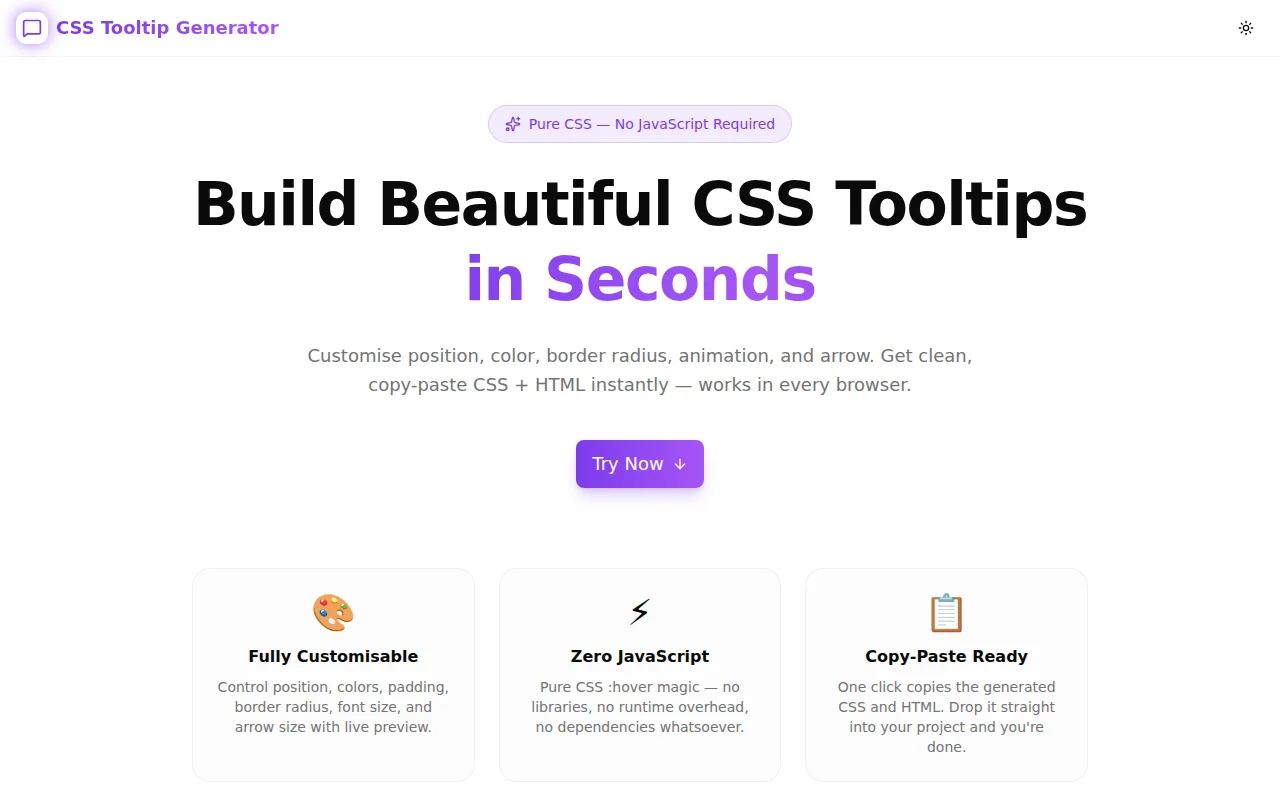
Free online CSS tooltip generator — choose position, color, animation, and arrow, then copy clean CSS and HTML instantly. No JavaScript required, works in every browser.
CSS Tooltip Generator: Build Pure CSS Tooltips Without JavaScript
You need a tooltip. The quick answer is to reach for Tippy.js or a UI library's <Tooltip> component. It works. But now you've added 20 kilobytes of JavaScript to show a small text label on hover.
There's a simpler path. CSS tooltips using :hover work in every browser, require zero JavaScript, and add no bundle weight. The only reason developers avoid writing them by hand is the boilerplate — arrow positioning changes per edge, animation transform values depend on position, and getting the offset calculation right takes trial and error.
The CSS Tooltip Generator at css-tooltip-generator.tools.jagodana.com handles all of that. Choose position, color, animation, and arrow size — then copy the CSS and HTML. Done in under a minute.
What Is a Pure CSS Tooltip?
A pure CSS tooltip is a tooltip that shows and hides using the CSS :hover pseudo-class alone — no JavaScript event listeners, no classList.add('visible'), no state management.
The basic structure:
<div class="tooltip-wrapper">
  <button>Hover me</button>
  <span class="tooltip" role="tooltip">This is a tooltip</span>
</div>
.tooltip-wrapper {
position: relative;
display: inline-block;
}
.tooltip {
position: absolute;
bottom: calc(100% + 14px);
left: 50%;
transform: translateX(-50%);
background-color: #1e293b;
color: #f8fafc;
padding: 6px 12px;
border-radius: 6px;
font-size: 13px;
opacity: 0;
transition: opacity 0.2s ease;
pointer-events: none;
}
.tooltip-wrapper:hover .tooltip,
.tooltip-wrapper:focus-within .tooltip {
opacity: 1;
}The hidden state is opacity: 0 — not display: none, which would break transitions.
Why Does the CSS Arrow Seem Complicated?
The tooltip arrow uses the CSS border trick. A zero-size element with border-style: solid and border-color: transparent — except one side — produces a triangle:
/* Arrow pointing down (tooltip is above the element) */
.tooltip::after {
  content: '';
  position: absolute;
  bottom: -6px;
  left: 50%;
  transform: translateX(-50%);
  border-style: solid;
  border-color: transparent;
  border-top-color: #1e293b;
  border-width: 6px 6px 0 6px;
}
The part that trips developers up: the arrow CSS changes completely depending on which side the tooltip is on. For a right-side tooltip, the arrow points left, which means border-right-color is set and the border-width order changes. For each of four positions, the colored border direction and border-width values are different.
The CSS Tooltip Generator handles this automatically. Change the position, and the arrow CSS updates correctly.
How the Animation Adapts to Position
For a fade animation, all positions use the same CSS — just opacity: 0 transitioning to opacity: 1. But scale and slide animations need to account for position.
Why This Matters for Scale Animation
A top tooltip should scale up from its bottom edge (the end closest to the trigger). A right tooltip should scale from its left edge. Using transform-origin: bottom center on a right-side tooltip produces motion that feels wrong — the tooltip appears to grow from the wrong direction.
The generator sets transform-origin based on the tooltip position:
- Top →
bottom center - Bottom →
top center - Left →
right center - Right →
left center
Why This Matters for Slide Animation
A slide animation for a top tooltip should slide downward into position (the tooltip appears from slightly above and settles into place). For a right tooltip, the slide should be from slightly right.
The generator adds a directional translateX or translateY to the initial state based on position, so the motion always reads as "the tooltip appearing from the direction it lives."
What Can You Customise?
The CSS Tooltip Generator exposes these controls:
Position
- Top, right, bottom, left
Animation
- Fade, scale, slide
Colors
- Background color (native color picker)
- Text color (native color picker)
Sizing
- Border radius (0–24px)
- Font size (10–20px)
- Vertical padding (2–20px)
- Horizontal padding (4–32px)
- Max width (80–400px)
- Offset from trigger (0–24px)
Arrow
- Toggle on/off
- Arrow size (3–12px)
Every change updates the live preview and the generated code simultaneously.
Does This Work for Keyboard Navigation?
The generated CSS includes .tooltip-wrapper:focus-within .tooltip alongside the hover rule. This means the tooltip is also visible when the trigger element (or any element inside the wrapper) has keyboard focus. For <button> elements that are naturally focusable, this works out of the box.
The generated HTML includes role="tooltip" on the tooltip element. For complete accessibility, add aria-describedby to the trigger element pointing to the tooltip's id. The generator notes this in the output.
When Should You Use a CSS Tooltip vs. a Library?
Use pure CSS tooltips when:
- The tooltip content is plain text (no interactive content)
- Mouse/keyboard hover is the only trigger needed
- You want zero bundle impact
- The tooltip is for decorative information, not critical UI
Use a library (Tippy.js, Floating UI, Radix Tooltip) when:
- The tooltip contains interactive content (links, buttons)
- You need touch device support
- You need complex positioning (viewport edge detection, flipping)
- The tooltip is in a portal (modal, dropdown)
For info icons, button labels, form field hints, and navigation item descriptions — pure CSS is the right tool.
Real-World Examples
Info Icon Hint
<div class="tooltip-wrapper">
  <span aria-label="More information">ⓘ</span>
  <span class="tooltip" role="tooltip">
    This value is used to calculate your monthly budget
  </span>
</div>
The tooltip appears on hover without any JavaScript. The ⓘ element is focusable via tabindex="0", so keyboard users also see it.
Navigation Item Description
<nav>
  <div class="tooltip-wrapper">
    <a href="/analytics">Analytics</a>
    <span class="tooltip" role="tooltip">
      View traffic and conversion reports
    </span>
  </div>
</nav>
Truncated Text Reveal
For table cells or card titles that overflow with ellipsis, a tooltip can show the full text:
<div class="tooltip-wrapper">
  <p class="truncate">Very long project name that gets cut off...</p>
  <span class="tooltip" role="tooltip">
    Very long project name that gets cut off in the UI
  </span>
</div>
Using Multiple Tooltips on the Same Page
The generated CSS uses classes, not IDs, so every .tooltip-wrapper > .tooltip pair picks up the same styles. You don't need to generate separate CSS for each tooltip instance — add the class structure to any element, and it works.
<!-- All three use the same CSS -->
<div class="tooltip-wrapper">
  <button>Save</button>
  <span class="tooltip">Save your changes</span>
</div>

<div class="tooltip-wrapper">
  <button>Delete</button>
  <span class="tooltip">Permanently delete this item</span>
</div>

<div class="tooltip-wrapper">
  <button>Share</button>
  <span class="tooltip">Copy shareable link</span>
</div>
One CSS block handles all instances. Change the tooltip text per instance in HTML — the CSS never needs to change.
Try It Now
Stop reaching for a tooltip library for what is fundamentally a CSS problem. The CSS Tooltip Generator handles the arrow maths, the animation offsets, and the position-aware transforms — you just copy the output.
👉 css-tooltip-generator.tools.jagodana.com
Choose your position, pick your animation, copy the code. Under a minute from nothing to a working, styled tooltip.
CSS Tooltip Generator is part of the 365 Tools Challenge — a new free developer tool every day from Jagodana Studio.