CSS Transition Generator: Build Smooth CSS Transitions Visually (With Live Preview)
Free online CSS transition generator — select a property, adjust duration and delay, pick a timing function or drag a custom cubic-bezier, preview the animation, and copy production-ready CSS. No signup required.
CSS Transition Generator: Build Smooth CSS Transitions Visually (With Live Preview)
You know CSS transitions are the right tool. You just don't know which numbers to use.
Is 300ms right, or does it need to be 400ms? Is ease-out the natural choice here, or is ease-in-out better? And cubic-bezier(0.25, 0.46, 0.45, 0.94) — where did that number come from, and what does it mean?
Most developers end up copying timing values from a Stack Overflow answer written in 2019, applying them, refreshing the browser, and hoping the animation "feels right." The feedback loop is slow. The result is rarely intentional.
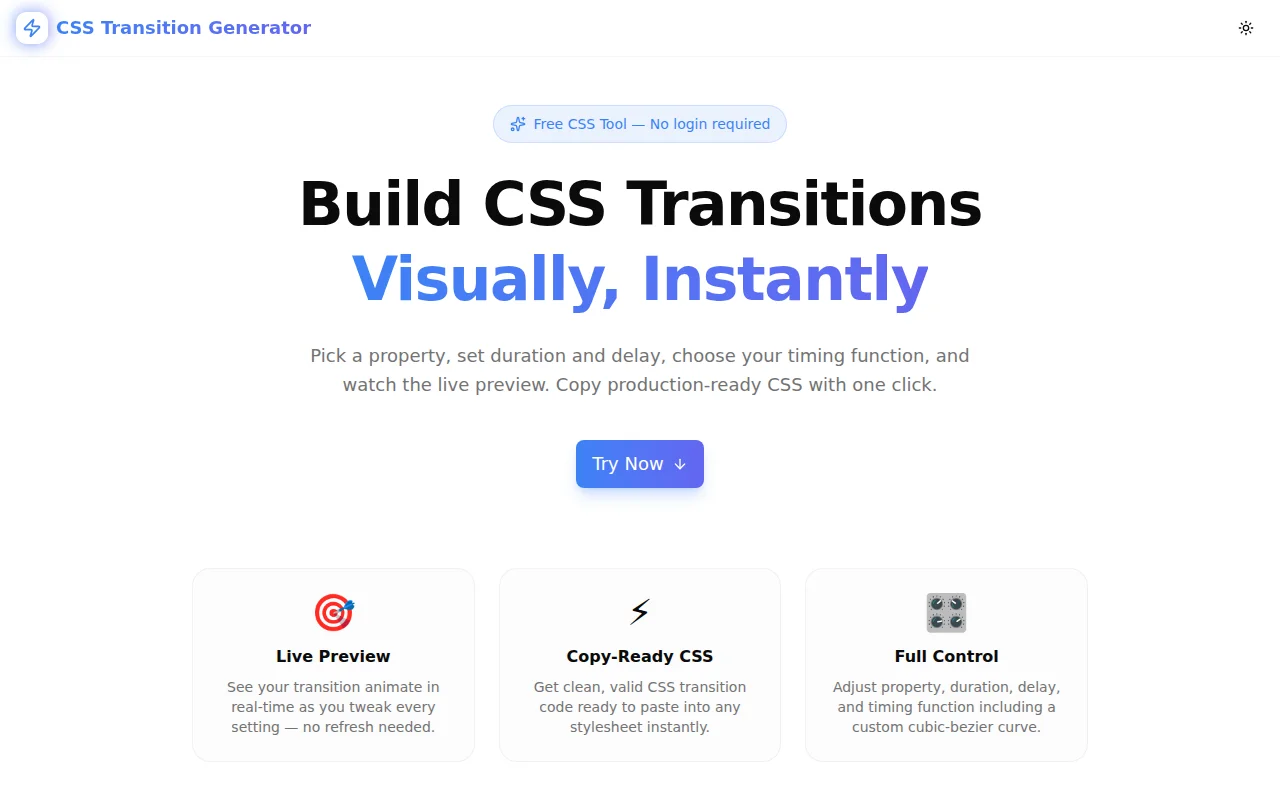
The CSS Transition Generator at css-transition-generator.tools.jagodana.com fixes that. Select a property, slide the duration and delay, pick a timing function, click Play, and see the animation. Then copy the CSS.
What Is a CSS Transition (and Why Does It Matter)?
A CSS transition smoothly interpolates a property between two values over a specified duration. The browser does the math — you define the what, the how long, and the how.
/* Without a transition */
.button:hover {
  background-color: #6366f1;
}
/* Instant jump — feels mechanical */

/* With a transition */
.button {
  transition: background-color 200ms ease-out;
}
.button:hover {
  background-color: #6366f1;
}
/* Smooth crossfade — feels polished */
Transitions are the single biggest quality signal between a "developer portfolio" UI and a production product. A 200ms ease-out on a hover state costs one line of CSS and makes your interface feel professional. Most developers know this. Very few get the values right on the first try.
How Does a CSS Transition Work?
A transition declaration has four parts:
transition: <property> <duration> <timing-function> <delay>;- property — which CSS property to animate (
opacity,transform,background-color, etc.) - duration — how long the animation runs (
200ms,0.4s) - timing-function — the speed curve (
ease,linear,cubic-bezier(...)) - delay — how long to wait before starting (
0ms,100ms)
They interact. A 600ms linear transition feels robotic. A 200ms ease-out feels snappy. A 400ms cubic-bezier(0.34, 1.56, 0.64, 1) bounces at the end. Understanding how these combine without a visual tool requires either experience or trial and error.
What Is a CSS Timing Function?
The timing function controls the velocity curve of the transition — how fast the property changes at each moment in time.
ease (browser default)
transition: opacity 300ms ease;Starts quickly, slows down toward the end. Good for most hover effects. The browser uses this if you omit the timing function.
linear
transition: opacity 300ms linear;Constant speed throughout. Feels mechanical. Use it for loading bars and progress indicators where constant motion signals progress. Avoid it for most UI feedback — it reads as robotic.
ease-in
transition: opacity 300ms ease-in;Starts slowly, accelerates. Good for exit animations — things leaving the screen should start slow and then move away quickly. Feels wrong for entrance animations.
ease-out
transition: opacity 300ms ease-out;Starts quickly, decelerates. The most natural choice for entrance animations — things entering the viewport should arrive with energy and settle. This is the default you should reach for first.
ease-in-out
transition: opacity 300ms ease-in-out;Slow at both ends, fast in the middle. Good for toggle states where an element moves from one stable position to another. The symmetry reads as deliberate.
cubic-bezier()
transition: transform 400ms cubic-bezier(0.34, 1.56, 0.64, 1);Fully custom speed curve. Four numbers define two control points on a Bézier curve. Values above 1.0 or below 0.0 on the Y axis create overshoot — the classic spring/bounce effect. This is where CSS transitions get expressive.
What Are the Best CSS Transition Duration Values?
Duration is the hardest value to guess without visual feedback. Here are starting points based on common UI patterns:
| Duration | Use case | |----------|----------| | 50–100ms | Micro-feedback: button press, checkbox toggle, focus ring | | 150–200ms | Hover states, color changes, small scale transforms | | 250–350ms | Entrance/exit of small elements (tooltips, badges, chips) | | 400–500ms | Modals, sidebars, page transitions | | 600ms+ | Deliberate, storytelling animations — use sparingly |
These are starting points. The right value depends on the size of the element and the distance of movement. Larger elements need more time. Use the generator to validate: set a duration, click Play, ask yourself if the animation resolves at the moment it should.
How to Use the CSS Transition Generator
Step 1: Select a CSS Property
Choose from seven properties that cover the most common transition scenarios:
- Opacity — fades the element from fully visible to fully transparent
- Scale — grows the element to 1.3× its original size
- Rotate — rotates 45 degrees
- Translate X — slides 40px to the right
- Background — crossfades between two brand colors
- Border Radius — morphs from a rounded rectangle to a circle
- Box Shadow — animates from no shadow to a soft blue depth shadow
Each property has sensible from/to values pre-set, so the preview is always meaningful.
Step 2: Adjust Duration and Delay
Two sliders: duration (50ms–3000ms) and delay (0ms–2000ms). Both update the CSS output in real time. Use delay when you want sequential animations — stagger multiple elements by giving each one a slightly longer delay.
Step 3: Pick a Timing Function
Six buttons: ease, linear, ease-in, ease-out, ease-in-out, cubic-bezier. Click any to switch. If you select cubic-bezier, an SVG editor appears with two draggable handles (P1 and P2). Drag them to reshape the curve. The four numeric values update below the editor as you drag.
Step 4: Click Play
The preview box animates from its starting state to its ending state using the exact CSS you've configured. After the animation completes, it resets automatically. Hit Play again to see it as many times as you need.
Step 5: Copy the CSS
Two outputs are shown: a one-line shorthand and a full CSS snippet with selectors. Click Copy to put the shorthand on your clipboard. Paste it into your stylesheet.
What Is a Cubic-Bezier Curve in CSS?
A cubic Bézier curve is defined by four points: a fixed start point at (0,0), a fixed end point at (1,1), and two control points P1 (x1, y1) and P2 (x2, y2) that you control.
The X axis represents time (0 = start, 1 = end). The Y axis represents progress (0 = start value, 1 = end value). The shape of the curve between those points defines the speed — steep sections are fast, shallow sections are slow.
When the Y value of a control point goes above 1.0, the curve overshoots — the property animates past its target and springs back. This creates bounce effects without any JavaScript. When it goes below 0.0, the property undershoots first before reaching its target.
The CSS Transition Generator's cubic-bezier editor makes this tangible: drag the blue handle (P1) and the indigo handle (P2), watch the curve reshape, and play the preview to feel the result.
Which CSS Properties Can Be Transitioned?
CSS transitions work with any property that has interpolatable values — properties that the browser can calculate intermediate states for:
Numeric properties: opacity, width, height, font-size, line-height, border-width, margin, padding, border-radius, z-index (integer steps)
Transform functions: scale(), rotate(), translateX(), translateY(), skew() — all composable
Color properties: color, background-color, border-color, box-shadow (the color component)
Composite properties: box-shadow (position, blur, spread, color — all interpolated together), filter, clip-path
Properties that cannot be transitioned include display, position, visibility (discrete states — they jump, they don't interpolate), and layout-changing properties like flex-direction.
CSS Transition vs CSS Animation: When to Use Each
Use transition when:
- The change is triggered by a user interaction (hover, focus, active, class toggle)
- You're animating between two states (off/on, default/active, collapsed/expanded)
- The animation plays once and stops
- You want the browser to reverse the animation automatically when the trigger ends
Use @keyframes + animation when:
- The animation loops indefinitely (loading spinners, pulsing indicators)
- The animation has more than two states (a three-step progress)
- The animation should play automatically on load, not wait for user interaction
- You need fine-grained control over intermediate frames
For most UI interactivity — hover states, toggles, entrance/exit of small components — transition is the right tool. It's simpler, it automatically reverses, and the browser optimizes it well.
Common CSS Transition Mistakes
Transitioning all properties
/* Avoid */
transition: all 300ms ease;
transition: all catches every property change including layout properties. It's expensive, it can cause unexpected animations, and it makes your CSS unpredictable. Always specify the property explicitly:
/* Better */
transition: opacity 300ms ease-out, transform 300ms ease-out;
Transitioning layout-affecting properties
width, height, margin, and padding can be transitioned but they trigger layout recalculation on every frame, which is expensive. Prefer animating transform: scaleX() for width-like effects and opacity for visibility — both are GPU-composited and cause no layout recalculation.
Ignoring the prefers-reduced-motion media query
Some users have vestibular disorders or motion sensitivity. Always wrap non-essential animations in a media query check:
@media (prefers-reduced-motion: reduce) {
  * {
    transition-duration: 0.01ms !important;
    animation-duration: 0.01ms !important;
  }
}
Choosing duration by intuition alone
Duration that "feels right" in development often feels sluggish in production — especially on slower devices where performance is lower. Use the generator to validate your choices and err on the shorter side: a 200ms transition that resolves crisply beats a 500ms transition that makes users wait.
Try the CSS Transition Generator
No signup. No install. 100% client-side — nothing you configure is sent to any server.
Select a property, set your timing, drag the cubic-bezier curve if you want something custom, click Play, copy the CSS.
👉 css-transition-generator.tools.jagodana.com
CSS Transition Generator is part of the 365 Tools Challenge — a new free developer tool built every day by Jagodana Studio.