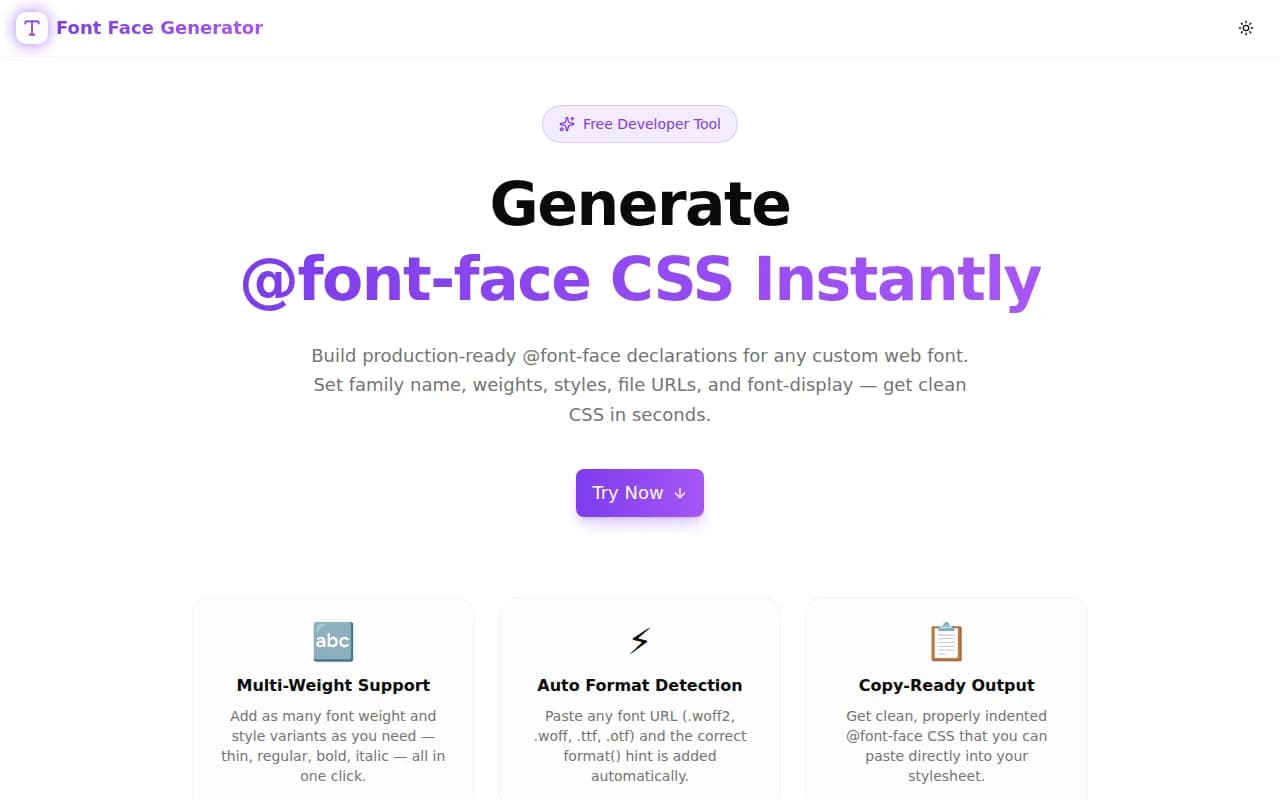
Font Face Generator: Generate @font-face CSS for Custom Web Fonts Instantly
Free online @font-face generator — enter your font family name, set weights and styles, paste font file URLs, and copy production-ready CSS instantly. Supports woff2, woff, ttf, otf with auto format detection.
Font Face Generator: Generate @font-face CSS for Custom Web Fonts Instantly
Embedding a custom web font requires an @font-face declaration in your CSS. One font family with multiple weights and styles means multiple declarations — each one needing the right weight value, the right format hint, and the right font-display strategy. It is repetitive, easy to get wrong, and nobody should be typing it by hand in 2026.
The Font Face Generator at font-face-generator.tools.jagodana.com builds those declarations for you. Enter the font family name, add variants, paste URLs — copy CSS. Done in under a minute.
What Is @font-face and Why Do You Need It?
@font-face is the CSS rule that tells the browser where to download a custom font and what to call it:
@font-face {
  font-family: 'BrandFont';
  font-weight: 400;
  font-style: normal;
  font-display: swap;
  src: url('https://cdn.example.com/brandfont-400.woff2') format('woff2');
}
Once this rule is in your stylesheet, you can use font-family: 'BrandFont' anywhere in your CSS and the browser fetches the font automatically.
Without it, you're limited to system fonts or third-party CDN @import URLs — which cost you control over performance, privacy, and fallback behaviour.
How Does the Font Face Generator Work?
Step 1: Enter Your Font Family Name
Type the font family name at the top — for example, InterCustom, BrandSans, or whatever name you'll use in your CSS. This name appears consistently across every generated block, eliminating typo risk from retyping it.
Step 2: Add Font Variants
Click Add Variant for each weight and style combination. Each variant has:
- Weight (100 Thin → 900 Black)
- Style (normal, italic, oblique)
- font-display (swap, auto, block, fallback, optional)
A four-weight type system with italics is eight variants — add them all before copying.
Step 3: Paste Font URLs
For each variant, paste the URL of the font file. You can add multiple URLs on separate lines for format fallbacks. The generator detects the file extension and writes the correct format() hint:
.woff2→format('woff2').woff→format('woff').ttf→format('truetype').otf→format('opentype')
Step 4: Copy the CSS
The output updates in real time. When you're ready, click Copy CSS — all @font-face blocks are copied to your clipboard, ready to paste into your stylesheet.
What Is font-display and Which Value Should You Use?
font-display controls how the browser handles the period between page load and font download. It is the single most impactful property for web font performance.
font-display: swap — Use This for Body Text
font-display: swap;The browser renders text immediately using a fallback system font, then replaces it with the custom font when it loads. Users see text instantly (no invisible content), and the font swaps in once ready. The downside is a visible "flash" when the swap occurs. For body text, this is the right tradeoff — readable content from the first frame.
font-display: optional — Use This for Performance-Critical Pages
font-display: optional;The browser only uses the custom font if it is already in cache or can be fetched instantly (within a very short timeout). Otherwise the fallback is used permanently for that page session. Zero layout shift, but the custom font may not appear for first-time visitors. Good for Core Web Vitals when you have a close font match as a fallback.
font-display: fallback — The Middle Ground
font-display: fallback;Very short block period (100ms), then fallback font, then swap if the font loads within 3 seconds. After 3 seconds, the fallback is used permanently. Prevents layout shift from late-loading fonts without giving up on the custom font entirely.
font-display: block — Use Sparingly
font-display: block;The browser hides text for up to 3 seconds while the font loads. Only appropriate for small decorative elements where showing the wrong font is genuinely worse than showing nothing — icon fonts being the classic case.
Default recommendation: Use swap for body and heading text, optional for decorative fonts you can live without, and fallback when you need a balance between CLS and custom font visibility.
Why Self-Host Instead of Using Google Fonts?
Google Fonts is convenient. But self-hosting offers meaningful advantages:
Performance
Self-hosted fonts are served from your own CDN, co-located with your other assets. No cross-origin DNS resolution, no separate connection, no dependency on Google's CDN uptime. You can also use <link rel="preload"> to tell the browser to fetch the font file before it parses the CSS.
<link rel="preload" href="/fonts/brandfont-400.woff2" as="font" type="font/woff2" crossorigin>Privacy and GDPR Compliance
Google Fonts logs font requests including IP addresses. For European users under GDPR, this is a third-party data transfer that may require disclosure. Self-hosting eliminates the issue entirely — no user data leaves your infrastructure.
Control Over font-display
Google Fonts' CSS does support font-display: swap via the &display=swap URL parameter, but other values are not available through the CDN. Self-hosting gives you full control over which value you use for each variant.
Offline and Intranet Support
If your application needs to work offline or on a private network, self-hosted fonts work — Google Fonts do not.
What Are the Most Common @font-face Mistakes?
Wrong format() Hint
The most common mistake:
/* Wrong — .woff2 does not use 'truetype' */
src: url('/fonts/myfont.woff2') format('truetype');

/* Correct */
src: url('/fonts/myfont.woff2') format('woff2');
An incorrect format hint causes browsers to download the font file and then reject it as unreadable — wasting bandwidth and causing a silent fallback. The Font Face Generator detects the format from the file extension automatically.
Inconsistent font-family Name
/* Block 1 */
@font-face { font-family: 'My Font'; ... }

/* Block 2 — note the extra space */
@font-face { font-family: 'MyFont'; ... }

/* Usage — which declaration does this match? Neither consistently */
h1 { font-family: 'My Font', sans-serif; }
The font family name is case-sensitive and space-sensitive. If block 2 has a different string than block 1, they are treated as two different font families. The generator uses exactly one name string across all blocks.
Missing Quotes on font-family
/* Works but fragile — font names with spaces require quotes */
@font-face { font-family: Inter; ... }

/* Correct */
@font-face { font-family: 'Inter'; ... }
Single-word font names work without quotes, but the moment you add a space (for versioning, team preferences, or a name that includes a number), unquoted values break. The generator always wraps the family name in single quotes.
Not Including a Fallback in font-family Usage
/* If the font fails to load, no font is specified */
body { font-family: 'BrandFont'; }

/* Correct — always include a generic family */
body { font-family: 'BrandFont', -apple-system, BlinkMacSystemFont, 'Segoe UI', sans-serif; }
@font-face defines the font, but every rule that uses it should include a fallback stack. The generator reminds you of this in its usage tip.
When Should You Use Multiple URLs in One @font-face Block?
Add multiple URLs when you want to support multiple font formats for the same variant:
@font-face {
  font-family: 'BrandFont';
  font-weight: 400;
  font-style: normal;
  font-display: swap;
  src: url('/fonts/brandfont-400.woff2') format('woff2'),
       url('/fonts/brandfont-400.woff') format('woff');
}
The browser uses the first format it supports. Since woff2 has near-universal modern browser support, listing woff as a fallback covers only very old environments (IE 11). If you're not supporting IE 11, a single woff2 URL is sufficient.
In the Font Face Generator, add multiple URLs for a variant on separate lines in the URL field — each one appears in the src value as a separate entry.
How Do You Use @font-face With Variable Fonts?
Variable fonts use a single file for all weights within a range. The @font-face declaration uses a weight range instead of a single value:
@font-face {
  font-family: 'BrandVar';
  font-weight: 100 900;
  font-style: normal;
  font-display: swap;
  src: url('/fonts/brand-variable.woff2') format('woff2');
}
In the Font Face Generator, you can type 100 900 directly into the weight field for variable font support. One block covers the entire weight axis — add a second block for the italic axis if the variable font includes it.
What Is the Difference Between font-style: italic and oblique?
- italic — uses a dedicated italic typeface file if one exists. If not, the browser synthesises italics by slanting the regular font (which usually looks wrong).
- oblique — always applies a mechanical slant to the regular glyphs, even if a true italic exists.
For most web fonts, use italic. Only use oblique when the font explicitly provides oblique variants (some variable fonts do, using font-style: oblique 0deg 20deg).
Try Font Face Generator Now
Stop writing @font-face declarations by hand. The Font Face Generator handles the format hints, weight labels, and multi-block structure — you focus on choosing the right fonts.
👉 font-face-generator.tools.jagodana.com
Enter a font name. Add variants. Paste URLs. Copy CSS. Under a minute from nothing to a full @font-face setup.
Font Face Generator is part of the 365 Tools Challenge — a new free developer tool every day from Jagodana Studio.