Free Online Image to Base64 Converter: Encode Any Image Instantly
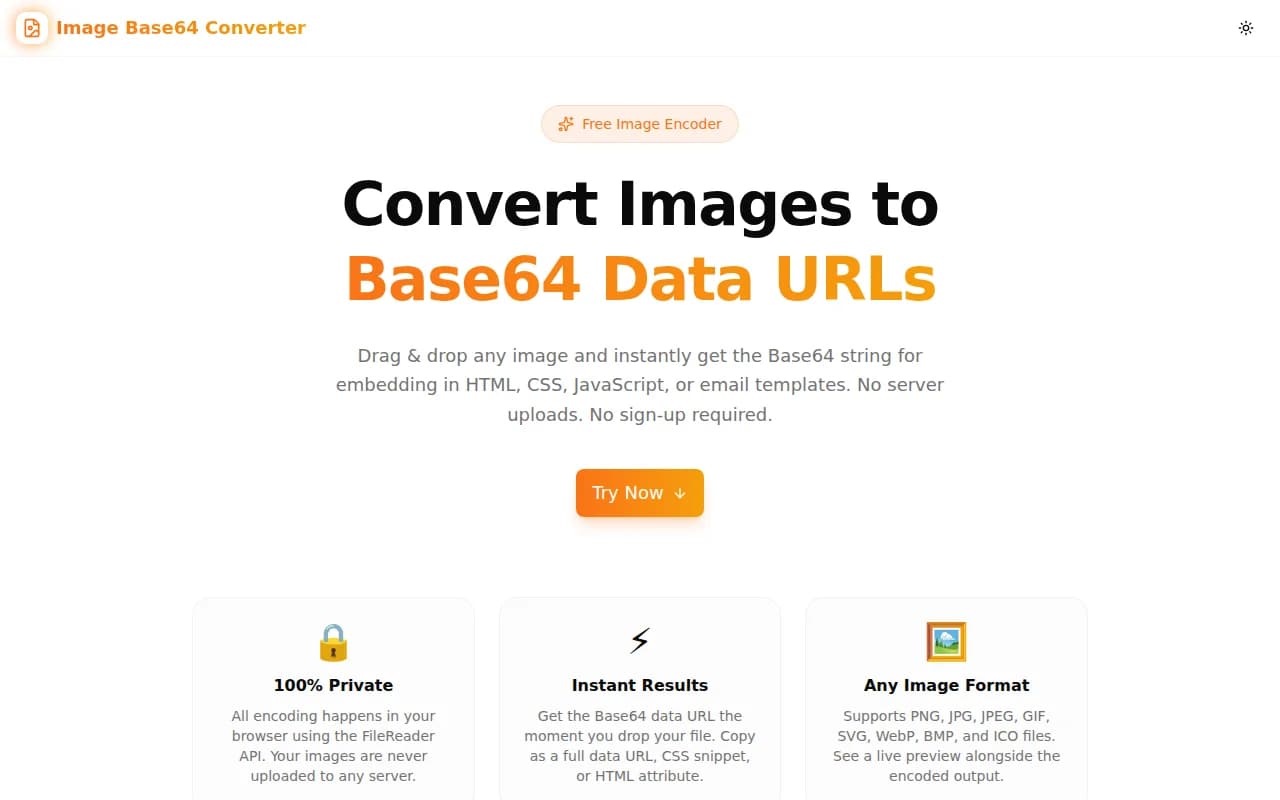
Convert PNG, JPG, GIF, SVG, and WebP images to Base64 data URLs in your browser. Copy as a full data URL, CSS background-image, or HTML img tag — 100% client-side, no uploads.
Free Online Image to Base64 Converter: Encode Any Image Instantly
You need to embed an image directly in HTML, CSS, or an email template. The fastest way is a Base64 data URL — but creating one manually means opening a terminal, running base64, stripping newlines, prepending the MIME type, and wrapping it in the right syntax. That is four unnecessary steps for what should take two seconds.
The Image Base64 Converter at Jagodana handles all of it. Drop your image, click Copy, paste into your project. Completely free. No account. Nothing uploaded to any server.
What Is a Base64 Image Data URL?
A Base64 image data URL is a way to embed image data directly inside an HTML, CSS, or JavaScript file as a text string, instead of referencing an external image file.
It looks like this:
data:image/png;base64,iVBORw0KGgoAAAANSUhEUgAAAAEA...
The structure is always:
data:— the URI scheme for inline dataimage/png— the MIME type of the image;base64,— the encoding indicatoriVBORw0K...— the Base64-encoded binary content of the image
This string can be used anywhere a URL is valid: in an <img> src attribute, a CSS background-image value, a JavaScript Image() constructor, or an email template's <img> tag.
How Do I Convert an Image to Base64 Online for Free?
Converting an image to Base64 takes three steps:
- Go to image-base64-converter.tools.jagodana.com
- Drag and drop your image onto the upload area, or click "Choose Image" to browse — PNG, JPG, GIF, SVG, WebP, BMP, and ICO are all supported
- Click Copy next to the output format you need — full data URL, Base64 string, CSS snippet, or HTML
<img>tag
The encoding happens instantly in your browser. Your image file is never sent to any server.
What Image Formats Does the Base64 Converter Support?
The tool supports all major web image formats:
- PNG — ideal for logos, icons, and images with transparency
- JPG / JPEG — photographs and images where file size matters more than transparency
- GIF — animated images and simple graphics
- SVG — scalable vector graphics; the encoded SVG data URL can be used in CSS or HTML
- WebP — modern format supported by all current browsers, offering better compression than JPEG or PNG
- BMP — uncompressed bitmap images
- ICO — favicon files
The MIME type in the output data URL is set automatically based on the file you upload. For a PNG, you get data:image/png;base64,.... For an SVG, you get data:image/svg+xml;base64,....
Is It Safe to Convert Images to Base64 Online?
Yes — but only if the tool processes your image entirely in your browser without uploading it to a server. The Jagodana Image Base64 Converter uses the browser's native FileReader.readAsDataURL() API, which reads the file from your local disk directly into memory. No network request is made during the encoding process.
This means:
- Your image data never leaves your device
- No server logs contain your image
- The tool works offline after the page has loaded
- There is no risk of your private images appearing on someone else's server
Before using any online Base64 converter with sensitive images (medical photos, proprietary designs, personal documents), verify it operates client-side — open your browser's Network tab and confirm no upload request is fired when you select a file.
When Should I Use a Base64-Encoded Image?
Base64 encoding is the right choice when:
You're Building Email Templates
Email clients — Gmail, Outlook, Apple Mail — block externally hosted images by default. When a user opens your email, images hosted on your server may show as broken placeholders until the user clicks "Display images." Embedding images as Base64 data URLs sidesteps this entirely: the image is part of the HTML document, so it displays immediately without any server request.
This is especially important for logo images, product photos in transactional emails, and hero banners in marketing campaigns.
You're Creating a Self-Contained HTML File
Single-file HTML documents — offline reports, shareable dashboards, documentation bundles — need to work without an internet connection. Embedding images as data URLs makes the file fully portable: no broken image references, no external dependencies.
You're Embedding Small Icons in CSS
Small icons and decorative SVGs embedded as CSS data URLs eliminate individual HTTP requests:
.icon-star {
  background-image: url("data:image/svg+xml;base64,PHN2ZyB4bWxucz...");
}
For design systems and component libraries, this approach makes components self-contained — no separate icon file needs to ship alongside the CSS.
You're Testing in a Code Sandbox
When experimenting in CodePen, StackBlitz, or a REPL that doesn't support file uploads, Base64 data URLs let you include real images in your demos without hosting them anywhere.
Why Does Base64 Make My Image Larger?
Base64 encoding converts binary data (which uses all 256 possible byte values) into a text representation that uses only 64 safe ASCII characters. Because 6 bits of binary data maps to one Base64 character, and each character takes one byte of ASCII, the encoding adds approximately 33% overhead.
For example:
- A 10 KB PNG becomes roughly 13.3 KB as a Base64 string
- A 100 KB JPEG becomes roughly 133 KB as Base64
The Image Base64 Converter shows you both the original file size and the encoded size side by side, along with the overhead percentage, so you can make an informed decision before embedding the image.
Rule of thumb: Use Base64 for images under 10 KB. For larger images, the size increase outweighs the HTTP request savings — an external <img> URL is the better choice.
How Do I Use a Base64 Image in CSS?
Use the CSS background-image snippet from the converter:
.hero-icon {
  background-image: url("data:image/png;base64,iVBORw0KGg...");
  background-repeat: no-repeat;
  background-size: contain;
  width: 32px;
  height: 32px;
}
Or as an inline style:
<div style="background-image: url('data:image/png;base64,iVBORw0KGg...')"></div>The converter provides a ready-to-paste background-image declaration — click the CSS copy button and paste it directly into your stylesheet.
How Do I Use a Base64 Image in HTML?
Use the HTML <img> snippet:
<img src="data:image/png;base64,iVBORw0KGg..." alt="Company logo" width="200" height="80" />The converter generates this snippet with the filename (without extension) as the alt attribute value. You can adjust the alt text and add width and height attributes to prevent layout shift.
How Do I Use a Base64 Image in JavaScript?
Assign the data URL to an Image object or set it as the src of an existing element:
// Create a new image
const img = new Image();
img.src = "data:image/png;base64,iVBORw0KGg...";

// Set an existing element's src
document.getElementById("logo").src = "data:image/png;base64,iVBORw0KGg...";

// Use in a canvas
const canvas = document.getElementById("canvas");
const ctx = canvas.getContext("2d");
const image = new Image();
image.onload = () => ctx.drawImage(image, 0, 0);
image.src = "data:image/png;base64,iVBORw0KGg...";
Copy the full data URL from the converter and paste it as the src value.
What Is the Difference Between a Data URL and a Base64 String?
These terms are often used interchangeably but they refer to different things:
- Data URL (or data URI): the complete string including the MIME type prefix —
data:image/png;base64,iVBORw0K... - Base64 string: just the encoded data portion after the comma —
iVBORw0K...
The data URL is what you use in HTML src attributes, CSS url() values, and JavaScript assignments. The raw Base64 string (without the prefix) is what you'd use when communicating with an API that expects just the encoded bytes, or when you're constructing the data URL prefix yourself.
The converter provides both as separate copy targets.
Real-World Use Cases
Inline Logos in Transactional Emails
Your password reset email needs the company logo to appear even before the user clicks "Allow images." Encode the logo PNG as Base64, paste the data URL into your email template's <img> tag, and the logo renders immediately for all users regardless of their image-blocking settings.
Self-Contained HTML Reports
A data pipeline generates a daily HTML report with embedded charts. Instead of hosting the chart images separately, encode them as Base64 data URLs during generation and embed them in the HTML. The file is fully portable — open it from any location, offline or online, and all images are present.
Favicon Preloading
The browser loads favicons separately, often after the page has rendered. Embed your favicon as a Base64 data URL in the <head> to have it available immediately:
<link rel="icon" type="image/svg+xml" href="data:image/svg+xml;base64,PHN2Zy..." />Prototyping Without a Server
Building a local HTML prototype that needs images? Base64-encode the assets and embed them directly. No local server needed, no CORS issues, no file path problems.
CSS Icon Systems
Small icon sets — checkmarks, arrows, status indicators — can be embedded in a single CSS file as Base64 data URLs. The entire icon system loads in one HTTP request, eliminating the need for an icon font or sprite sheet.
The Image Base64 Converter is one of 365 free tools being built at Jagodana as part of the 365 Tools Challenge — one new tool every day for developers, designers, and product teams.
Explore all tools at jagodana.com.