CSS Line Clamp Generator: Truncate Text to N Lines Online — Free Tool
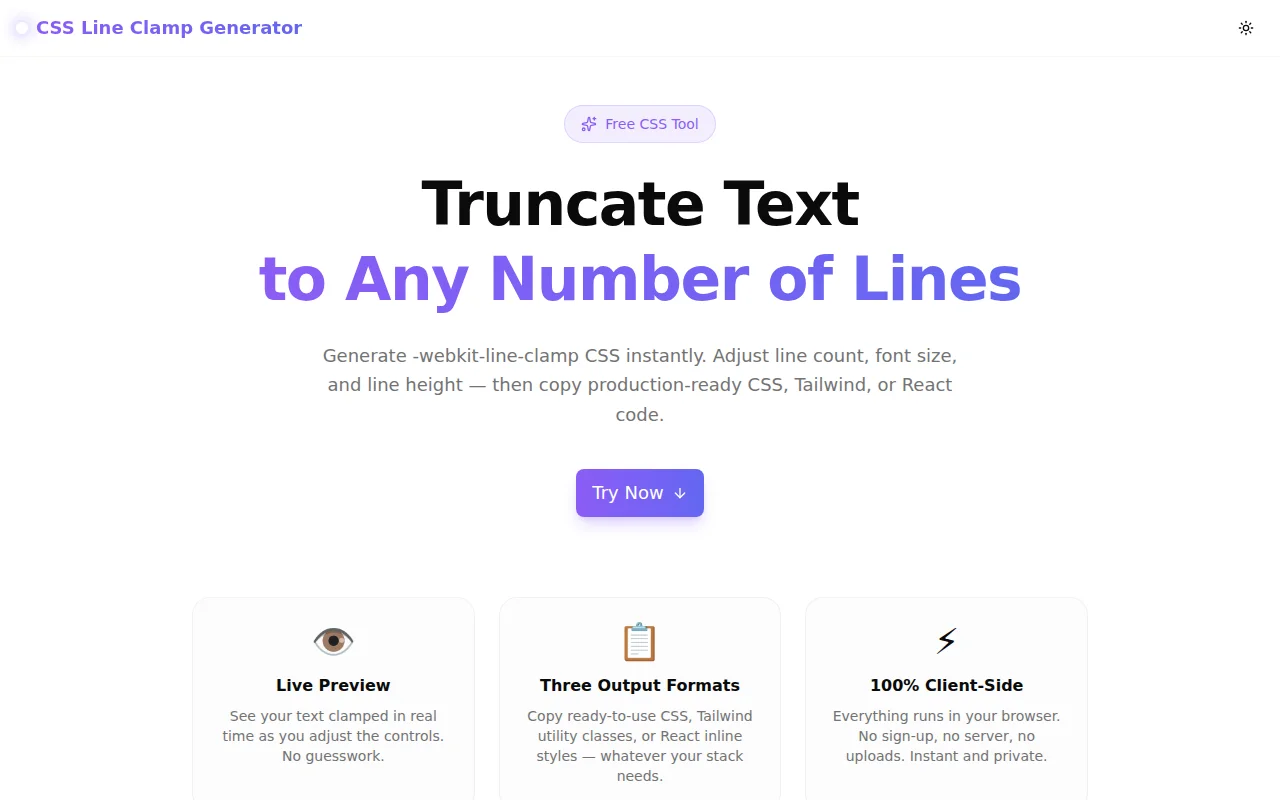
Generate -webkit-line-clamp CSS instantly with a live preview. Set line count, font size, and line height — copy CSS, Tailwind, or React code. Free, no login, 100% browser-side.
CSS Line Clamp Generator: Truncate Text to N Lines Online — Free Tool
Clamping text to a fixed number of lines is one of those things every frontend developer does repeatedly — and still looks up every time. The CSS Line Clamp Generator at line-clamp-generator.tools.jagodana.com generates the correct three-property CSS block instantly, with a live preview of your actual text, and copies it in the format your project needs: plain CSS, Tailwind utility class, or React inline styles.
What Is CSS Line Clamping?
CSS line clamping limits text to a set number of lines and adds an ellipsis (…) at the overflow point. The standard implementation uses three CSS properties together:
.clamp {
  display: -webkit-box;
  -webkit-line-clamp: 3;
  -webkit-box-orient: vertical;
  overflow: hidden;
}
Despite the -webkit- prefix suggesting a webkit-only feature, -webkit-line-clamp has universal browser support in all modern browsers:
| Browser | Support Since | |---|---| | Chrome | 88+ (2021) | | Firefox | 68+ (2019) | | Safari | 13+ (2019) | | Edge | 88+ (2021) |
It is now part of the CSS Overflow Module Level 4 specification. The -webkit- prefix is effectively a legacy alias that the spec officially adopted.
Why Does This Keep Coming Up?
The Three-Property Requirement
The frustration with -webkit-line-clamp isn't the property itself — it's that it only works inside a -webkit-box formatting context. Remove any one of the three properties and the clamping silently fails:
/* Wrong — missing display: -webkit-box */
.broken {
  -webkit-line-clamp: 3;
  -webkit-box-orient: vertical;
  overflow: hidden;
}

/* Wrong — missing -webkit-box-orient */
.also-broken {
  display: -webkit-box;
  -webkit-line-clamp: 3;
  overflow: hidden;
}
Both declarations look plausible. Neither works. The correct version requires all three properties every time, which is why developers keep searching for it.
The React Gotcha
In React, inline styles use camelCase property names. CSS property names like -webkit-line-clamp become WebkitLineClamp and -webkit-box-orient becomes WebkitBoxOrient. Writing these manually is error-prone:
/* Common mistake — wrong casing */
<div style={{ webkitLineClamp: 3 }}>…</div>

/* Correct */
<div
  style={{
    display: '-webkit-box',
    WebkitLineClamp: 3,
    WebkitBoxOrient: 'vertical',
    overflow: 'hidden',
  }}
>
  …
</div>
The generator produces the exact camelCase React object on the React tab.
How to Use the CSS Line Clamp Generator
Step 1: Set the Line Count
Use the Lines slider to choose how many lines to show before truncation (1–10). The preview updates instantly.
Step 2: Adjust Font Settings
Set Font Size and Line Height to match your component's actual typography. The tool calculates the exact max-height (lines × lineHeight × fontSize) and displays it below the preview — useful for design handoff specs.
Step 3: Paste Your Text
Replace the sample text with your actual content. Card titles, product descriptions, and news feed blurbs all behave differently at the same line count. Seeing your real text clamped is more accurate than generic lorem ipsum.
Step 4: Copy the Code
Switch between CSS, Tailwind, and React tabs. Click Copy to put the code on your clipboard.
How Does -webkit-line-clamp Work?
The Display Context
display: -webkit-box switches the element into a block-level box formatting context designed for multi-line flex-style layout. -webkit-box-orient: vertical sets the stacking direction. Together, they give -webkit-line-clamp a context it can measure.
The Clamp Itself
-webkit-line-clamp: N tells the browser to render at most N lines of content inside the box. Content beyond that is clipped. The browser automatically adds the … ellipsis at the clamp boundary.
Why overflow: hidden Is Required
Without overflow: hidden, the box's content isn't clipped — the element visually overflows even though the line count property is set. The overflow: hidden is what actually enforces the visual boundary.
CSS Line Clamp vs. text-overflow: ellipsis
A common point of confusion: text-overflow: ellipsis only truncates single-line text:
/* Single-line truncation only */
.single-line-clamp {
  white-space: nowrap;
  overflow: hidden;
  text-overflow: ellipsis;
}
For multi-line truncation, -webkit-line-clamp is the correct approach. The generator handles both use cases — a line count of 1 with -webkit-line-clamp works similarly to text-overflow: ellipsis but on a block-level element.
How to Use line-clamp in Tailwind CSS
Tailwind CSS v3.3+ includes built-in line-clamp utilities:
<!-- Clamp to 1–6 lines -->
<p class="line-clamp-1">…</p>
<p class="line-clamp-2">…</p>
<p class="line-clamp-3">…</p>
<p class="line-clamp-4">…</p>
<p class="line-clamp-5">…</p>
<p class="line-clamp-6">…</p>

<!-- Remove clamping -->
<p class="line-clamp-none">…</p>
For values above 6, you need to extend your Tailwind config:
// tailwind.config.js
module.exports = {
  theme: {
    extend: {
      lineClamp: {
        7: '7',
        8: '8',
        10: '10',
      },
    },
  },
}
The generator's Tailwind tab shows the correct class for 1–6 and the config extension for 7–10.
Does CSS Line Clamping Affect Accessibility?
No — the clamped text remains in the DOM. Screen readers read the full content, not just the visible lines. Only the visual display is truncated. This is better than hiding content with display: none or visibility: hidden, which remove it from the accessibility tree.
If you want to expose a "Read more" button that reveals the full text, pair the clamp with a toggle:
function ClampedText({ text, lines = 3 }) {
  const [expanded, setExpanded] = useState(false);
  return (
    <>
      <p
        style={
          expanded
            ? {}
            : { display: '-webkit-box', WebkitLineClamp: lines, WebkitBoxOrient: 'vertical', overflow: 'hidden' }
        }
      >
        {text}
      </p>
      <button onClick={() => setExpanded(!expanded)}>
        {expanded ? 'Show less' : 'Read more'}
      </button>
    </>
  );
}
Common Questions
What happens if the text fits within the line limit?
Nothing — the CSS has no visual effect when the content fits within the specified lines. No ellipsis is added, no content is hidden. Line clamping only activates on overflow.
Can I animate the clamp transition?
Directly animating WebkitLineClamp is not supported. The common workaround is animating max-height:
.clamp {
  max-height: calc(3 * 1.5rem); /* 3 lines at 1.5rem line height */
  overflow: hidden;
  transition: max-height 0.3s ease;
}
.clamp.expanded {
  max-height: 1000px; /* large enough to show full content */
}
This is a lookahead animation — it animates to a fixed max value rather than the true content height. It works well in practice despite the technical imprecision.
Does line clamping work inside flexbox or grid containers?
Yes. -webkit-line-clamp works on the element itself, regardless of its parent's display context. A clamped paragraph inside a flex card behaves correctly.
Try the CSS Line Clamp Generator
line-clamp-generator.tools.jagodana.com
- Set line count, font size, and line height
- Preview with your own text
- Copy CSS, Tailwind, or React code
- Free, no login, 100% browser-side
Part of the 365 Tools Challenge — one free developer tool built and shipped every day. Browse all tools at jagodana.com.