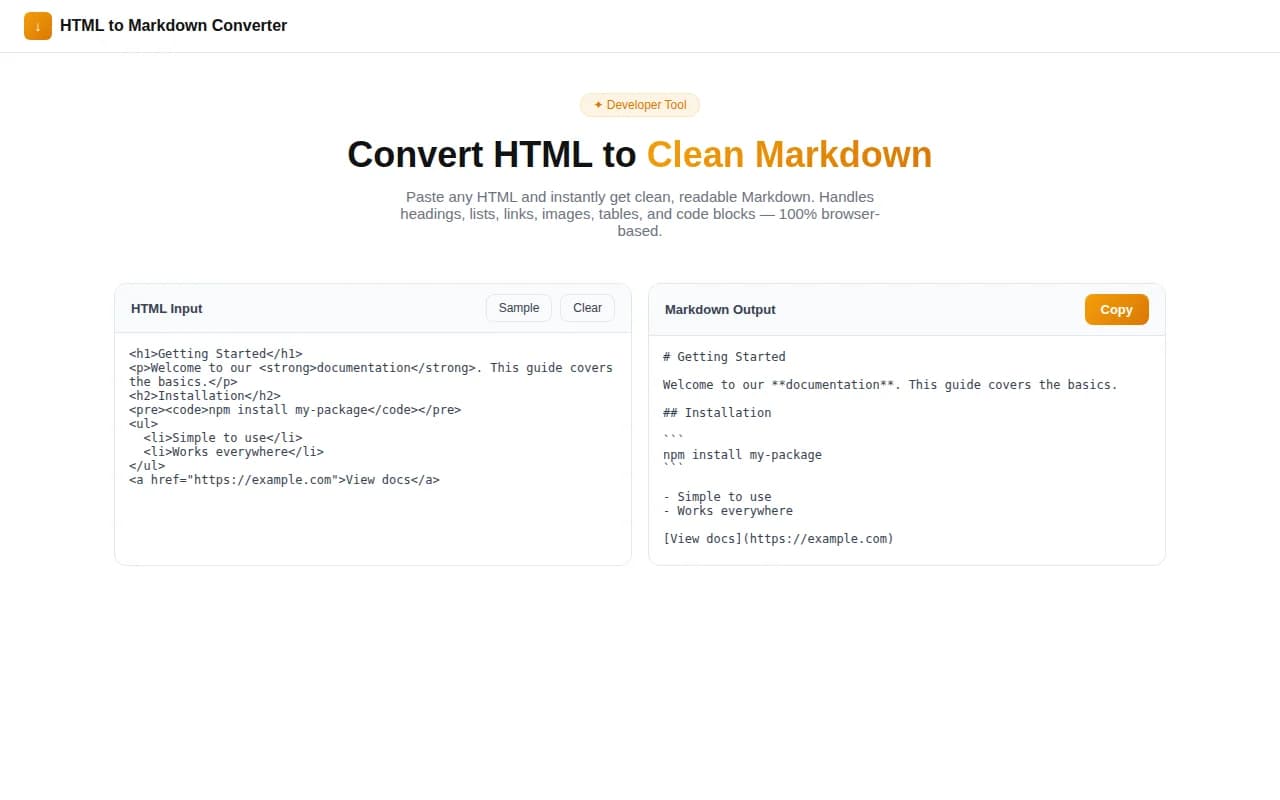
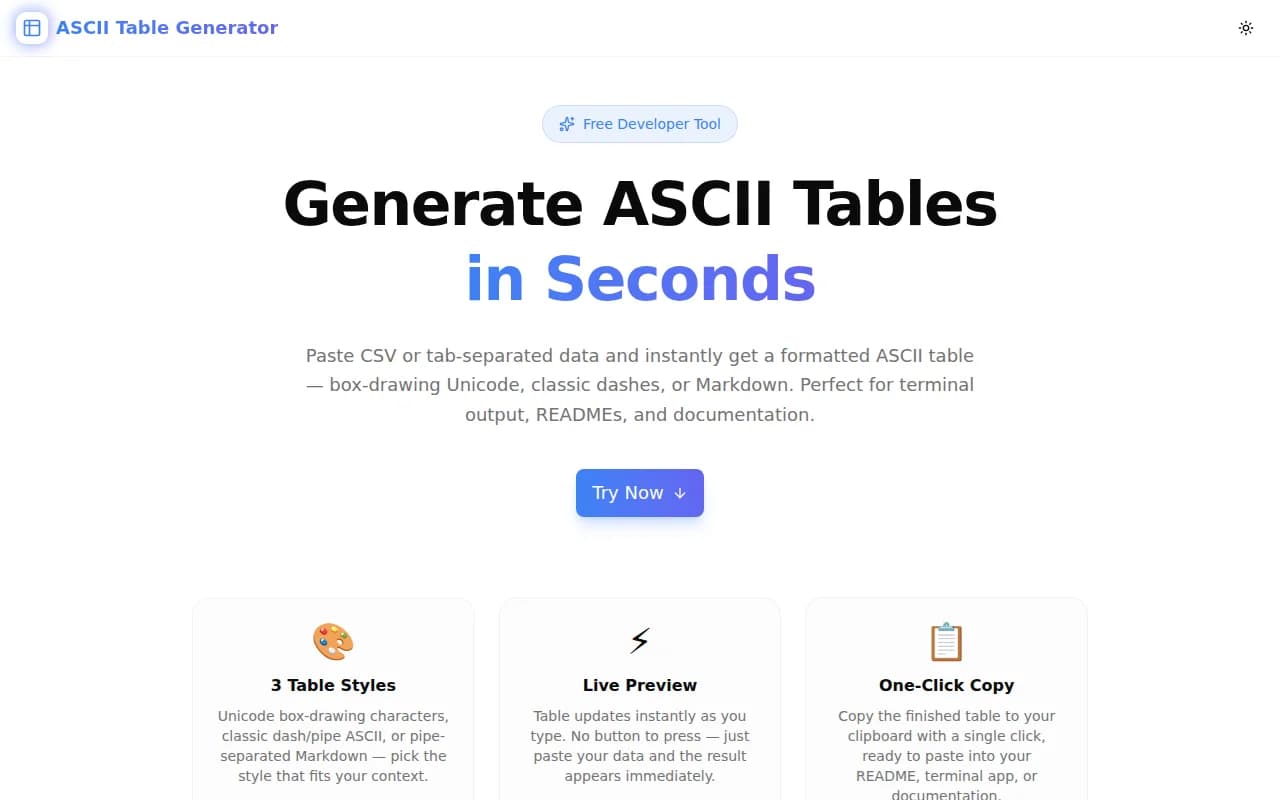
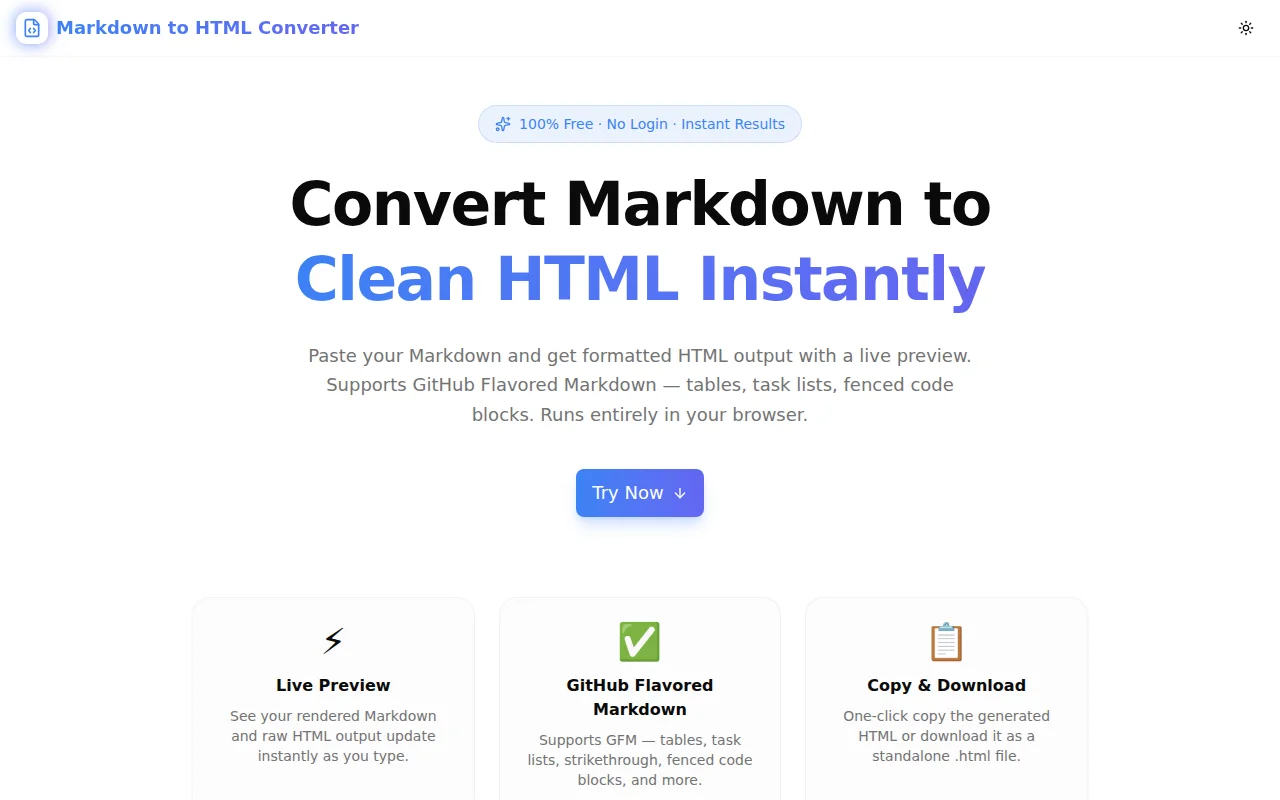
Introducing Markdown TOC Generator — Instant Table of Contents from Any Markdown Document
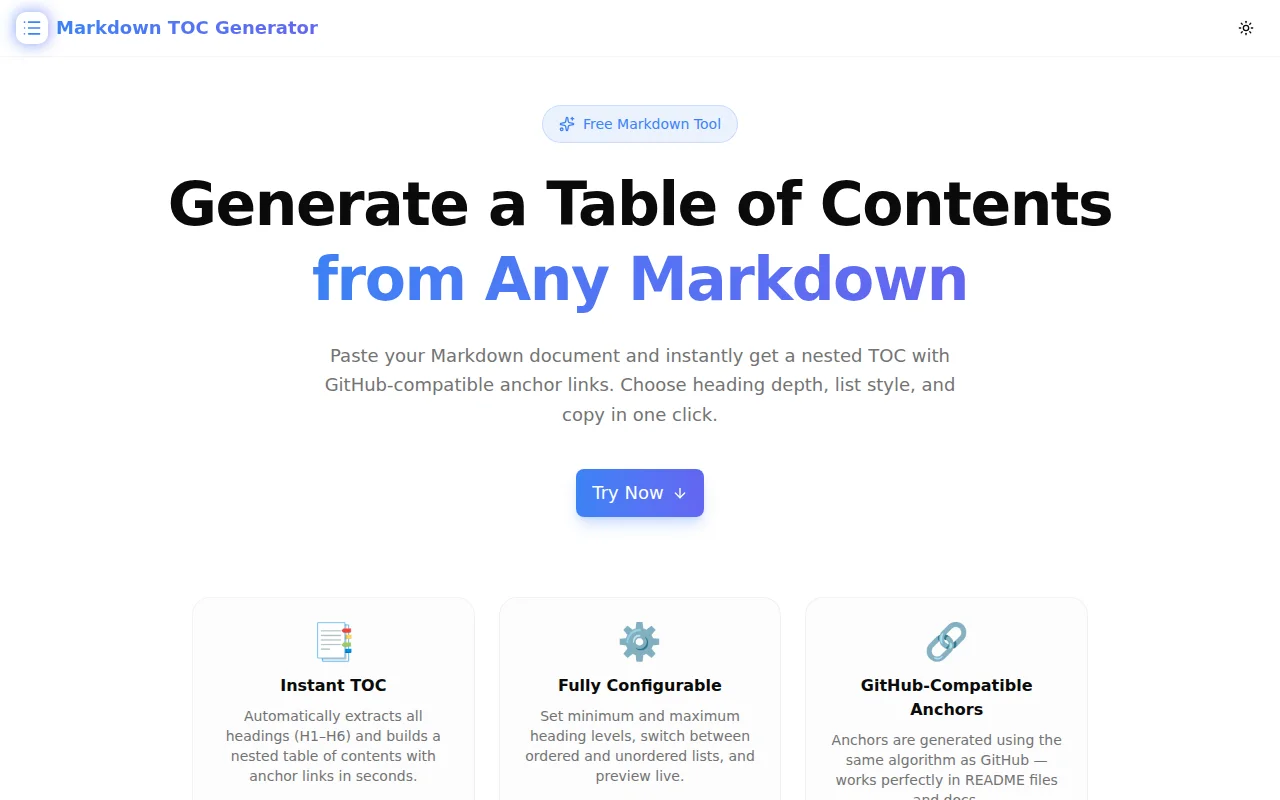
A free browser-based tool that generates a nested table of contents with GitHub-compatible anchor links from any Markdown document. Configure heading depth, choose list style, and copy in one click.
Introducing Markdown TOC Generator — Instant Table of Contents from Any Markdown Document
Today we're launching Markdown TOC Generator — a free tool that takes any Markdown document and produces a nested table of contents with GitHub-compatible anchor links.
Paste your Markdown. Configure depth. Copy. Done.
No signup. No install. Runs entirely in your browser.
What Is a Markdown Table of Contents?
A Markdown table of contents (TOC) is a list of internal navigation links placed near the top of a document. Each entry links to a heading lower in the file using an anchor — a fragment URL like #installation or #api-reference.
On GitHub and most Markdown-rendering platforms, anchor links are generated automatically from heading text: the text is lowercased, spaces become hyphens, and most special characters are removed. The result is a clickable link that jumps the reader to that heading.
A TOC is standard practice for:
- GitHub README files with more than five sections
- Technical specifications and architecture decision records
- Wikis and changelog files
- Documentation sites built with Docusaurus, VitePress, or MkDocs
- Long blog posts and tutorials in Markdown editors
The problem is not knowing what a TOC is — it is generating one without wasting ten minutes on manual work.
How Do You Generate a Markdown Table of Contents?
Step 1 — Paste your Markdown
Copy your full Markdown document and paste it into the left-hand input panel. The tool starts parsing headings immediately as you type — no button press required.
Step 2 — Configure heading depth
Two range sliders control which headings appear in the TOC:
Min Level sets the shallowest heading to include. Most documents benefit from starting at H2 — this excludes the document title (H1) from the TOC, since the reader is already at the top.
Max Level sets the deepest heading to include. Stopping at H3 keeps the TOC flat and scannable. Including H4–H6 is useful for API reference documents where sub-sub-sections are important navigation targets.
The heading count badge updates live to show how many headings match the current settings.
Step 3 — Choose list style
Toggle between unordered (hyphen-prefixed) and ordered (numbered) list. The default unordered style matches GitHub's convention. Ordered lists suit step-by-step guides where section sequence matters.
Step 4 — Copy
Click Copy TOC to send the generated Markdown to your clipboard. Paste it at the top of your document, under the title or the introductory paragraph.
The whole flow takes under 30 seconds for most documents.
What Anchor Link Format Does Markdown TOC Generator Use?
The anchor links follow the same algorithm GitHub uses to generate fragment links from heading text:
- Convert to lowercase
- Remove backticks, asterisks, underscores, brackets, and parentheses
- Strip characters that are not alphanumeric, whitespace, or hyphens
- Trim whitespace
- Replace whitespace runs with a single hyphen
- Collapse consecutive hyphens
A heading like ## API Reference — v2 becomes #api-reference--v2.
This algorithm is implemented in pure TypeScript client-side — no library, no server round-trip. The output is deterministic and matches what GitHub, GitLab, and most static-site generators produce from the same heading text.
Which Heading Levels Should I Include in My TOC?
H1 only (min 1, max 1): Almost never useful — most documents have one H1 (the title), so the TOC would be a single item.
H2 only (min 2, max 2): A flat TOC of top-level sections. Good for short documents with no sub-sections, or for generating a quick outline.
H2–H3 (min 2, max 3): The most common configuration. Covers all main sections and their direct sub-sections. Readable and complete without deep nesting. Use this for GitHub READMEs and most documentation pages.
H2–H4 (min 2, max 4): Suitable for API reference documents or technical specs where sub-sub-sections are meaningful navigation targets.
H1–H6 (min 1, max 6): Full document coverage. Useful for long technical documents, changelogs, or cases where every heading level is a navigation target.
Does the Generated TOC Work on GitHub?
Yes. The anchor algorithm is derived from GitHub's own Markdown renderer. A heading of ### Advanced Configuration generates the anchor #advanced-configuration, which is exactly the anchor GitHub creates when rendering that heading.
The output has been validated against:
- GitHub README files
- GitHub Wiki pages
- GitLab Markdown (which uses the same algorithm)
- Docusaurus, VitePress, and MkDocs (which follow the same convention)
Note that some platforms — most notably Notion, Confluence, and some headless CMS tools — use different anchor schemes. The tool is designed and optimized for GitHub-flavored Markdown, not those platforms.
Can I Generate an Ordered (Numbered) TOC?
Yes. Toggle the list style switch to switch between unordered (bulleted with -) and ordered (numbered with 1.).
Unordered is the GitHub convention and is supported universally. It looks like:
- [Installation](#installation)
  - [Prerequisites](#prerequisites)
  - [Install via npm](#install-via-npm)
Ordered suits sequential guides where the section order conveys progression:
1. [Installation](#installation)
   1. [Prerequisites](#prerequisites)
   1. [Install via npm](#install-via-npm)
Note: in Markdown, 1. at every level is valid — the renderer handles incrementing automatically.
Is There a File Size Limit?
No. All processing runs in the browser using JavaScript string operations. There is no upload, no file size limit, and no server round-trip. A 50,000-word technical specification with hundreds of headings parses in milliseconds.
Your document content never leaves your device.
How Long Does It Take to Build a Markdown TOC Generator?
This tool was built as part of the 365 Tools Challenge. The total time from idea to deployed tool — including fork, implementation, type-check, deploy via GitHub Actions, domain attachment, and content — was approximately 90 minutes.
The core logic (heading parser + anchor generator + TOC formatter) is about 40 lines of TypeScript. The rest is the UI, configuration controls, copy-to-clipboard integration, and the full SEO/analytics infrastructure the template provides.
Why We Built This
The 365 Tools Challenge is about solving small, real developer problems — the kind of thing that costs ten minutes of friction every week and, once solved, disappears from your workflow forever.
Markdown TOC Generator is one of those tools. Writing a table of contents by hand is error-prone and tedious. Plugins help but require installation. CLI tools add a dependency. AI assistants work but require pasting a full document just to get anchor links that might not match GitHub's output.
This tool is purpose-built, deterministic, and browser-native. Open, paste, copy.
Try it now: markdown-toc-generator.tools.jagodana.com
Related Tools
- Markdown Table Generator — build Markdown tables visually from a spreadsheet-like editor
- Markdown to HTML Converter — convert Markdown to clean HTML instantly
- README Generator — generate professional README.md files for your projects
- Markdown Badge Generator — create shields.io badges for your Markdown files
- HTML to Markdown — convert HTML pages or snippets to clean Markdown