Introducing Word Frequency Analyzer — Instant Word Counts, Stop-Word Filtering & CSV Export
A free browser tool that counts and ranks every word in any text, with stop-word filtering, bar chart visualization, and CSV export. Built in ~90 minutes as part of the 365 Tools Challenge.
Introducing Word Frequency Analyzer — Instant Word Counts, Stop-Word Filtering & CSV Export
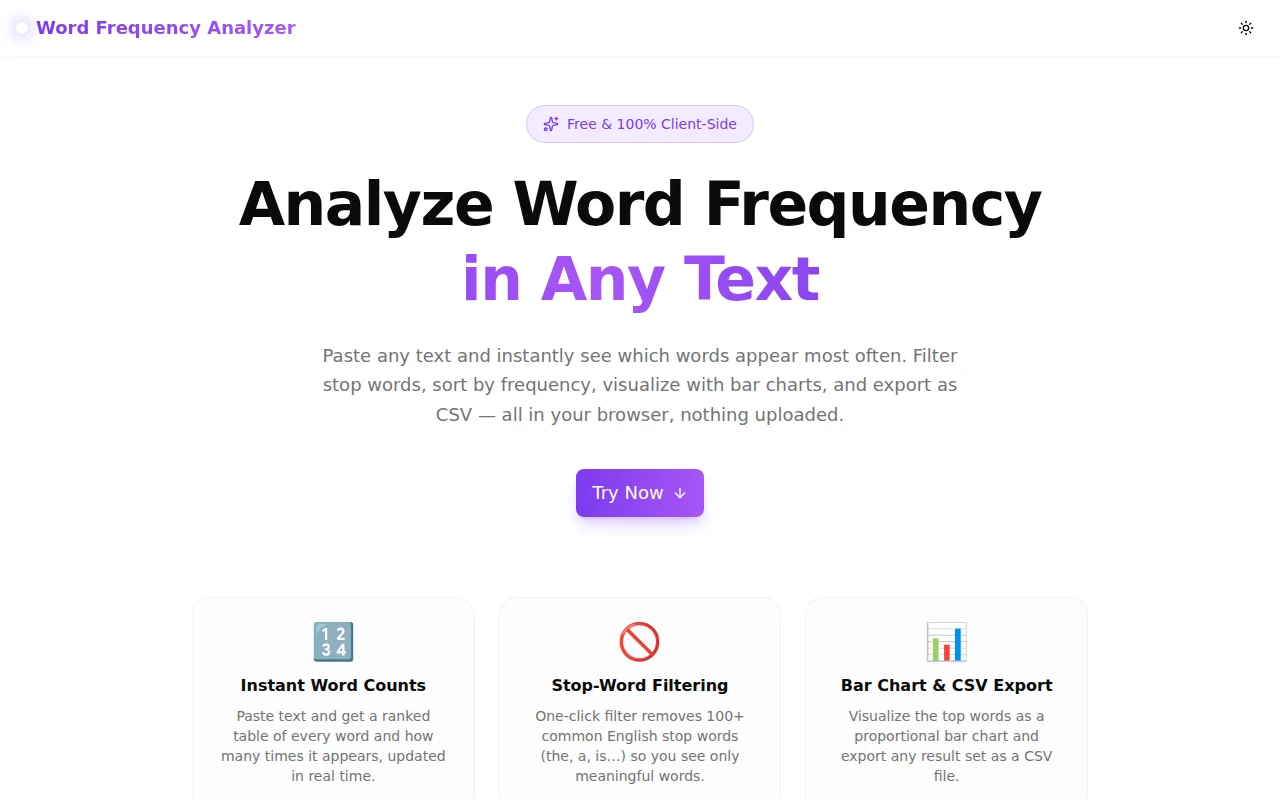
Today we're launching Word Frequency Analyzer — a free tool that counts how often every word appears in any text, ranks them by frequency, visualizes the results as a bar chart, and exports the data as CSV.
No sign-up. No file uploads. Runs entirely in your browser.
What Is a Word Frequency Analyzer?
A word frequency analyzer counts how many times each unique word appears in a piece of text and ranks the results from most to least common. It answers questions like:
- Which words am I overusing in this article?
- What are the most common keywords in this competitor's page?
- Which terms recur most in this batch of customer feedback?
- Which identifiers appear most in this log file?
It's a simple idea that turns out to be surprisingly useful across writing, SEO, research, and development workflows.
Why Did We Build This?
We already have a Word Counter that reports total words, characters, sentences, and reading time. But total count tells you nothing about which words dominate the text.
The existing tools that do show word frequency are either:
- Cluttered with ads and slow to load
- Server-side (your text gets uploaded somewhere)
- Missing useful features like stop-word filtering or CSV export
- Designed for academic corpus analysis, not quick one-off checks
Word Frequency Analyzer is the tool we wanted to use: paste, see results instantly, filter out noise, export if needed.
How Does Word Frequency Analysis Work?
Step 1: Tokenization
The input text is split into word tokens using a regular expression that matches word characters including accented letters and apostrophes. "Don't" counts as one word, not two. "Café" counts as "café" (or "cafe" in case-insensitive mode).
Step 2: Filtering
Each token passes through a filter chain:
- Minimum length — tokens shorter than the configured minimum are dropped
- Stop-word filter — if enabled, ~120 common English function words are removed from the count
Step 3: Frequency Map
The remaining tokens are counted into a word → count map. In case-insensitive mode (the default), "The" and "the" are merged under "the."
Step 4: Sorting and Display
The map is converted to a ranked array, sorted by count descending (or by word alphabetically, or by percentage — whichever column you clicked last), and sliced to the configured top-N limit.
All four steps run in a single React useMemo pass. Results update as you type, with no debounce delay and no "submit" button.
What Are Stop Words and Should I Filter Them?
Stop words are high-frequency function words that carry little semantic meaning on their own: the, a, is, are, of, to, and, in, that, it, and about 115 more.
In most bodies of English text, the five most common words are "the," "of," "and," "to," and "a" — none of which tells you anything about the topic of the text.
Filter stop words when you want to understand content: What is this text actually about? What vocabulary is the author using? Which product features appear most in customer reviews?
Keep stop words when you're doing linguistic or stylistic analysis: How does this author's function-word usage compare to other writers? Does this text have an unusually high rate of passive constructions?
The tool defaults to filtering stop words on, which is the right default for most content and SEO use cases.
What Can You Do With Word Frequency Data?
Identify Overused Words in Your Own Writing
Paste a draft before publishing. The frequency table immediately shows if you're leaning too hard on a particular word. "Very," "really," "just," "actually," and "basically" are common offenders. Fix them before the editor notices.
Analyze Keyword Density for SEO
Paste a page you're trying to rank against. What are its most frequent non-stop words? Are the target keywords appearing at a reasonable density? Is a particular term so frequent it looks like keyword stuffing? The percentage column answers all three questions at a glance.
Analyze Customer Feedback at Scale
Paste a batch of customer support tickets, survey responses, or reviews (redacting any PII first). The top-20 words tell you what customers are talking about. "Slow," "confusing," "error," and "charge" appearing at the top is a very different signal from "fast," "easy," "love," and "great."
Investigate Log Files
Paste a block of server errors or access logs. Which IP addresses, status codes, or error messages appear most? The frequency table is faster than mentally parsing a wall of text.
Build a Personal Vocabulary List for Language Learning
Find a native-language text at the right difficulty level. Run it through the frequency analyzer, filter stop words, export the CSV. The top 100 most frequent content words are likely the most useful vocabulary to learn from that source.
How Does the Bar Chart Help?
The table view shows precise numbers. The bar chart view shows relative proportions at a glance.
When one word appears 80 times and the second most common appears 20 times, the bar chart makes that 4x dominance immediately obvious — you don't need to mentally compare numbers. Outliers stand out visually in a way that's harder to spot in a sorted table.
The top 30 words animate on render, which makes the distribution feel dynamic and helps your eye track the slope from most frequent to least frequent.
Can I Export the Results?
Yes — two ways:
Export CSV downloads a word-frequency.csv file with four columns: rank, word, count, percentage. Every displayed row is included (up to your top-N setting). Open in Excel, Google Sheets, import into a data pipeline, or store as a project artifact.
Copy puts the full table as tab-separated text on your clipboard. Paste directly into any spreadsheet without opening a file.
Is My Text Uploaded Anywhere?
No. All processing happens in your browser using JavaScript. Your text is never sent to a server, never logged, and never stored. Close the tab and it's gone.
This makes the tool safe for:
- Internal documents and business communications
- Unpublished drafts before they go live
- Proprietary content and data
- Any text you'd rather not have transit an external server
Technical Notes
The full analysis pipeline — tokenization, stop-word filtering, frequency counting, sorting, and rendering — runs in a single React useMemo chain. For a typical article of 1,000–3,000 words, the full pass takes under 1 millisecond. For very large inputs (50,000+ words), it stays under 10ms on modern hardware.
The stop-word set is a JavaScript Set<string> (~120 entries), so each lookup is O(1). The sort is Array.prototype.sort — O(n log n) on the unique word count, not the token count.
Why We Built This in ~90 Minutes
The 365 Tools Challenge is about solving small, real problems fast. Word frequency analysis is one of those tasks that comes up across so many disciplines — writing, SEO, research, development — but the available tools either do too little (just a total count) or too much (full NLP pipelines that require setup).
The sweet spot is a clean, instant, client-side tool that handles the common cases well and gets out of your way.
Paste. Filter. Export. Done.
Try it now: word-frequency-analyzer.tools.jagodana.com
Related Tools
- Word Counter — total words, characters, sentences, and reading time
- Text Diff Checker — compare two texts and highlight every difference
- Readability Score Calculator — Flesch-Kincaid and other readability metrics
- Slug Generator — clean URL-friendly slug from any text
- Lorem Ipsum Generator — placeholder text for designs and prototypes