Introducing SVG Blob Generator — Organic Shapes in Seconds
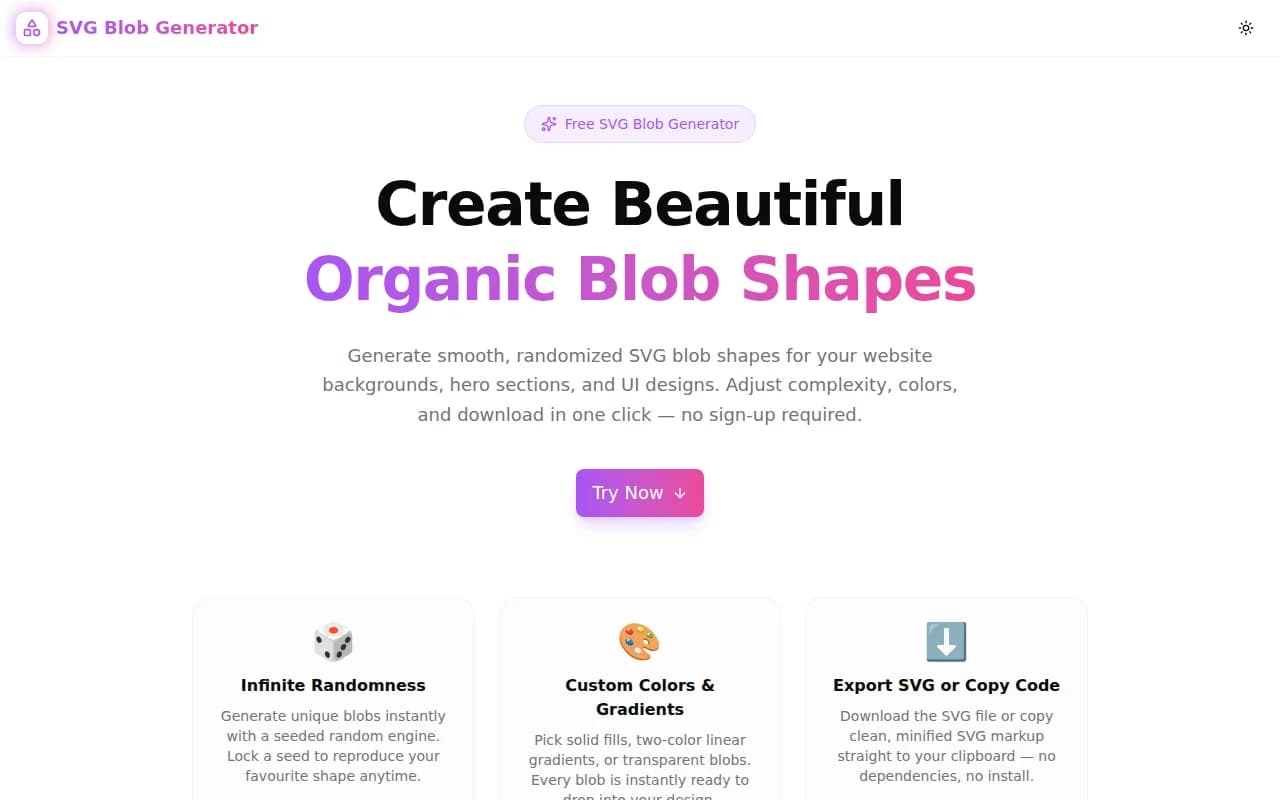
A free tool to generate smooth, organic SVG blob shapes for website backgrounds, hero sections, and UI illustrations. Adjust complexity, color, and seed — download SVG or copy the code in one click.
Introducing SVG Blob Generator — Organic Shapes in Seconds
Today we're launching SVG Blob Generator — a free tool that produces smooth, organic SVG blob shapes you can drop straight into your website, design file, or codebase.
No sign-up. No install. Runs entirely in your browser.
What Is an SVG Blob Shape?
An SVG blob is a closed, smooth, irregular shape built from cubic Bézier curves. Unlike geometric primitives (circles, ellipses, polygons), blobs have no repeated symmetry — each curve segment is slightly different, producing the hand-drawn, organic feel that characterises modern design work.
They appear everywhere on the web today:
- Hero section backgrounds that frame a headline or product screenshot
- Coloured shapes floating behind illustrations
- Abstract decorative elements on feature cards and testimonial sections
- Masked containers for profile photos or brand imagery
- Animated morphing shapes in product demos and loading screens
The challenge is creating them efficiently. Figma's pen tool requires manual Bézier control, existing online generators offer limited control and no reproducibility, and hand-coding SVG path data is impractical.
SVG Blob Generator gives you a fast, controllable path from "I need a blob" to "I have the SVG."
How Do You Generate an SVG Blob?
Set Complexity. The Complexity slider controls the number of anchor points (3 to 10). Drag it left for simple, triangular or rounded-diamond shapes. Drag it right for complex, multi-lobed forms with more organic surface variation.
Set Irregularity. The Irregularity slider controls how far anchor points deviate from a perfect circle — both in angle and radius. At 0% you get a smooth near-ellipse. At 100% you get wild, spiky-but-smooth organic shapes where points are scattered unpredictably.
Choose a fill. Three modes are available: Solid (flat color), Gradient (two-color diagonal linear gradient), or Transparent (stroke-only outline). Pick gradient colors from the color pickers or type hex values directly.
Lock a seed. Every blob is generated from a numeric seed. Click Randomize to produce a new shape. Click the lock icon to freeze the seed — now you can change colors, fill mode, or size without losing the shape. Unlock to randomize again.
Export. Click Copy SVG to grab clean SVG markup for your clipboard, or Download SVG to save the file (named blob-{seed}.svg for easy reference). Choose the export size (200, 400, 800, or 1200px) before exporting.
The full workflow — from open to SVG in clipboard — takes under 10 seconds.
What Algorithm Does the SVG Blob Generator Use?
The generator uses a seeded linear congruential PRNG (LCG) for reproducibility. For each blob, anchor points are placed at evenly-spaced angles around a center point, with random jitter applied to both the angle and the radius. The amount of jitter is controlled by the Irregularity value.
Smooth curves are then produced using Catmull-Rom to cubic Bézier conversion: for each anchor point, the tangent direction is estimated from the two neighbouring points, and Bézier control handles are placed at 1/6 of that tangent vector. This guarantees C1 continuity — smooth, matching tangents — at every anchor point, with no sharp corners or inflection kinks.
The output is a single SVG <path> element using the C (cubic Bézier) command, which every SVG renderer and design tool understands natively.
Can I Reproduce the Same SVG Blob Shape Later?
Yes — this is one of the main design decisions. Every blob is tied to a numeric seed. If you find a shape you like, note the seed value (or lock it with the lock button) and you can regenerate the exact same path at any time, with any color.
This makes iteration safe: change the gradient from purple-to-pink to blue-to-teal on the same blob shape, or export three size variants, without losing the form.
What Can I Do With a Transparent SVG Blob?
The transparent fill mode outputs a stroke-only blob — a closed <path> with fill="none" and a colored stroke. This is useful for:
- SVG path animations — animate
stroke-dashoffsetfor a drawing-in effect - CSS animations — add
animation: rotate 8s linear infiniteand the blob rotates around its center - GSAP MorphSVGPlugin — morph smoothly between two different blob paths
- Layered compositions — stack multiple transparent blobs at different scales and opacities
Which Fill Mode Should I Use for Hero Sections?
Gradient is almost always the right choice for hero section blobs. A two-color diagonal gradient adds depth and makes the blob feel three-dimensional. Use brand colors with sufficient contrast — a purple-to-pink or blue-to-teal gradient reads well at scale.
For backgrounds behind text, use a lower-opacity gradient blob (this can be done with CSS opacity on the SVG element after export). For purely decorative elements next to text, full opacity works fine.
Solid fill works best for smaller accent blobs (200–400px) used as decorative spots, or for blobs that need to pair with a specific background without visual complexity.
Transparent (stroke) is the starting point for animations and layered designs.
Does SVG Blob Generator Work for Figma and Other Design Tools?
Yes. Any downloaded .svg file can be imported directly into Figma, Sketch, Adobe Illustrator, or Affinity Designer. Once imported, you can:
- Apply fills, gradients, or effects directly in the design tool
- Use the blob as a mask for images or illustrations
- Scale it losslessly to any size (SVG is resolution-independent)
- Combine it with other vector elements
For web use, the SVG can be inlined directly in HTML, referenced as <img src="blob.svg">, or loaded as a CSS background-image via a data URI.
Why We Built This
The 365 Tools Challenge is about eliminating small friction points. Blob shapes are one of those recurring moments where the creative intent is clear — "I want an organic background shape, purple gradient, not too wild" — but execution requires either manual Figma work or hunting for a tool that doesn't let you reproduce the result.
SVG Blob Generator removes that friction. Open, adjust, copy, ship.
Try it now: svg-blob-generator.tools.jagodana.com
Related Tools
- SVG Wave Generator — generate smooth SVG wave dividers for page sections
- CSS Gradient Generator — create radial, linear, and conic CSS gradients
- CSS Clip Path Generator — create custom clip-path polygon shapes visually
- Color Palette Generator — build harmonious color palettes for your design
- Glassmorphism Generator — generate frosted-glass CSS effects with live preview