Timezone Overlap Finder: Find the Best Meeting Time for Remote Teams
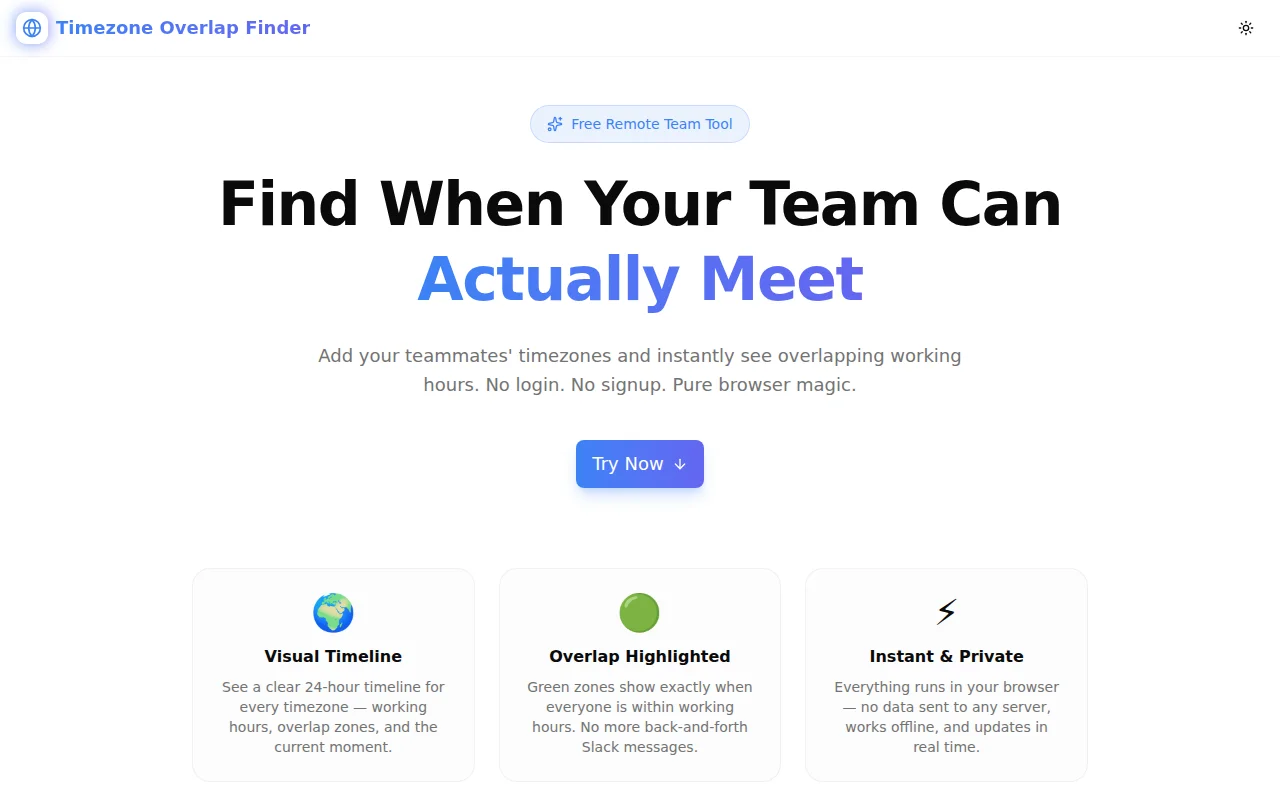
Remote teams waste hours on timezone math. The free Timezone Overlap Finder shows a visual overlap of working hours across all your timezones — find the green zone in seconds.
Timezone Overlap Finder: Find the Best Meeting Time for Remote Teams
Remote work is distributed. Timezones are not.
When your engineering team spans New York, Berlin, and Kolkata, picking a meeting time is not a five-second decision — it is three timezone conversions, a mental intersection calculation, and a "does that work for everyone?" check. Every week. For every meeting.
Timezone Overlap Finder solves this with a single visual: a 24-hour timeline per timezone, working hours in blue, overlap in green. Read the green zone, copy it to clipboard, done.
What Is the Timezone Overlap Finder?
Timezone Overlap Finder is a free browser tool that lets you add multiple timezones, set each person's working hours, and instantly see where those hours overlap. The tool renders a 24-hour visual timeline for every timezone — no math required.
Key features:
- Visual 24-hour timeline for each timezone with colour-coded working hours
- Green overlap band that shows exactly when everyone is available
- Live current-time needle that updates every 30 seconds
- Copy-to-clipboard one-click summary of the meeting window in every local time
- DST-aware — uses the browser's Intl API with full IANA timezone support
- 100% client-side — no login, no data sent anywhere, works offline
How Do You Find Overlapping Working Hours Across Timezones?
The typical approach is manual: look up each timezone's UTC offset, subtract or add, find the intersection. This breaks down with three or more locations, and it fails entirely when Daylight Saving Time shifts.
The Timezone Overlap Finder automates the intersection:
- Add a timezone — search for a city or IANA name (e.g.,
Asia/Tokyo) - Set working hours — adjust the start and end dropdowns (default 9 AM – 5 PM)
- Read the green zone — the overlap band shows exactly when everyone is within working hours
- Copy the result — one button writes the best window to your clipboard
The underlying logic converts each working-hours range to UTC, computes max(starts) – min(ends), and projects the result back into every local timezone. It runs in microseconds in the browser.
Why Do Remote Teams Struggle with Timezone Scheduling?
The Three-Timezone Problem
Two timezones are manageable. Three timezones — especially when they span the Americas, Europe, and Asia-Pacific — often produce no clean overlap within standard working hours. Without a visual tool, teams default to cycling the pain (rotating who takes the early or late slot) without knowing what other options exist.
DST Changes Everything Twice a Year
Daylight Saving Time does not move in sync globally. The US, EU, and Australia shift clocks on different dates. A meeting time that worked in March may shift by an hour in April — in one direction for some attendees, a different direction for others. Manual tracking fails.
World Clocks Show Times, Not Overlaps
A world clock tells you it is 3 PM in Singapore. It does not tell you whether that overlaps with business hours in Amsterdam and São Paulo simultaneously. You still have to reason about all three independently.
What Is the Best Time to Meet Across Common Timezone Combinations?
Here are practical examples the tool calculates instantly:
New York (EST) + London (GMT)
Working hours overlap: 2 PM – 5 PM New York / 7 PM – 10 PM London in winter. In summer (BST), the overlap shifts to 2 PM – 5 PM New York / 7 PM – 10 PM London — same local times but different UTC offsets. The tool adjusts automatically.
New York + London + Kolkata (IST)
IST is UTC+5:30, which falls outside most Western business hours. The tool surfaces the narrow window: 8 AM – 9 AM New York / 1 PM – 2 PM London / 6:30 PM – 7:30 PM Kolkata. Not ideal, but explicit.
San Francisco + Singapore
A 16-hour difference means zero working-hours overlap on a standard 9–5. The tool immediately shows the no-overlap state and prompts you to extend hours — letting one team flex to 7 AM or the other to 7 PM to create a shared window.
New York + São Paulo + Berlin
Three locations often yield a surprisingly clean window: 9 AM – 11 AM New York / 10 AM – 12 PM São Paulo / 3 PM – 5 PM Berlin. Without the visual tool, this takes several minutes to calculate manually.
How Does the Tool Handle Daylight Saving Time?
The tool uses the browser's native Intl.DateTimeFormat API with full IANA timezone database support. DST transitions are applied automatically based on today's date — no manual offset entry, no configuration. When you add Europe/London in March vs. October, the tool uses GMT or BST as appropriate.
Can I Use This for More Than Two Timezones?
Yes. The tool supports up to 10 timezones simultaneously. For large distributed teams, adding more locations progressively narrows the green zone — making it clear when a single global meeting time is impractical and segmented calls are needed instead.
Is the Timezone Overlap Finder Free?
Completely free, with no account required. The tool runs entirely in your browser using JavaScript's built-in Intl API and basic set arithmetic. No server processes your data. No analytics capture your team's locations. Open the URL, get the answer.
Who Uses a Timezone Overlap Tool?
Engineering Teams
Daily standups, sprint planning, architecture reviews — any recurring ceremony that requires multiple timezones benefits from a quick overlap check before the invite goes out.
Product Managers
PMs coordinating across regional offices use the tool to find the standup slot that does not systematically exclude one region.
Freelancers and Contractors
A freelancer serving clients in three continents uses the tool to segment their day: which hours to dedicate to which client's timezone for synchronous work.
Open-Source Maintainers
Maintainers scheduling quarterly video calls with global contributors use the tool to identify the least-bad global time slot.
Event and Webinar Organisers
Picking a live-stream time that works for an audience across North America, Europe, and Asia-Pacific requires the same overlap reasoning — the tool surfaces the window with the widest reach.
How to Share the Meeting Window with Your Team
After the tool shows the green overlap zone, the Copy button writes a plain-text summary to your clipboard:
Best Meeting Window:
New York: 9 AM – 10 AM
London: 2 PM – 3 PM
Kolkata: 7:30 PM – 8:30 PM
Paste it into Slack, email, or a calendar invite description. The local time for each person is included so there is no ambiguity on the receiving end.
Start Finding Your Team's Meeting Window
Open Timezone Overlap Finder — add your timezones, set working hours, and read the green zone. No signup. No install. No arithmetic.
Built as Day N of the 365 Tools Challenge — one free developer tool per day.